Reconcile freight in Dynamics 365 Supply Chain Management
Menu item
ITMOutstandingInvoices
Show what matters for
PAGE GUIDEWhat the page does and how to use it7 sections. Choose a role to highlight what matters to you.
Everyone
1What it is and why
What it is
A report that lists all outstanding (not yet invoiced) costs at the various cost levels of every voyage, as at a chosen date.
What you do here
Use this report to reconcile voyages and their voyage costs against the ledger transactions on a regular basis; once an overhead cost has been invoiced it drops off the report.
Example
For example, run it at month end with Show set to Cost not invoiced to list freight and duty costs that have an estimated value but no actual vendor invoice yet.
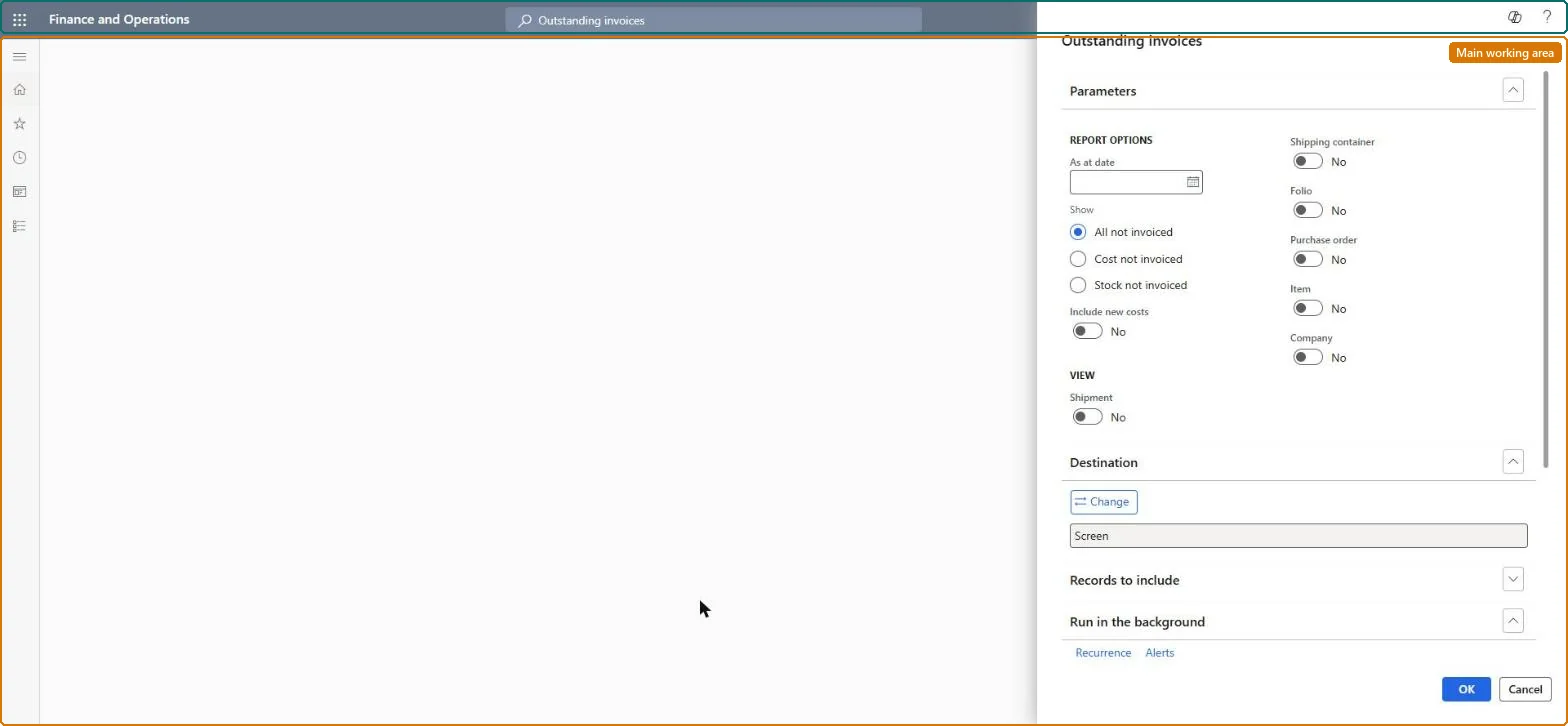
The page in Dynamics 365. page title tab to open what to set or check
About the examples: Examples and screenshots in this guide use BEAT, a demo company in a Dynamics 365 test environment. Use your own company's codes and values instead of copying them.
When to run it
When to run it
At period end, or whenever you reconcile voyages and their voyage costs with the ledger transactions.
How often
On a regular basis, each time you reconcile voyage costs with the ledger.
What the output shows
A list of costs that are not yet invoiced at each cost level of every voyage, as at the chosen date. An overhead cost drops off once it's invoiced, so a cost that's still listed has no invoice recorded for it as at that date.
Go to Landed cost > Reports > Outstanding invoices.
In As at date, enter the cut-off date. Any invoice that was outstanding on or before that date is included.
Under Show, select Cost not invoiced for estimated costs on invoiced shipments with no actual cost, Stock not invoiced for invoiced costs whose purchase order isn't received yet, or All not invoiced for both.
Set Include new costs to Yes to also list costs that have no actual cost and no inventory receipt yet. Leave it at No to see only invoiced costs.
In the View section, turn on each type of detail you want on the report.
Generate the report and reconcile the outstanding amounts with the ledger transactions list for the same date.
The cut-off date; any invoice outstanding on or before it is included.Microsoft Learn
Show
Chooses whether to list costs not invoiced, stock not invoiced, or both.Microsoft Learn
Cost not invoiced
Includes costs on invoiced shipments that have an estimate but no actual cost.Microsoft Learn
Stock not invoiced
Includes costs that are invoiced where the purchase order has not been received yet.Microsoft Learn
Include new costs
Yes also lists costs with no actual cost and no inventory receipt; No lists only invoiced costs.Microsoft Learn
View
Selects which types of detail appear on the report.Microsoft Learn
Destination
The output format of the report, as for other Supply Chain Management reports.Microsoft Learn
Records to include
Standard filter that further limits the records on the report.Microsoft Learn
Solution architect
4Design impact
Can it be undone
Nothing to undo: The report only reads voyage and cost data; it changes nothing. Microsoft Learn
Technical architect
5Technical
Menu item
ITMOutstandingInvoicesChecked in Dynamics 365
Form
SysOperationTemplateFormChecked in Dynamics 365
Roles to set it up and use it
To use itLanded cost manager ITMManagerLanded cost agent ITMAgentGive people one of these roles. On this system, 2 roles can run this page.Checked in Dynamics 365