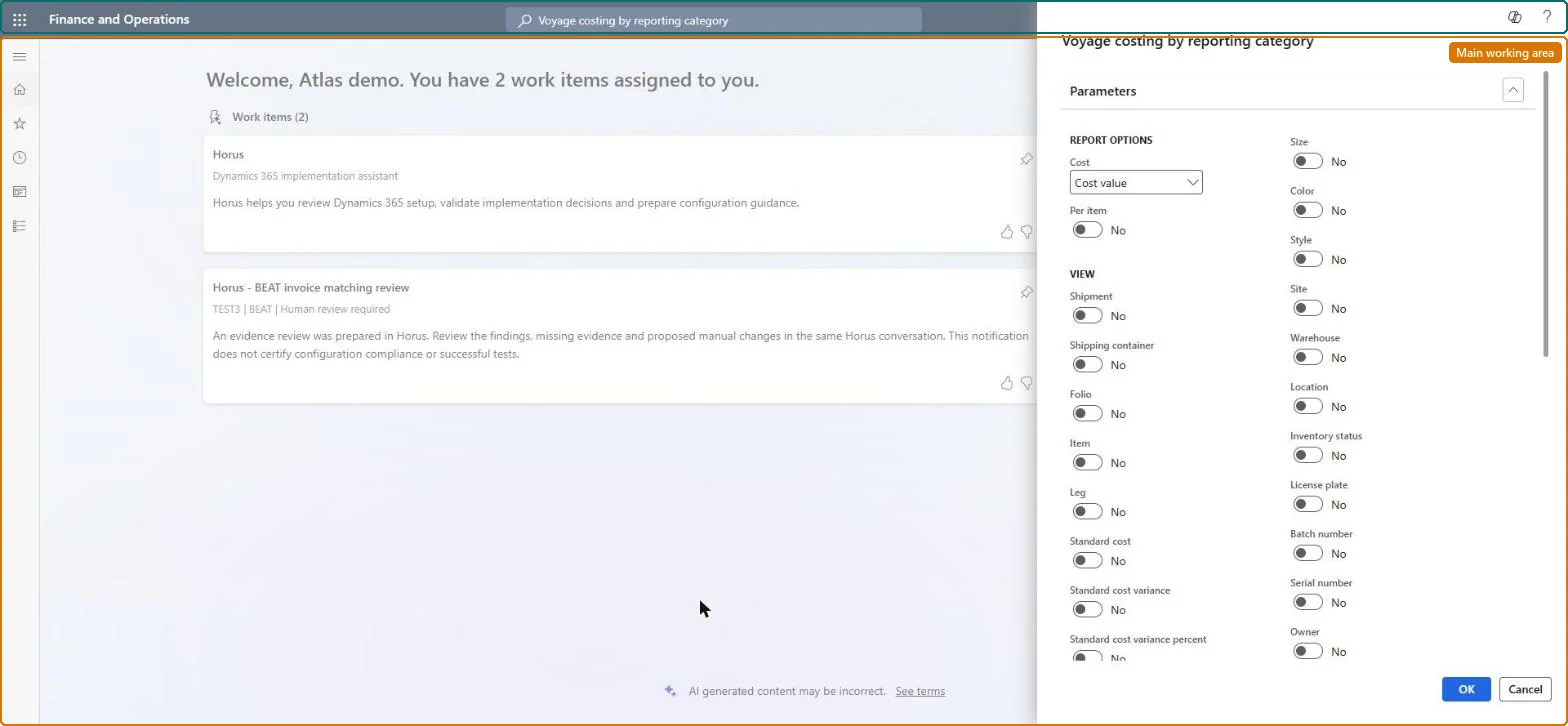
A report that shows the item cost and the import costs of a voyage per folio, shipping container, or voyage, with the import costs grouped into the reporting categories assigned to cost types.
Reconcile freight in Dynamics 365 Supply Chain Management
Show what matters for
PAGE GUIDEWhat the page does and how to use it6 sections. Choose a role to highlight what matters to you.
Everyone
1What it is and why
What it is
A report that shows the item cost and the import costs of a voyage per folio, shipping container, or voyage, with the import costs grouped into the reporting categories assigned to cost types.
What you do here
Use this report to compare the estimated landed cost of a voyage with the actual cost, summarised by reporting category rather than by every individual cost type code.
Example
For example, choose Cost set to Best and Per item set to Yes to see, for each item, the most accurate available cost grouped into categories such as freight and duty.
The page in Dynamics 365. page title tab to open what to set or check
About the examples: Examples and screenshots in this guide use BEAT, a demo company in a Dynamics 365 test environment. Use your own company's codes and values instead of copying them.
When to run it
When to run it
When you report landed cost by reporting category, for example for a management summary of a voyage's estimated versus actual cost.
How often
On demand, per voyage or period, when a summarized cost view is needed.
What the output shows
Item cost and import costs per folio, shipping container or voyage, with import costs grouped into reporting categories and valued by the Cost option you picked. Unexpected totals often come from the Cost option: Estimated and Actual are only set after receipt and invoicing.
Which cost figure to report: the auto or manual cost value, the estimated cost, the actual invoiced cost, or Best (the most accurate of the three).Microsoft Learn
Cost value
The cost as calculated by auto costs or entered manually in the cost area.Microsoft Learn
Estimated
The estimated cost, which is set after the goods are received.Microsoft Learn
Actual
The cost from the invoice, set after the order is invoiced.Microsoft Learn
Per item
Yes shows the cost of each item; No shows costs per voyage.Microsoft Learn