Plan inbound transportation loads in Dynamics 365 Supply Chain Management
Show what matters for
PAGE GUIDEWhat the page does and how to use it6 sections. Choose a role to highlight what matters to you.
Everyone
1What it is and why
What it is
A report that compares estimated and actual times for the activities in voyage journeys, grouped by activity.
What you do here
Use this report to review how accurate your lead-time estimates are for each activity, such as sailing or customs clearance, across the voyages you have tracked.
Example
For example, compare the estimated days with the actual days recorded for the Clearance activity to see whether the customs lead time in your journey templates needs adjusting.
The page in Dynamics 365. page title tab to open what to set or check
About the examples: Examples and screenshots in this guide use BEAT, a demo company in a Dynamics 365 test environment. Use your own company's codes and values instead of copying them.
When to run it
When to run it
After voyages have finished their journey legs and the actual dates are recorded, when you review how accurate your lead-time estimates are per activity.
How often
On demand, for example when you review journey lead times after a group of voyages has arrived.
What the output shows
Estimated and actual times for each activity in the voyage journeys, grouped by activity. A large gap for one activity across many voyages points to an estimate that needs review; a gap on a single voyage usually means its actual date wasn't recorded correctly.
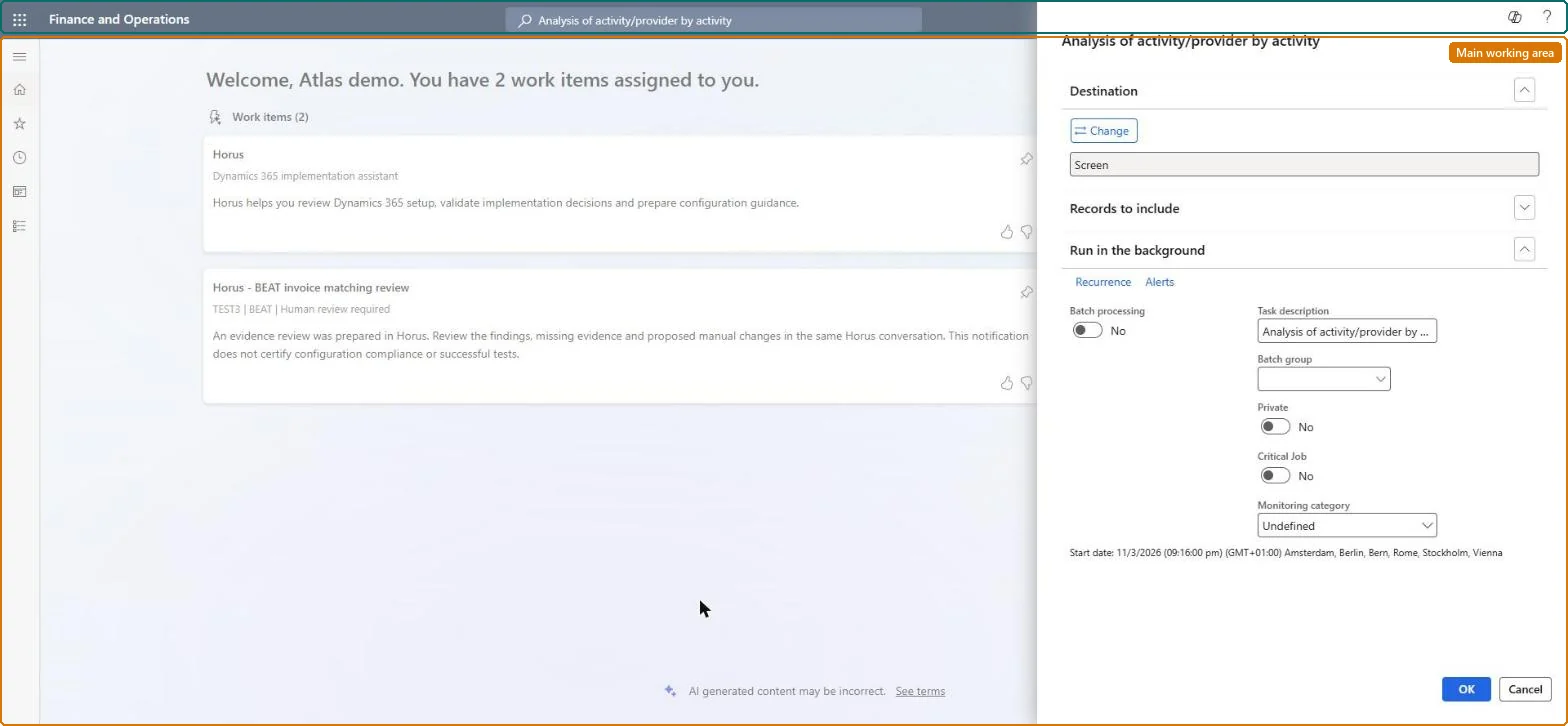
Go to Landed cost > Reports > Analysis of activity/provider by activity.
Use this version when you want the estimated and actual times grouped by activity, such as sailing or customs clearance. For one group per service provider, run Analysis of activity/provider by provider instead.
Before you run it, make sure the actual end dates are filled in on the container activities of the voyages, because the report compares them with the estimates.
On Records to include, limit the report to the voyages or activities you want to compare, then select OK.
Look for activities whose actual times regularly differ from the estimate, and review the time estimates you use for those activities.