About the examples: Examples and screenshots in this guide use BEAT, a demo company in a Dynamics 365 test environment. Use your own company's codes and values instead of copying them.
Step by step, with screenshots
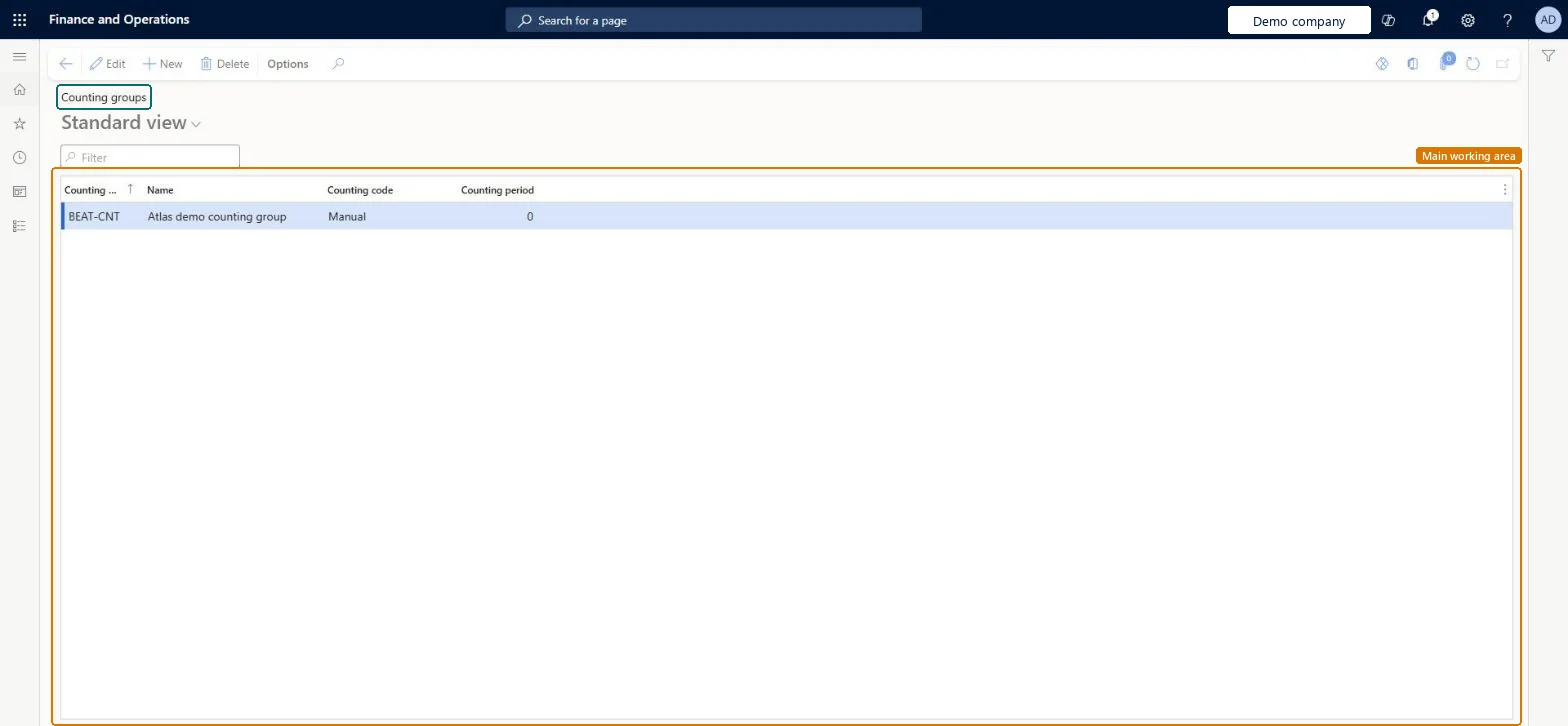
Set up Counting groups1 screen
Use this page to decide when lines for items in the group are added to counting journals: manually, by period, at zero stock or at a minimum level.
Screen 1
Create a counting group
Go to Inventory management > Setup > Inventory > Counting groups
Select New
Enter the counting group code and name
Choose the counting code: Manual, Period, Zero during, Minimum or Registration
For Period, enter the counting period in days
Select Save
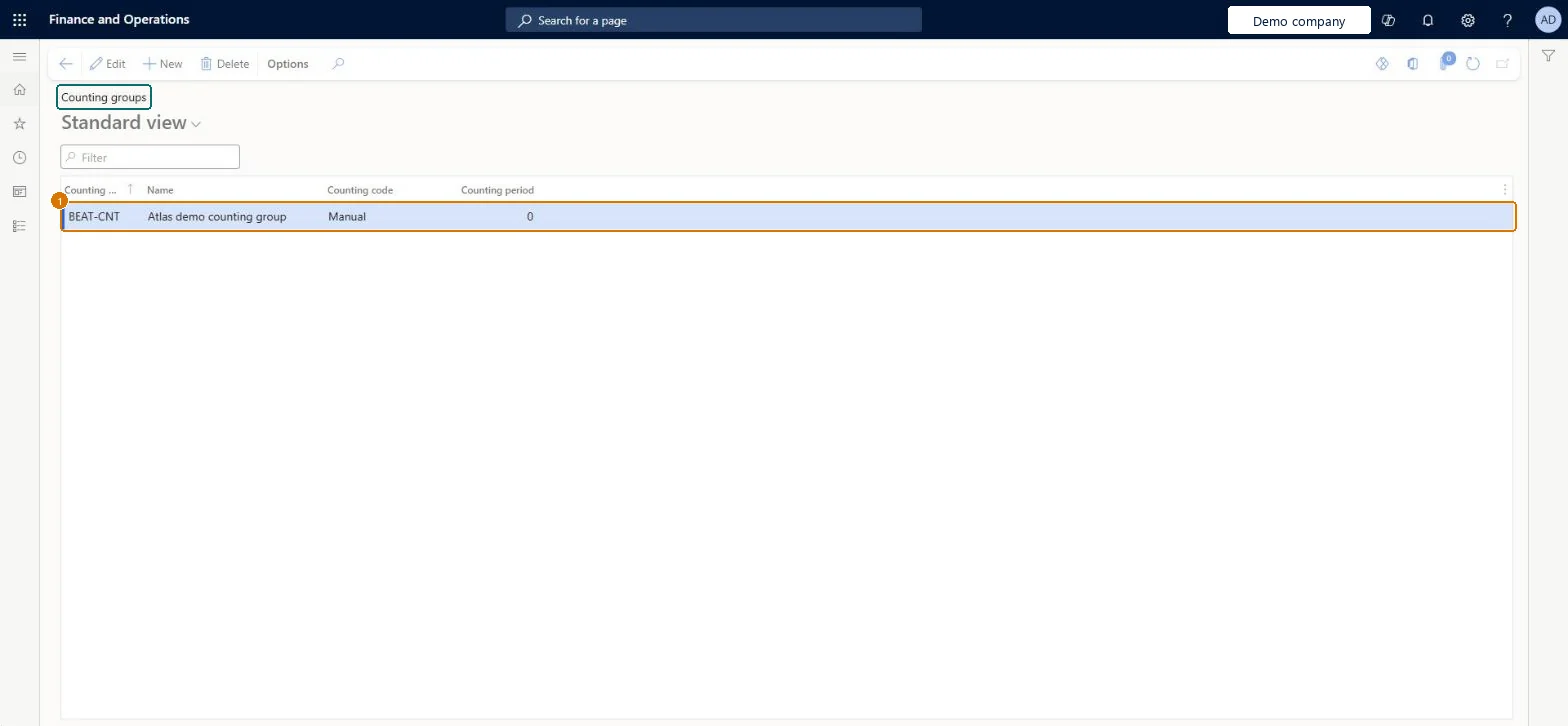
1Counting group
BEAT-CNT
Name
Counting group
Counting code
Manual
Counting period
0
Show the full screen page title tab to open what to set or check
Steps from Microsoft
Go to Inventory management > Setup > Inventory > Counting groups.
Select New.
Enter the Counting group and a Name.
In the Counting code field, select Manual, Period, Zero in stock or Minimum.
If you selected Period, enter the interval in days in the Counting period field.
Running the counting job every day for a Period group and expecting lines every day: lines are added only once the Counting period (days) has passed since the last generation.
Reversible: Counting groups only drive which lines are proposed when you create counting journal lines; change the code or period, or the item's counting group, at any time. Microsoft Learn
Technical architect
6Technical
Menu item
InventCountGroupChecked in Dynamics 365
Form
InventCountGroupChecked in Dynamics 365
Table
InventCountGroupShown as “Counting groups” in Record infoKey field: CountGroupIdChecked in Dynamics 365
PrivilegesMaintain counting groups InventCountGroupMaintainView counting groups InventCountGroupViewDutiesInquire into warehouse operation policies WMSWarehouseOperationPoliciesInquireEnable warehouse operation process WMSWarehouseOperationProcessEnable3 security rolesMaterials manager InventMaterialsManagerWarehouse planner WHSWarehousePlannerWarehouse manager WMSWarehouseManagerChecked in Dynamics 365
Roles to set it up and use it
To set it up or change itWarehouse manager WMSWarehouseManagerTo use itMaterials manager InventMaterialsManagerWarehouse planner WHSWarehousePlannerGive people one of these roles. On this system, 3 roles can open this page.Checked in Dynamics 365
Actions on the page
Options: Personalize, Page options, ShareChecked in Dynamics 365
InventInventoryCountingGroupEntity (Counting groups): loaded for each company, in Microsoft's default template 300 - Inventory.Load order: Microsoft's default template 300 - Inventory loads Counting groups at execution unit 1, level 30, sequence 10. Lower levels load first, and entities at the same level load in sequence order.Load first: the default templates at lower levels (System setup to General ledger)Microsoft Learn
Checked in a working Dynamics 365 system, version 10.0.49: the menu item, form, table and security, the page, the demo records and the values in the screenshots.