About the examples: Examples and screenshots in this guide use BEAT, a demo company in a Dynamics 365 test environment. Use your own company's codes and values instead of copying them.
When to run it
When to run it
After Schedule workload has linked the workload capacity setup to a master plan, when you plan the warehouse workforce.
How often
On demand, after the master planning runs that feed the projection.
What the output shows
Projected incoming and outgoing workload per warehouse against the volume or weight limits in the setup, shown as one combined figure when Combined inbound and outbound workload is selected. Figures that look too low often mean products without volume or weight.
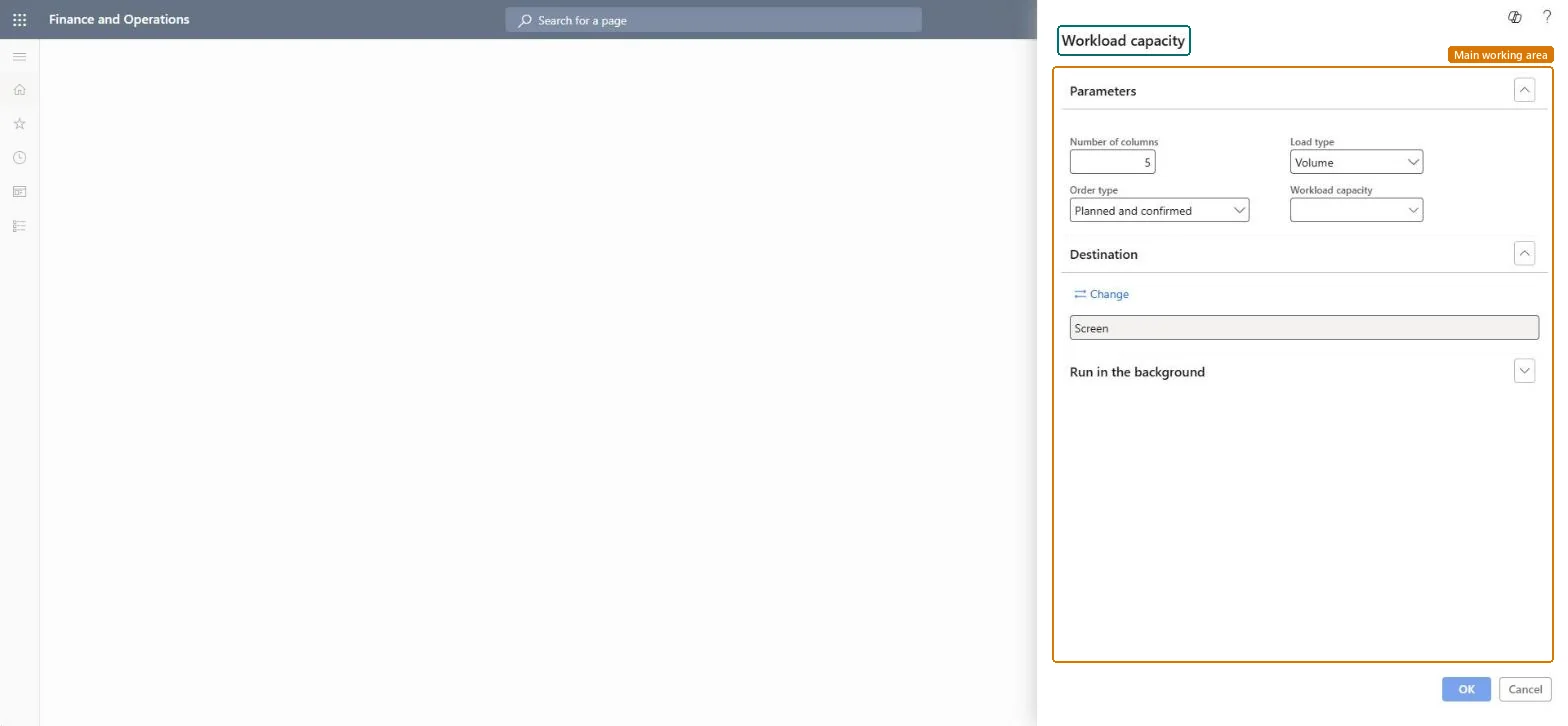
Go to Inventory management > Inquiries and reports > Physical inventory reports > Workload capacity.
In Number of columns, enter how many columns the report shows.
In Order type, select Planned and confirmed, Planned or Confirmed to choose which orders feed the projection.
In Load type, select volume or weight, and in Workload capacity, select the workload capacity setup to project.
Run the report. If it shows a message about missing volume or weight, drill down to find the products whose released product details lack those values.
Nothing to undo: The workload report only reads projection data; it changes nothing. Microsoft Learn
If you change it later
Volume and weight must be set for every product; if they are missing, the report shows a message and you can drill down to find what is missing. Microsoft Learn
Technical architect
5Technical
Menu item
output:WMSWorkloadWebpartChecked in Dynamics 365
Form
SysOperationTemplateFormChecked in Dynamics 365
Roles to set it up and use it
To use itQuality control manager InventQualityControlManagerWarehouse manager WMSWarehouseManagerMaterials manager InventMaterialsManagerQuality control clerk InventQualityControlClerkProduction supervisor ProdProductionSupervisorGive people one of these roles. On this system, 29 roles can run this page.Checked in Dynamics 365