PAGE GUIDEWhat the page does and how to use it8 sections. Choose a role to highlight what matters to you.
Everyone
1What it is and why
What it is
A report for the EEO-1 filing that private-sector employers send to the US Equal Employment Opportunity Commission.
What you do here
Use this page to produce EEO-1 data for workers with active employment on a given date at a regulatory establishment.
Example
For example, for its 2025 EEO-1 filing BEAT's US establishment BEAT-NJ has 48 employees; HR checks Gender on every worker, finds 2 left blank, corrects them, and then runs the EEO-1 report for the reporting period with the EEO-1 format mapping.
The page in Dynamics 365. page title tab to open what to set or check
About the examples: Examples and screenshots in this guide use BEAT, a demo company in a Dynamics 365 test environment. Use your own company's codes and values instead of copying them.
Setup steps on this page
File the EEO-1 report (US)
Produce the EEO-1 data for each US establishment from complete worker records.
Steps from Microsoft
Go to Human resources > Workers > Inquiries and reports > EEO-1 report.
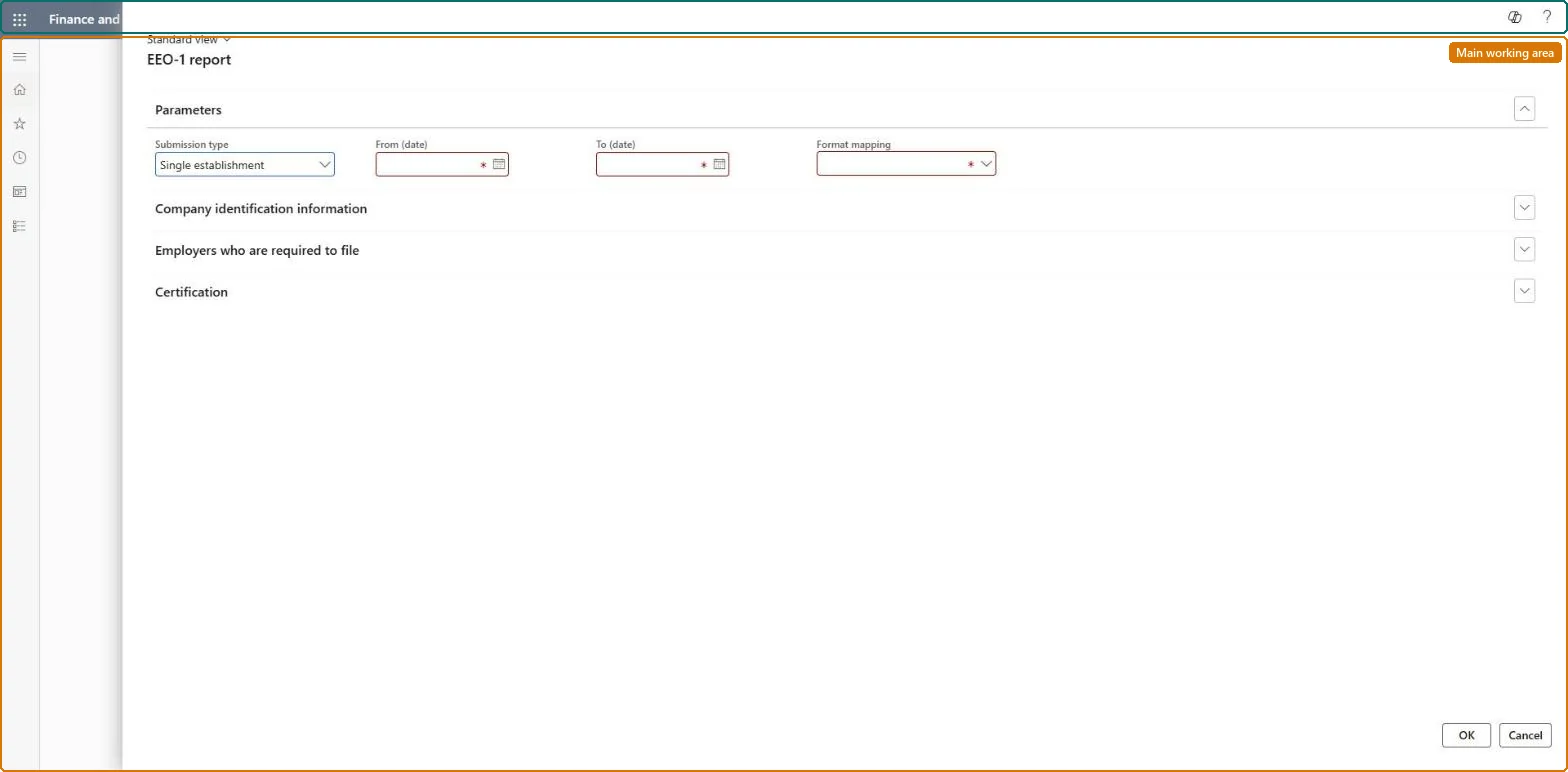
Under Parameters, select the Submission type, enter the required From (date) and To (date), and select a Format mapping.
Expand the Company identification information, Employers who are required to file and Certification FastTabs to complete them.
The kind of EEO-1 submission the report is produced for.Checked in Dynamics 365
Regular submission
From
The first date of the reporting period.Checked in Dynamics 365
1 October 2025
To
The last date of the reporting period.Checked in Dynamics 365
31 December 2025
Format mapping
The report format the EEO-1 output is produced with.Checked in Dynamics 365
EEO-1
Common errors and fixes
Message
What to do
Female counts are higher than expected
Before fix 589073 (September 2021), workers whose Gender wasn't Male were counted as Female. Record Gender on every worker before you run the report. Microsoft Learn
A worker is counted under the wrong ethnic group
The count uses the Ethnic origin on the worker. Correct it on the worker record and run the report again. Microsoft Learn
Test checklist
Give one worker of the establishment Gender Male and one Female.
Run the EEO-1 report for the establishment and period.
Check the totals by gender match the workers you counted.
Before each EEO-1 filing, record Gender and Ethnic origin on every worker of the establishment, then run the report once per establishment for the filing period.The counts come straight from the worker records: a blank or Non specific Gender was counted as Female before fix 589073, so gaps distort the filed numbers.
US legal entities only: HR staff who file the EEO-1 report with the US Equal Employment Opportunity Commission. No Feature management feature is needed for this page.
Shared setup, US only: Data management lists Regulatory establishments, Regulatory establishment details, Ethnic origins, Veteran status and Worker as shared; the report is run per regulatory establishment. Checked in Dynamics 365
Can it be undone
Nothing to undo: Running the report reads worker data and changes nothing; corrections are made on the worker records and the report is run again. Microsoft Learn
If you change it later
The Gender value on worker records affects EEO-1 counts: any value other than Male was counted as Female, per a 2021 fix note. Microsoft Learn
Technical architect
6Technical
Menu item
HcmEeoReportGenerationChecked in Dynamics 365
Form
HcmEeoReportGenerationChecked in Dynamics 365
Roles to set it up and use it
To set it up or change itHuman resource assistant HcmHumanResourceAssistantHuman resource manager HcmHumanResourceManagerGive people one of these roles. On this system, 2 roles can open this page.Checked in Dynamics 365
Load order: The EEO-1 report has no data entity in Data management, so it can't be loaded from a file or a configuration template. It reads workers, their EEO values and the regulatory establishments; load those with the Worker data migration and Personnel management setup templates and run the report in each environment.Microsoft Learn