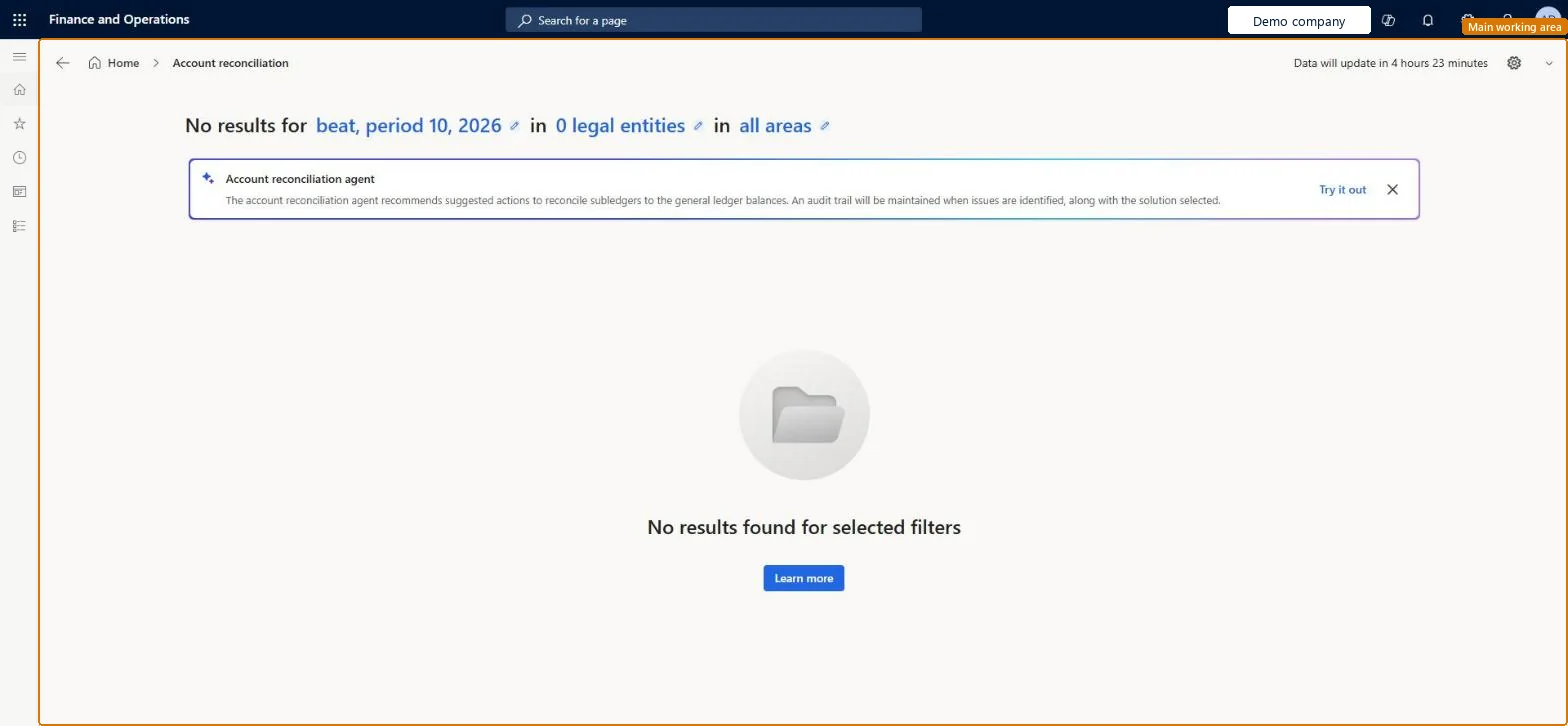
A workspace in Dynamics 365 Finance that reconciles the general ledger with the accounts payable, accounts receivable, tax, and bank subledgers and shows the exceptions it finds.
PAGE GUIDEWhat the page does and how to use it7 sections. Choose a role to highlight what matters to you.
Everyone
1What it is and why
What it is
A workspace in Dynamics 365 Finance that reconciles the general ledger with the accounts payable, accounts receivable, tax, and bank subledgers and shows the exceptions it finds.
What you do here
Use this workspace to review open and addressed exceptions and automatically reconciled transactions for each module and legal entity, and to act on each exception, with optional suggestions from the Copilot agent.
Example
Accept an exception without change when the difference is a small amount or a rounding difference.
The page in Dynamics 365. page title tab to open what to set or check
About the examples: Examples and screenshots in this guide use BEAT, a demo company in a Dynamics 365 test environment. Use your own company's codes and values instead of copying them.
Steps from Microsoft
Go to General ledger > Workspaces > Account reconciliation.
Use the filters at the top of the workspace to choose the period, for example the current or previous fiscal period.
On the Open exceptions tile, select Mitigate exceptions.
Select an exception and review its suggested action, analysis and justification.
Choose an action, such as Create journal entry, Match exceptions or Accept without change.
To change how an exception was handled, select Undo, enter a reason, and then select OK.
Background and insight about the exception, drawn from the underlying data.Microsoft Learn
Justification
Explains why the suggested action was recommended.Microsoft Learn
Group exceptions
Switches the list from one exception at a time to groups of exceptions that can be handled together.Microsoft Learn
Reconciliation option
Turns reconciliation on or off for each module on the configuration page.Microsoft Learn
Start date
The date from which transactions are checked by the automatic reconciliation.Microsoft Learn
Solution architect
4Design impact
If you change it later
Changing how exceptions are grouped creates a custom grouping, and the agent summary is no longer shown until you reset to the suggested grouping. Microsoft Learn
Technical architect
5Technical
Menu item
ReconciliationAutomationWorkspaceOverviewPageChecked in Dynamics 365
Form
ReconciliationAutomationWorkspaceOverviewPageChecked in Dynamics 365
Roles to set it up and use it
To set it up or change itAccountant LedgerAccountantGive people one of these roles. On this system, 1 role can open this page.Checked in Dynamics 365