PAGE GUIDEWhat the page does and how to use it8 sections. Choose a role to highlight what matters to you.
Everyone
1What it is and why
What it is
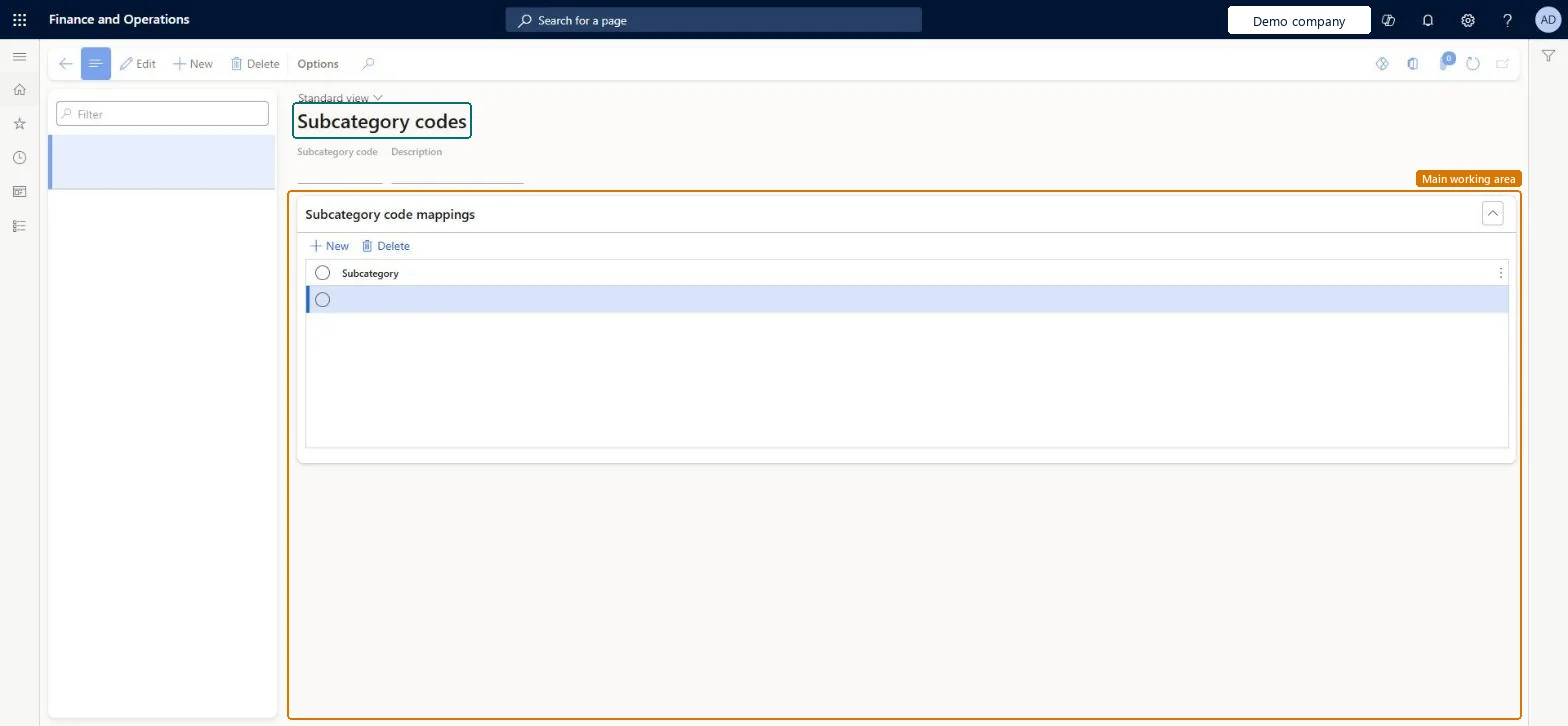
A setup page where you define subcategory codes, each with a description and a list of the expense subcategories it maps to.
What you do here
Use this page to create subcategory codes and map each code to one or more expense subcategories, the parts an itemized expense is split into, such as room rate, tax and parking on a hotel folio.
Example
For example, a code for hotel folios is mapped to the subcategories Room rate, Tax and Parking of the Hotel expense category.
The page in Dynamics 365. page title tab to open what to set or check
About the examples: Examples and screenshots in this guide use BEAT, a demo company in a Dynamics 365 test environment. Use your own company's codes and values instead of copying them.
Step by step, with screenshots
Set up Subcategory codes1 screen
Map subcategory codes to expense subcategories.
Screen 1
Create a subcategory code
Go to Expense management > Setup > Calculations and codes > Subcategory codes
Select New
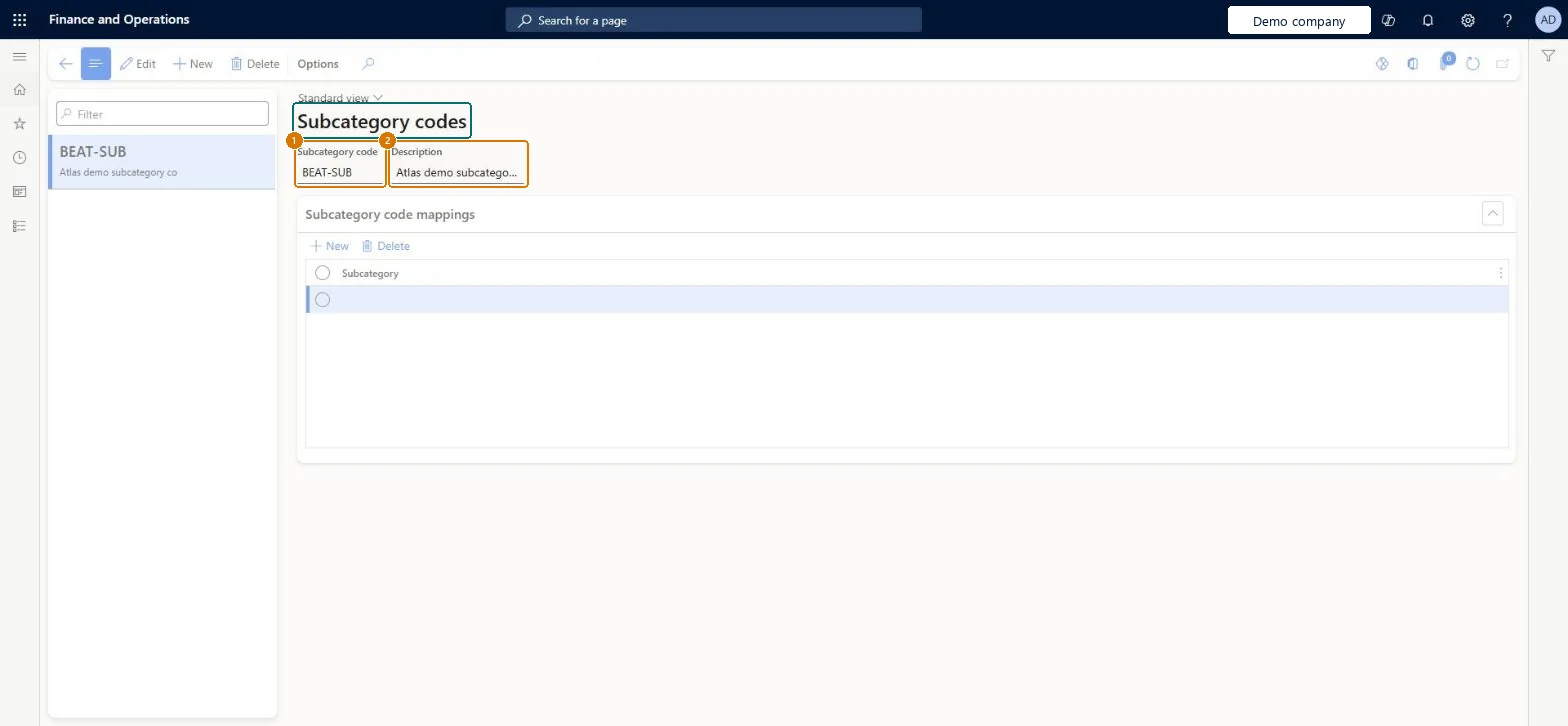
Enter the subcategory code and a description
Under Subcategory code mappings, select the expense subcategory the code maps to
Select Save
1Subcategory code
BEAT-SUB
2Description
Subcategory code
Show the full screen page title tab to open what to set or check
Steps from Microsoft
Go to Expense management > Setup > Calculations and codes > Subcategory codes.
Select New and enter the subcategory code and a description.
In the mappings, add the subcategories the code covers.
Map each code to the expense subcategories it stands for, and keep the codes in line with the subcategories set on the expense categories.Subcategories are the parts an expense is itemized into and can carry their own tax handling, so a code mapped to the wrong subcategory puts that part of the cost in the wrong place.
Ability to itemize recurring expenses quickly (Optional)
Licence or add-in
In this system Employee and Contractor enter their own expenses, and Expense administrator sets up the module and processes documents. The expense mobile app needs the Employee role, a company on the user account and a link to an employee with active employment. The expense administrator maintains subcategory codes.
Reversible: Codes and mappings can be changed; expenses already itemized keep their subcategories. Microsoft Learn
If you change it later
Subcategories, set on the expense category, decide how an itemized expense is split, whether a part is excluded from tax recovery, and which item sales tax group it uses. Microsoft Learn
Technical architect
6Technical
Menu item
TrvPBSSubCategoryCodesChecked in Dynamics 365
Form
TrvPBSSubCategoryCodesChecked in Dynamics 365
Table
TrvPBSSubCategoryCodesShown as “Subcategory codes” in Record infoChecked in Dynamics 365
Data entities
TrvExpenseSubCategoryEntityExpense subcategory (the expense subcategories (table TrvExpSubCategory) that the codes map to, not the codes themselves) Microsoft data model
Roles to set it up and use it
To set it up or change itExpense administrator ExpenseAdministratorGive people one of these roles. On this system, 1 role can open this page.Checked in Dynamics 365
Actions on the page
Options: Personalize, Page options, ShareChecked in Dynamics 365
Load order: A subcategory code has no data entity in Data management, so it can't be loaded from a file or a configuration template. Enter the codes by hand in each environment; load the subcategories themselves with the Expense subcategory and Shared expense subcategory entities (template 600 - Expense).Microsoft Learn
Checked in a working Dynamics 365 system, version 10.0.49: the menu item, form, table and security, the page, the demo records and the values in the screenshots.