PAGE GUIDEWhat the page does and how to use it8 sections. Choose a role to highlight what matters to you.
Everyone
1What it is and why
What it is
A setup page where you maintain the severity levels that indicate how much impact an engineering change has on the products in a change order.
What you do here
Use this page to add, edit, remove and order the severity values selected (or calculated by severity rule sets) on change requests and change orders; each level can then have its own rules in a severity rule set.
Example
For example, you can set up different approval workflows based on the severity of the change.
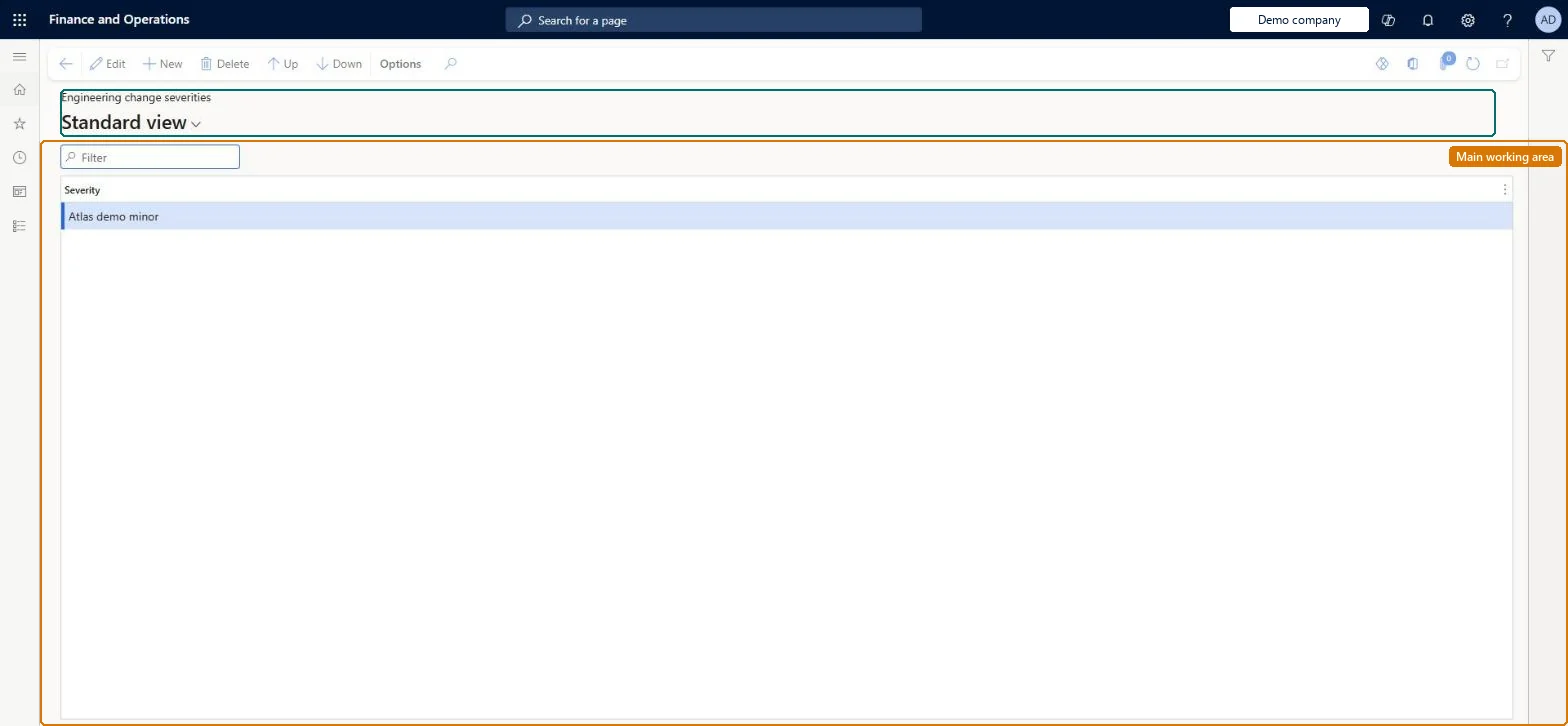
The page in Dynamics 365. page title tab to open what to set or check
About the examples: Examples and screenshots in this guide use BEAT, a demo company in a Dynamics 365 test environment. Use your own company's codes and values instead of copying them.
Setup steps on this page
Set up Engineering change severities
Use this page to add, edit, remove and order the severity values selected (or calculated by severity rule sets) on change requests and change orders; each level can then have its own rules in a severity rule set.
Steps from Microsoft
Go to Engineering change management > Setup > Engineering change management > Engineering change severities.
Select New on the Action Pane to add a value.
Enter the value and its description.
Use Edit or Delete on the Action Pane to change or remove a value.
Use the Action Pane buttons to arrange the values in the order they should appear in drop-down lists.
One severity per level of impact that will get its own rule set, so severity can be calculated rather than typedLearn says severities show the impact on the products in a change order and that rules can be set up per severity level in the severity rule sets.
Solution architect
5Design impact
Can it be undone
Reversible: Values can be added, edited, removed and reordered at any time. Check severity rule sets and workflows that use a severity before removing it. Microsoft Learn
If you change it later
The order of the values on this page is the order they appear in the drop-down lists on change requests and change orders. Microsoft Learn
Technical architect
6Technical
Menu item
EngChgEcmSeverityTableChecked in Dynamics 365
Form
EngChgEcmSeverityTableChecked in Dynamics 365
Table
EngChgEcmSeverityTableShown as “ENGINEERING CHANGE SEVERITIES” in Record infoKey field: NameChecked in Dynamics 365
Data entities
EngChgEngineeringChangeSeverityEntityEngineering change severities Checked in Dynamics 365
Who can open it
PrivilegesMaintain engineering change severities EngChgEcmSeverityMaintainView engineering change severities EngChgEcmSeverityViewDutiesInquire into engineering change management reference data EngChgEngineeringChangeManagementReferenceDataInquireMaintain engineering change master EngChgEngineeringChangeMasterMaintain2 security rolesProduct engineer EngChgProductEngineerProduct engineering manager EngChgProductEngineeringManagerChecked in Dynamics 365
Roles to set it up and use it
To set it up or change itProduct engineering manager EngChgProductEngineeringManagerTo use itProduct engineer EngChgProductEngineerGive people one of these roles. On this system, 2 roles can open this page.Checked in Dynamics 365
Actions on the page
(Action Pane without tabs): Up, DownChecked in Dynamics 365