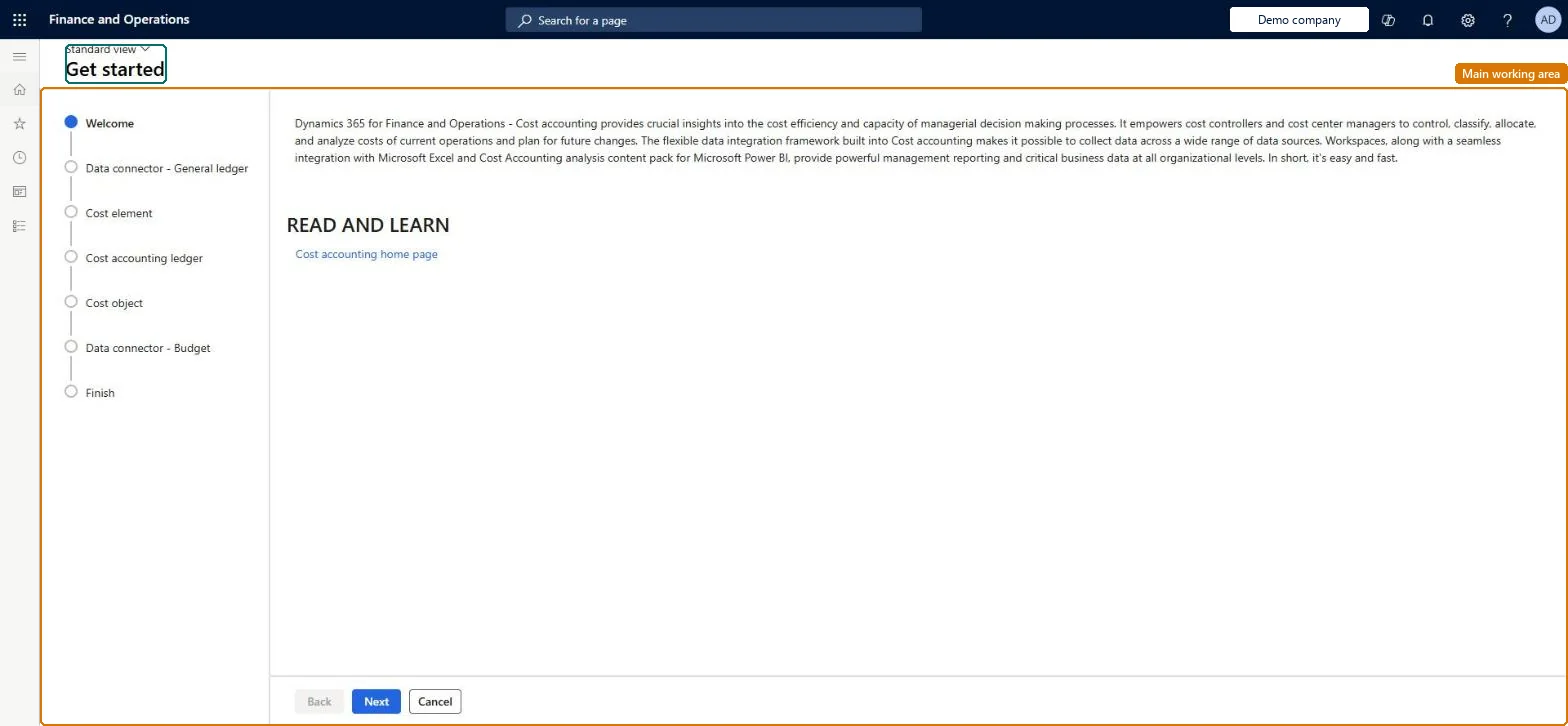
A setup wizard that creates the first cost accounting ledger, a cost element dimension, a cost object dimension, and general ledger and budget data connectors for one legal entity.
Define cost accounting policies in Dynamics 365 Finance
Menu item
CAMAXCostAccountingSetupWizard
Main table
CAMAXDataTmpCostAccountingSetupWizardParameters
Setup steps
1 on this page
Show what matters for
PAGE GUIDEWhat the page does and how to use it8 sections. Choose a role to highlight what matters to you.
Everyone
1What it is and why
What it is
A setup wizard that creates the first cost accounting ledger, a cost element dimension, a cost object dimension, and general ledger and budget data connectors for one legal entity.
What you do here
Use this page to set up cost accounting for a legal entity in one pass: choose the legal entity, the main account types to turn into cost elements, the ledger's fiscal calendar, exchange rate type and accounting currency, the financial dimension that becomes the cost object, and optionally a budget data connector.
Example
For example, a CFO runs the wizard for one company to get a Cost control report that compares actual expenses to budget by department.
The page in Dynamics 365. page title tab to open what to set or check
About the examples: Examples and screenshots in this guide use BEAT, a demo company in a Dynamics 365 test environment. Use your own company's codes and values instead of copying them.
Setup steps on this page
Run the Get started wizard
Create the first cost element dimension, cost accounting ledger, cost object dimension and data connectors for one legal entity.
Steps from Microsoft
Go to Cost accounting > Setup > Get started.
On the Welcome page, select Next.
In the Legal entity field, select the legal entity to import data from, then select Next.
Review the main account types that will become cost elements (select New to add types), then select Next.
Review or change the fiscal calendar, exchange rate type and accounting currency for the cost accounting ledger, then select Next.
Select the Dimension name of the financial dimension to use as the cost object, then select Next.
Leave Create budget data connector set to Yes and select New to add a budget model with its Budget type and Budget entry type, or set it to No; then select Next.
Select Finish and wait for the batch job to complete.
The company whose data is imported into cost accounting; the wizard handles one legal entity per run.Microsoft Learn
BEAT
Main account type
The main account types from the legal entity's chart of accounts that are converted to cost elements; Profit and loss, Expense and Revenue are selected by default.Microsoft Learn
Profit and loss, Expense, Revenue
Fiscal calendar
The calendar for the new cost accounting ledger; defaults from the legal entity but can be changed.Microsoft Learn
Exchange rate type
The exchange rate type used to convert each legal entity's currency into the ledger's accounting currency.Microsoft Learn
Default
Accounting currency
The currency in which the cost accounting ledger records amounts.Microsoft Learn
USD
Dimension name (cost object)
The financial dimension whose values become the cost objects; the wizard allows only one.Microsoft Learn
CostCenter
Create budget data connector
Yes creates a connector that imports posted budget data; set to No if budget data is not needed or not ready.Microsoft Learn
Yes
Budget model / Budget type / Budget entry type
For each budget model to import you choose the budget type and entry type; the same model can be added more than once with different values.Microsoft Learn
Common errors and fixes
Message
What to do
A number sequence has not been set up for the reference Journal
Go to Cost accounting > Setup > Parameters > Number sequences and set a number sequence for the Journal reference, then run the processing again. Checked in Dynamics 365
Budget entries are missing after the import
Only posted budget data is transferred. Post the budget register entries, check the budget model, Budget type and Budget entry type on the data connector, and import again. Microsoft Learn
Only one cost object dimension was created
The wizard handles one legal entity and one cost object dimension per run. Create more cost object dimensions on the Cost object dimensions page, or run the wizard again for another legal entity. Microsoft Learn
Test checklist
Run Cost accounting > Setup > Get started for one legal entity and keep the default main account types Profit and loss, Expense and Revenue.
Pick the financial dimension for the cost object (for example cost center) and select Finish.
Wait for the batch job to finish and check that the Congratulations message appears.
Open Cost accounting ledgers and check that a ledger exists with the fiscal calendar, accounting currency and exchange rate type you chose.
Open the Cost element dimensions and Cost object dimensions pages and check that the main accounts and the chosen dimension values were imported as members.
Run the wizard once per legal entity with the defaults (main account types Profit and loss, Expense and Revenue; the company's fiscal calendar and currency), choose the financial dimension managers are measured on, such as CostCenter, and add the budget connector only when posted budgets exist.The wizard sets up a working ledger in one pass and creates the data connectors, so data can be imported straight away. It creates one cost element and one cost object dimension; more are added on the Dimensions pages.
Cost accounting has four roles: Cost accounting manager (Activity licence), Cost accountant and Cost accountant clerk (Operations licence), and Cost object controller (Team members licence). Users who run the wizard need the Cost accountant role. No Feature management feature needs to be turned on for this page.
Shared: Cost accounting setup isn't kept per legal entity. It is the same from every company, and one cost accounting ledger can collect data from several legal entities. Checked in Dynamics 365
Can it be undone
Reversible: Each run of the wizard covers one legal entity, and you can run it again for another legal entity. If you skipped the budget step, set Create budget data connector to No and add budget data connectors later at any time. The wizard creates only one cost object dimension; create the others outside the wizard. Microsoft Learn
If you change it later
Each run of the wizard sets up one legal entity; running it again for another legal entity adds that entity's data, and the single cost object and cost element the wizard creates must be extended on the Dimensions pages. Microsoft Learn
Technical architect
6Technical
Menu item
CAMAXCostAccountingSetupWizardChecked in Dynamics 365
Form
CAMAXCostAccountingSetupWizardChecked in Dynamics 365
Table
CAMAXDataTmpCostAccountingSetupWizardParametersChecked in Dynamics 365
Who can open it
1 security role. Select a role to see its duties and privileges.
RoleCost accountantCAMCostAccountant
DutyRun the cost accounting Get Started wizardCAMAXCostAccountingSetupWizardMaintain
PrivilegeRun the cost accounting Get Started wizardCAMAXCostAccountingSetupWizardMaintain
Checked in Dynamics 365
Roles to set it up and use it
To set it up or change itRun the cost accounting Get Started wizard CAMAXCostAccountingSetupWizardMaintainOnly the Cost accountant role holds this duty on this system.Checked in Dynamics 365
Load order: The wizard has no data entity in Data management, so it can't be loaded from a file or a configuration template. Run it in each environment, or set up the cost element dimension, cost object dimension, ledger and data connectors on their own pages.Microsoft Learn