Auditor, Chief financial officer, Inventory accountant and 9 more roles
Business process
Consolidate and eliminate financials
Menu item
LedgerEliminationRule
Main table
LedgerEliminationRule
Data entity
LedgerEliminationRuleEntity
Setup steps
1 on this page
Show what matters for
PAGE GUIDEWhat the page does and how to use it8 sections. Choose a role to highlight what matters to you.
Everyone
1What it is and why
What it is
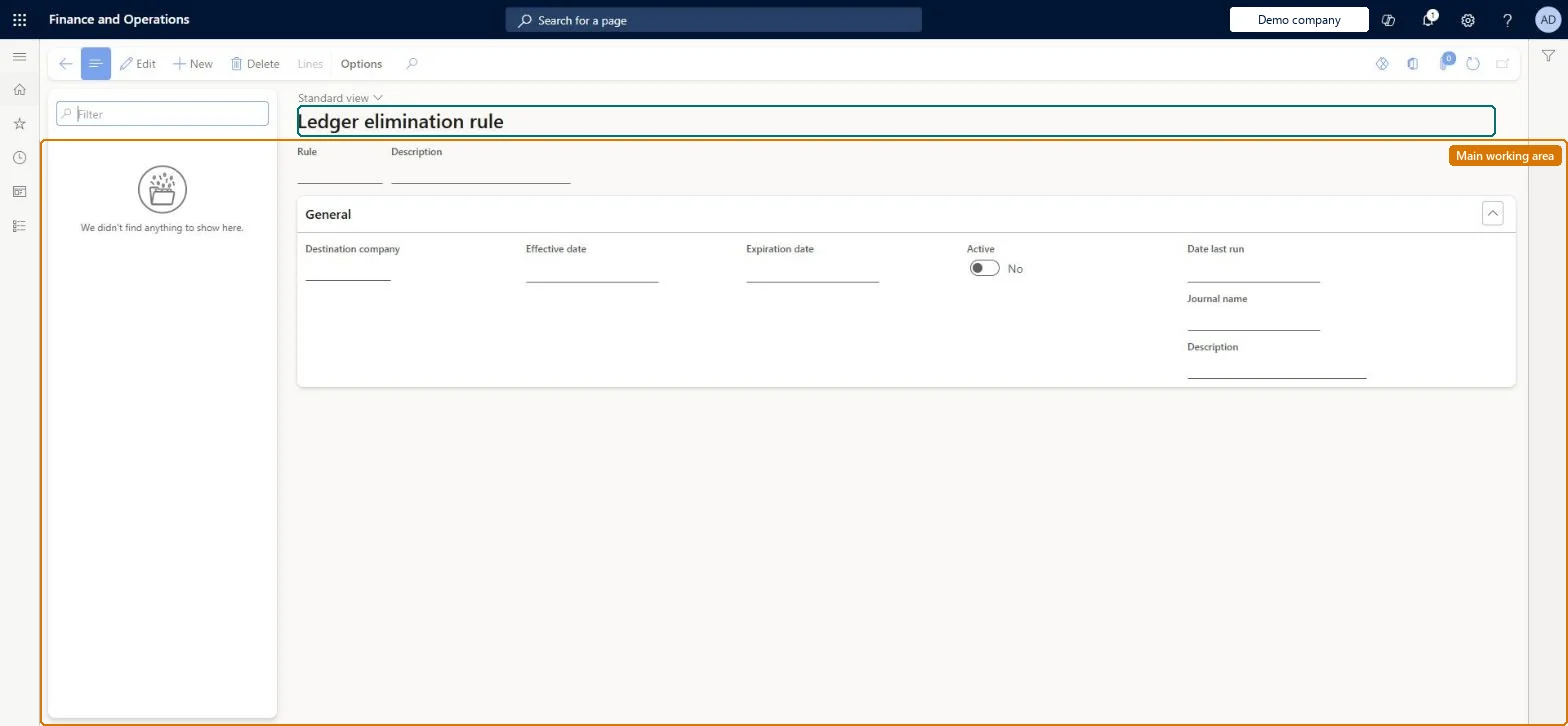
A setup page where you define elimination rules that create elimination transactions in the destination (elimination) legal entity.
What you do here
Use this page to set, for each rule, the destination company, effective dates, active status and elimination journal name, and then the lines that pick source accounts and dimensions and the destination account and dimensions.
Example
For example, BEAT creates rule IC-SALES that posts to its elimination company with journal name ELIM, eliminating the net change of accounts 4* for Trading Partner values of the group companies.
The page in Dynamics 365. page title tab to open what to set or check
About the examples: Examples and screenshots in this guide use BEAT, a demo company in a Dynamics 365 test environment. Use your own company's codes and values instead of copying them.
Setup steps on this page
Set up Elimination rule
Use this page to set, for each rule, the destination company, effective dates, active status and elimination journal name, and then the lines that pick source accounts and dimensions and the destination account and dimensions.
Steps from Microsoft
Go to Consolidations > Setup > Elimination rule.
Create a rule and enter a description.
Select the company that the elimination journal posts to.
Set the effective and expiration dates, set Active to Yes, and select a journal name of type Elimination.
Select Lines and choose to eliminate the net change amount or a fixed amount.
Select the source accounts and set Account specification and Dimension specification.
Select the source dimensions and values used as the source of the elimination.
The legal entity the elimination journal posts to; it must be set up for the financial elimination process.Microsoft Learn
DestinationCompany
Active
Makes the rule available in the elimination proposal process.Microsoft Learn
Active
Journal name
The journal name used for the elimination journal; it must be of type Elimination.Microsoft Learn
JournalName
Elimination method
Whether a line eliminates the net change or a fixed amount.Microsoft Learn
Source account
The source main accounts for the line; wildcards are allowed.Microsoft Learn
Account specification
Whether the destination uses the source main account or a user-defined destination account.Microsoft Learn
Dimension specification
Whether the destination uses the source dimensions or user-defined destination dimensions.Microsoft Learn
Common errors and fixes
Message
What to do
The elimination rule isn't offered in the elimination proposal
Set Active to Yes on the rule and check the effective and expiration dates cover the proposal period. Microsoft Learn
The legal entity can't be chosen as the company the elimination journal posts to
Select Use for financial elimination process on that legal entity in Organization administration > Organizations > Legal entities. Microsoft Learn
Test checklist
Check the destination legal entity has Use for financial elimination process selected and a journal name of type Elimination.
Create the rule with Active = Yes and a line with source account (wildcards such as 1* are allowed) and the intercompany dimension value.
In the elimination company open Elimination journal > Lines > Proposals > Elimination proposal, select the source company and the rule, and enter the date range and GL posting date.
Check the proposed lines show the intercompany amounts on the expected destination accounts and dimensions, then post.
Set Active = No and check the rule is no longer offered in the proposal.
Create a dedicated intercompany financial dimension (often called Trading Partner) and base the rule lines on it; post to a company with Use for financial elimination process selected, using a journal name of type Elimination.Learn advises a financial dimension created for elimination so intercompany amounts can be picked out; without one, you must rely on main accounts used only for intercompany transactions.
Consolidations is part of General ledger in Dynamics 365 Finance. In this system Accountant, Accounting manager, Accounting supervisor, Chief financial officer and Financial controller hold the consolidation duties. The controller designs the rules; accountants run them. No Feature management feature is needed for this page.
Per company: the Elimination rule entity is per company in Data management, and each rule posts to the destination company named on it. Checked in Dynamics 365
Can it be undone
Reversible: Rules can be changed, deactivated or expired at any time. Changes apply to the next elimination proposal or consolidation run; journals already posted from the rule aren't changed. Microsoft Learn
If you change it later
A rule that is not active is not offered in the elimination proposal process. Microsoft Learn
Technical architect
6Technical
Menu item
LedgerEliminationRuleChecked in Dynamics 365
Form
LedgerEliminationRuleChecked in Dynamics 365
Table
LedgerEliminationRuleShown as “LEDGER ELIMINATION RULE” in Record infoChecked in Dynamics 365
Data entities
LedgerEliminationRuleEntityElimination rule Microsoft data model LedgerEliminationRuleLineEntityElimination rule lines (the rule lines: method, source and destination accounts and dimensions, amount) Microsoft data model
Who can open it
PrivilegesMaintain ledger elimination rules LedgerEliminationRuleMaintainView ledger elimination rules LedgerEliminationRuleViewDutiesInquire into general ledger policies LedgerGeneralLedgerPoliciesInquireEnable general ledger process LedgerGeneralLedgerProcessEnableInquire into general ledger policies RentalLedgerGeneralLedgerPolicieInquireEnable general ledger process RentalLedgerGeneralLedgerProcessEnable12 security rolesAuditor AuditPolicyManagerChief financial officer CompanyChiefFinancialOfficerInventory accountant InventCostAccountantInventory accountant clerk InventCostCostClerkAccountant LedgerAccountantAccounting manager LedgerAccountingManagerAccounting supervisor LedgerAccountingSupervisorFinancial controller LedgerFinancialControllerRental coordinator agent RentalCoordinatorAgentRental manager RentalManagerRental purchasing manager RentalPurchasingManagerRental sales manager RentalSalesManagerChecked in Dynamics 365
Roles to set it up and use it
To set it up or change itAccounting supervisor LedgerAccountingSupervisorAccounting manager LedgerAccountingManagerRental sales manager RentalSalesManagerRental purchasing manager RentalPurchasingManagerRental manager RentalManagerTo use itAccountant LedgerAccountantChief financial officer CompanyChiefFinancialOfficerFinancial controller LedgerFinancialControllerAuditor AuditPolicyManagerInventory accountant clerk InventCostCostClerkGive people one of these roles. On this system, 12 roles can open this page.Checked in Dynamics 365
Actions on the page
(Action Pane without tabs): LinesChecked in Dynamics 365
LedgerEliminationRuleEntity (Elimination rule): per company.LedgerEliminationRuleLineEntity (Elimination rule lines): per company.Load order: Load Elimination rule before Elimination rule lines. Neither is in BEAT's configuration templates, so add them to a data project after legal entities, journal names, main accounts and financial dimensions.Load first: Legal entities, Journal names, Main accounts, Financial dimensionsChecked in Dynamics 365