Maintenance clerk, Maintenance manager, Maintenance requester and 1 more role
Business process
Develop maintenance strategy
Menu item
EntAssetWorkOrderServiceLevel
Main table
EntAssetWorkOrderServiceLevel
Data entity
EntAssetMaintenanceWorkOrderServiceLevelEntity
Setup steps
1 on this page
Show what matters for
PAGE GUIDEWhat the page does and how to use it8 sections. Choose a role to highlight what matters to you.
Everyone
1What it is and why
What it is
A setup page where you create work order service levels, which define the period in which work orders should start and end.
What you do here
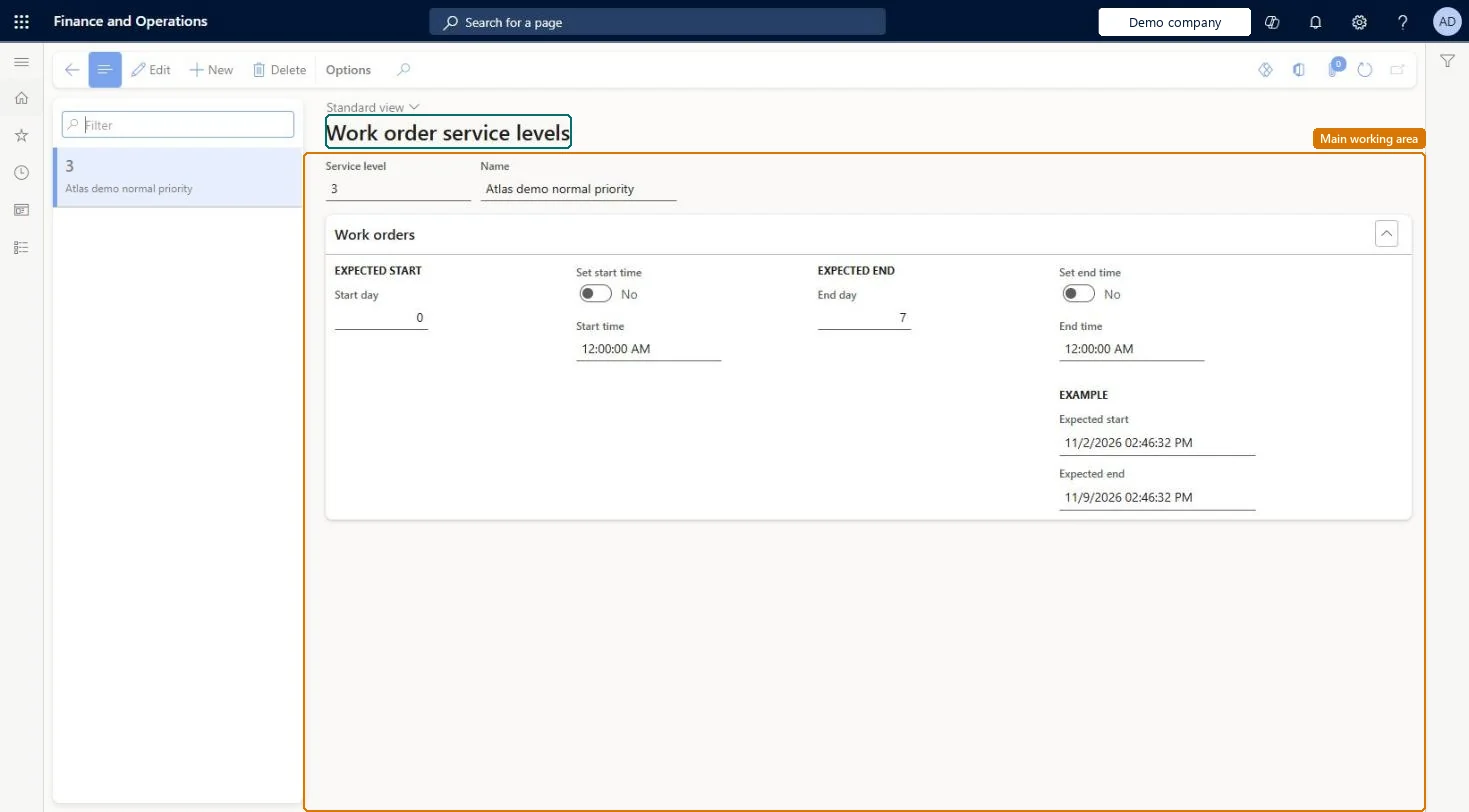
Use this page to create service levels with a start day and end day, and optional start and end times, for manually created work orders and work orders created from maintenance requests.
Example
For example, for a work order that should start within one week after it's created, you enter 7 in the Start day field.
The page in Dynamics 365. page title tab to open what to set or check
About the examples: Examples and screenshots in this guide use BEAT, a demo company in a Dynamics 365 test environment. Use your own company's codes and values instead of copying them.
Setup steps on this page
Set up Work order service levels
Use this page to create service levels with a start day and end day, and optional start and end times, for manually created work orders and work orders created from maintenance requests.
Steps from Microsoft
Go to Asset management > Setup > Work orders > Service level.
Select New.
In the Service level field, enter the service level, for example a number, and in the Name field, enter a name.
In the Start day field, enter the number of days from creation within which the work order should start.
To set a start time, set Set start time to Yes and enter the Start time.
In the End day field, enter the number of days from the start date within which the work order should end.
To set an end time, set Set end time to Yes and enter the End time.
Start day 0 for urgent levels and higher values (for example 7) for planned levels; set start and end times only where a fixed time mattersLearn's examples: Start day 0 when the work order should start when created, 7 for within a week; End day counts from the start date.
Leaving Set start time or Set end time at No and expecting a fixed time; the current time of day is used instead.
Solution architect
5Design impact
Can it be undone
Reversible: Service levels can be changed any time; they calculate expected start and end when a work order is created manually or from a maintenance request. Microsoft Learn
Technical architect
6Technical
Menu item
EntAssetWorkOrderServiceLevelChecked in Dynamics 365
Form
EntAssetWorkOrderServiceLevelChecked in Dynamics 365
Table
EntAssetWorkOrderServiceLevelShown as “SERVICE LEVELS” in Record infoChecked in Dynamics 365
Data entities
EntAssetMaintenanceWorkOrderServiceLevelEntityAsset management work order service levels Checked in Dynamics 365
To set it up or change itMaintenance manager EntAssetMaintenanceManagerTo use itMaintenance clerk EntAssetMaintenanceClerkMaintenance worker EntAssetMaintenanceWorkerMaintenance requester EntAssetMaintenanceRequesterGive people one of these roles. On this system, 4 roles can open this page.Checked in Dynamics 365