PAGE GUIDEWhat the page does and how to use it7 sections. Choose a role to highlight what matters to you.
Everyone
1What it is and why
What it is
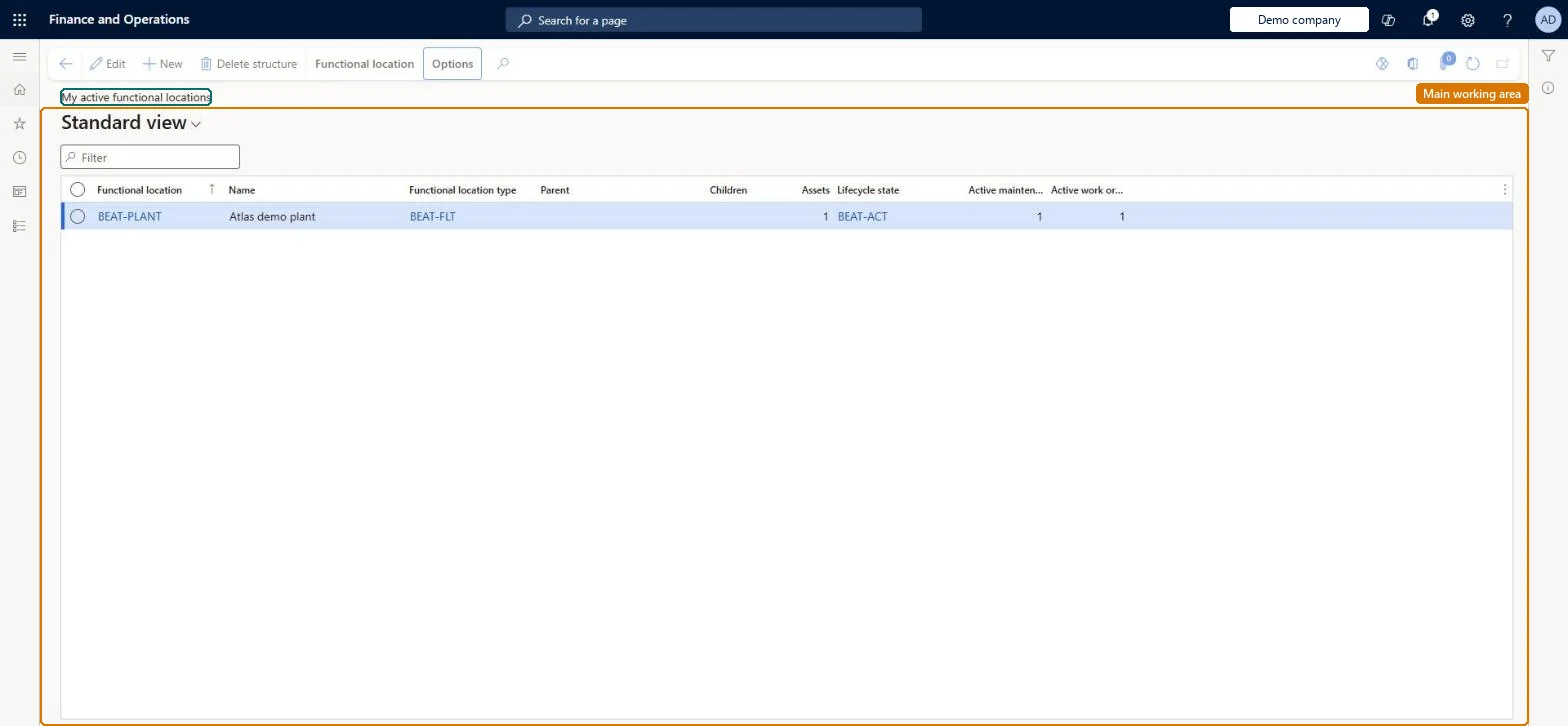
A list page that shows the active functional locations that you are related to as a maintenance worker.
What you do here
Use this page to find and open the functional locations in your own area. The list depends on the functional locations that are set on your worker record.
The page in Dynamics 365. page title tab to open what to set or check
About the examples: Examples and screenshots in this guide use BEAT, a demo company in a Dynamics 365 test environment. Use your own company's codes and values instead of copying them.
Steps from Microsoft
Go to Asset management > Functional locations > My active functional locations.
Select a link in the Functional location column to view the details of the record.
Select Edit to change the functional location.
Use the Action Pane buttons, such as Assets, Requests, Work orders, or Faults, to see related records.
Reversible: The list depends only on the functional locations linked to your worker record on the Workers page; changing those links changes the list, nothing else. Microsoft Learn
Technical architect
5Technical
Menu item
EntAssetFunctionalLocationActiveMyChecked in Dynamics 365
Form
EntAssetFunctionalLocationChecked in Dynamics 365
Table
EntAssetFunctionalLocatiShown as “FUNCTIONAL LOCATIONS” in Record infoKey field: FunctionalLocationIdChecked in Dynamics 365
Data entities
EntAssetMaintenanceFunctionalLocationEntityAsset management functional locations Checked in Dynamics 365
To set it up or change itMaintenance manager EntAssetMaintenanceManagerMaintenance clerk EntAssetMaintenanceClerkTo use itMaintenance worker EntAssetMaintenanceWorkerGive people one of these roles. On this system, 3 roles can open this page.Checked in Dynamics 365
Actions on the page
Functional location: Maintain, New, Functional location, View, Lifecycle state(Action Pane without tabs): New, Delete structureChecked in Dynamics 365