BeyondERP.Newsletter
Menu

Master data page · Asset management

Active functional locations

A list page that shows only the functional locations that are in an active lifecycle state.

Used by
Maintenance clerk, Maintenance manager, Maintenance worker
Business process
Manage active assets
Menu item
EntAssetFunctionalLocationActive
Main table
EntAssetFunctionalLocati
Data entity
EntAssetMaintenanceFunctionalLocationEntity
Show what matters for
PAGE GUIDEWhat the page does and how to use it7 sections. Choose a role to highlight what matters to you.
Everyone

1What it is and why

What it isA list page that shows only the functional locations that are in an active lifecycle state.
What you do hereUse this page to open, create, and edit functional locations, install assets on them, and check cost and hours for a location.
ExampleFor example, a maintenance planner selects a functional location and uses Install asset to install an asset, including its child assets, on it.
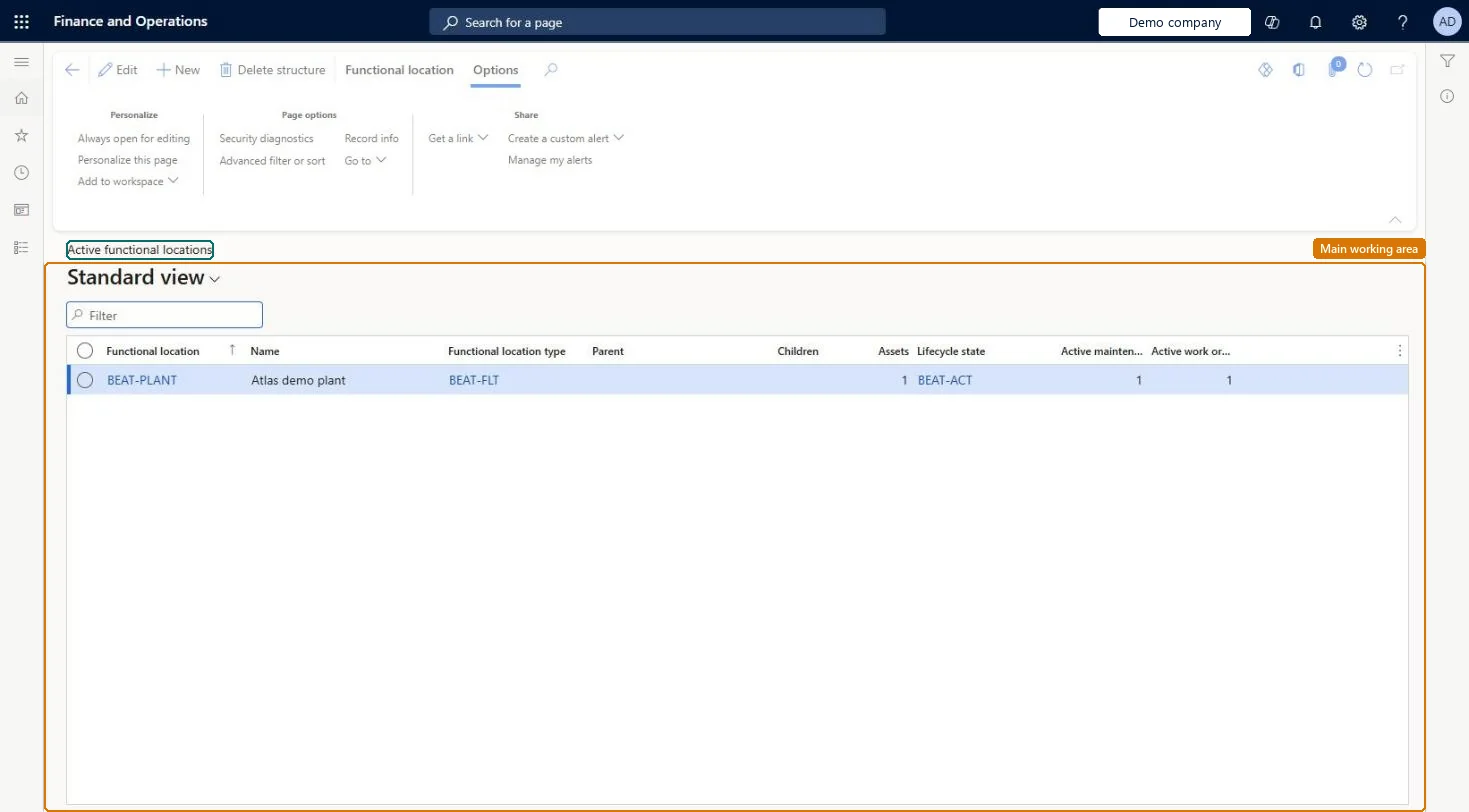
Active functional locations page in Dynamics 365
The page in Dynamics 365. page title tab to open what to set or check
Functional consultant · Solution architect

2Where it fits

Business processManage active assets
Menu pathAsset management › Functional locations › Active functional locations
Set up firstFunctional location types Microsoft Learn Lifecycle states Microsoft Learn
Used next byInstall assets on functional locations Microsoft Learn
Related pagesAll functional locations Microsoft Learn My active functional locations Microsoft Learn Functional location hour control Microsoft Learn
End user · Functional consultant

3How to do it

About the examples: Examples and screenshots in this guide use BEAT, a demo company in a Dynamics 365 test environment. Use your own company's codes and values instead of copying them.

Steps from Microsoft

  1. Go to Asset management > Functional locations > Active functional locations.
  2. Select a link in the Functional location column to open the functional location details.
  3. Select Edit to change the functional location.
  4. Use the Related information pane on the right to see the functional location hierarchy.

Source: Microsoft Learn

Test checklist

  1. Create a functional location and update it to an active lifecycle state.
  2. Check it appears on Active functional locations.
  3. Install an asset on it with Install asset and check it shows on the Installed assets FastTab.
  4. Open Cost control for the location and check costs of installed assets are shown.

Source: Microsoft Learn

Solution architect

4Design impact

Can it be undoneOne-way: Warning: functional locations can't be moved around in the hierarchy once it is set up. A location can be deleted only if no assets are installed on it or its sub locations and its lifecycle state allows deletion; otherwise retire it with a non-active state. Microsoft Learn
If you change it laterA functional location hierarchy can't be rearranged after it is set up, so plan the structure before you create the locations. Microsoft Learn
Technical architect

5Technical

Menu itemEntAssetFunctionalLocationActive Checked in Dynamics 365
FormEntAssetFunctionalLocation Checked in Dynamics 365
TableEntAssetFunctionalLocatiShown as “FUNCTIONAL LOCATIONS” in Record infoKey field: FunctionalLocationIdChecked in Dynamics 365
Data entitiesEntAssetMaintenanceFunctionalLocationEntityAsset management functional locations Checked in Dynamics 365
Who can open itPrivilegesMaintain functional locations EntAssetFunctionalLocationMaintainView functional locations EntAssetFunctionalLocationViewDutiesInquire into functional locations EntAssetFunctionalLocationInquireMaintain functional locations EntAssetFunctionalLocationMaintain
3 security rolesMaintenance clerk EntAssetMaintenanceClerkMaintenance manager EntAssetMaintenanceManagerMaintenance worker EntAssetMaintenanceWorker
Checked in Dynamics 365
Roles to set it up and use itTo set it up or change itMaintenance manager EntAssetMaintenanceManagerMaintenance clerk EntAssetMaintenanceClerkTo use itMaintenance worker EntAssetMaintenanceWorkerGive people one of these roles. On this system, 3 roles can open this page.Checked in Dynamics 365
Actions on the pageFunctional location: Maintain, New, Functional location, View, Lifecycle state(Action Pane without tabs): New, Delete structureChecked in Dynamics 365
Developer

6Developer

Open it by URLhttps://<your-environment>/?mi=EntAssetFunctionalLocationActive
Integrate withEntAssetMaintenanceFunctionalLocationEntity data entity Checked in Dynamics 365
Everyone

7Sources