About the examples: Examples and screenshots in this guide use BEAT, a demo company in a Dynamics 365 test environment. Use your own company's codes and values instead of copying them.
Steps from Microsoft
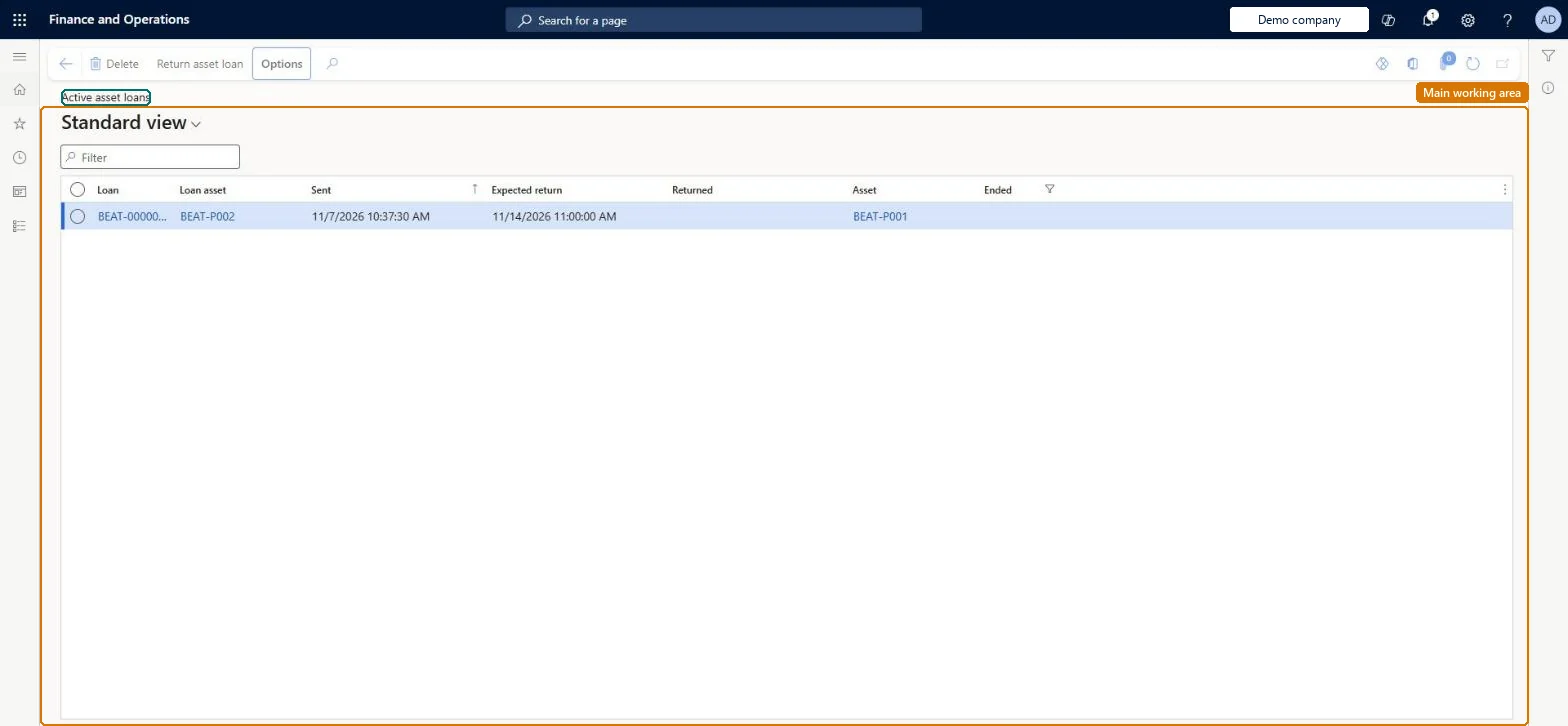
Go to Asset management > Asset loan > Active asset loans.
Select the asset loan to register as returned.
Select Return asset loan.
In the Returned field, enter the date and time.
Select OK.
Refresh the page and check that the loan no longer appears.
Registering a loan changes the asset's lifecycle state automatically, for example to OnLoan, and a returned loan no longer appears on this page. Microsoft Learn
Technical architect
5Technical
Menu item
EntAssetObjectLoanListPageActiveChecked in Dynamics 365
Form
EntAssetObjectLoanListPageChecked in Dynamics 365
Table
EntAssetObjectLoanShown as “LOAN ASSETS” in Record infoKey field: ObjectLoanIDChecked in Dynamics 365
To set it up or change itMaintenance manager EntAssetMaintenanceManagerMaintenance clerk EntAssetMaintenanceClerkTo use itMaintenance worker EntAssetMaintenanceWorkerGive people one of these roles. On this system, 3 roles can open this page.Checked in Dynamics 365
Actions on the page
(Action Pane without tabs): Return asset loanChecked in Dynamics 365