About the examples: Examples and screenshots in this guide use BEAT, a demo company in a Dynamics 365 test environment. Use your own company's codes and values instead of copying them.
Setup steps on this page
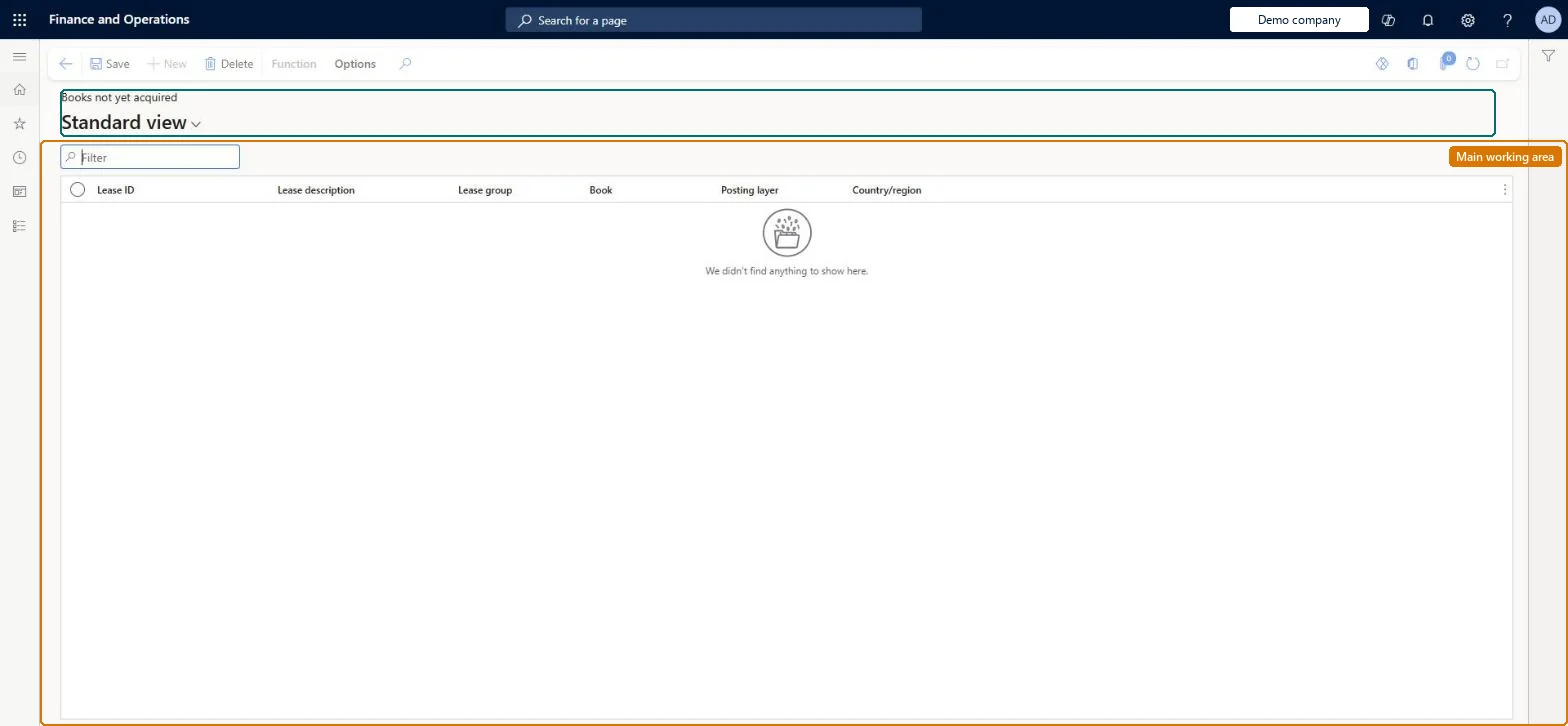
Follow up books not yet acquired
Use the Books not yet acquired list to find the lease books that need attention.
Steps from Microsoft
Go to Asset leasing > Leases > Books not yet acquired.
Filter on Lease group or Book.
Select a row and use Function to open the book, or go to Lease summary > Books for the lease's schedules.
The lease the book belongs to.Checked in Dynamics 365
Lease group
The lease group, which decides the books each lease gets.Microsoft Learn
Book
The lease book, which holds the accounting policy (framework, lease type, thresholds) and the posted lease transactions.Microsoft Learn
Posting layer
The posting layer the book posts to; one book per layer makes dual reporting possible.Microsoft Learn
Current
Country/region
The country/region recorded on the lease.Checked in Dynamics 365
Common errors and fixes
Message
What to do
Monthly journals aren't created for a lease
Its initial recognition isn't posted yet. Post it (Lease summary > Books > Initial recognition, or Batch journal creation) and run the monthly journals again. Microsoft Learn
Test checklist
Create and confirm a lease with a commencement date this month.
Check that its books are on Books not yet acquired.
Post initial recognition and refresh: the books leave the list.
Review the list each month end and post initial recognition for every book whose lease has commenced.Subsequent transactions (payments, interest, depreciation, expenses) post only after a lease's initial recognition is posted, so a book left here blocks its monthly journals.
Asset leasing must be turned on in Feature management (feature Asset leasing). Microsoft Learn describes three Asset leasing roles: Maintain lease (add, edit and post leases), View lease (view leases and schedules and run reports) and Lease clerk (create new leases only). Maintain lease and View lease users read this list.
Per company: leases with their books, schedules and journals belong to the legal entity you are working in, and Lease ID numbers come from a number sequence set per company. Turn on Cross entity batch in Asset leasing parameters to create journals for other legal entities from the current one. Microsoft Learn
The list only reads lease books. The books change through the lease's own actions: confirming the payment schedule, posting journals, impairment with Close book, adjustment and termination. Microsoft Learn
Technical architect
6Technical
Menu item
AssetLeaseNotAcquiredListPageChecked in Dynamics 365
Form
AssetLeaseBookDetailChecked in Dynamics 365
Table
AssetLeaseLeaseDetailsShown as “LEASES” in Record infoKey field: LeaseIdChecked in Dynamics 365
Data entities
AssetLeaseLeaseBookEntityLease books Checked in Dynamics 365AssetLeasePaymentAmountBreakdownEntityLease payment amount breakdown (only the payment amount breakdown lines) Checked in Dynamics 365
To set it up or change itLease accountant AssetLeaseLeaseMaintainAccountant LedgerAccountantTo use itLease manager AssetLeaseLeaseViewAccounting manager LedgerAccountingManagerGive people one of these roles. On this system, 4 roles can open this page.Checked in Dynamics 365
AssetLeaseLeaseBookEntity data entity Checked in Dynamics 365
Data migration
AssetLeaseLeaseBookEntity (Lease books): reads and exports the books in this list. Lease books are created by Create schedules from the lease group, so load leases, not books. Microsoft's route for bulk leases is the Lease import framework (Lease staging, Payment contract staging, Executory contract staging), then Migrate lease records.Load order: Load the Asset leasing setup in Microsoft's order: lease books, lease groups, then the parameters (journal names, posting accounts, executory cost accounts), expense types, payment amount types, index rate types and locations, and only then the leases.Load first: Lease summaryMicrosoft Learn