About the examples: Examples and screenshots in this guide use BEAT, a demo company in a Dynamics 365 test environment. Use your own company's codes and values instead of copying them.
How to use it
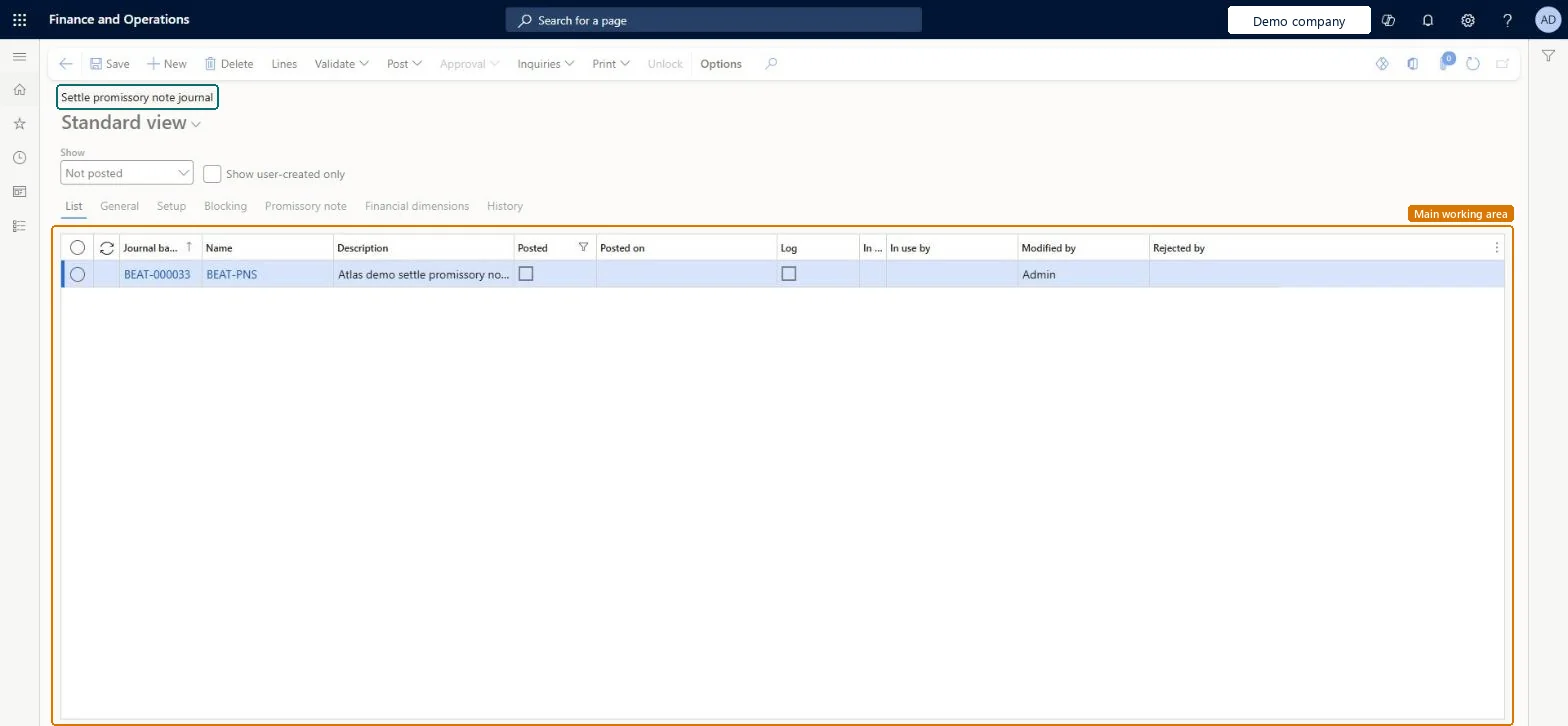
Go to Accounts payable > Payments > Promissory notes > Settle promissory note journal.
Use the Show list to choose which journals to list, and tick Show user-created only to limit the list to your own.
Select New to add a journal and fill in the Name and Description.
Select Lines to open the lines of the selected journal.
Use the Promissory note tab to see promissory note details.
For companies in Spain, the Confirming invoices treatment parameter decides whether payment proposals here create one line per invoice, and a validation parameter checks the vendor's tax exempt number. Microsoft Learn
Technical architect
5Technical
Menu item
LedgerJournalTable_VendSettleNoteChecked in Dynamics 365
Form
LedgerJournalTableChecked in Dynamics 365
Table
LedgerJournalTableShown as “Ledger journal table” in Record infoKey field: JournalNumChecked in Dynamics 365
To set it up or change itAccounts payable payments clerk PaymAccountsPayablePaymentsClerkTo use itAccounts payable manager VendInvoiceAccountsPayableManagerAccounting supervisor LedgerAccountingSupervisorAccounting manager LedgerAccountingManagerAccounts payable clerk VendInvoiceAccountsPayableClerkChief financial officer CompanyChiefFinancialOfficerGive people one of these roles. On this system, 9 roles can open this page.Checked in Dynamics 365
Actions on the page
Options: Personalize, Page options, Edit, ShareChecked in Dynamics 365