| What it is | The journal page for the Vendor bank remittance journal type. |
|---|---|
| What you do here | Use this journal to create a promissory note remittance file to send to the organization's bank. |
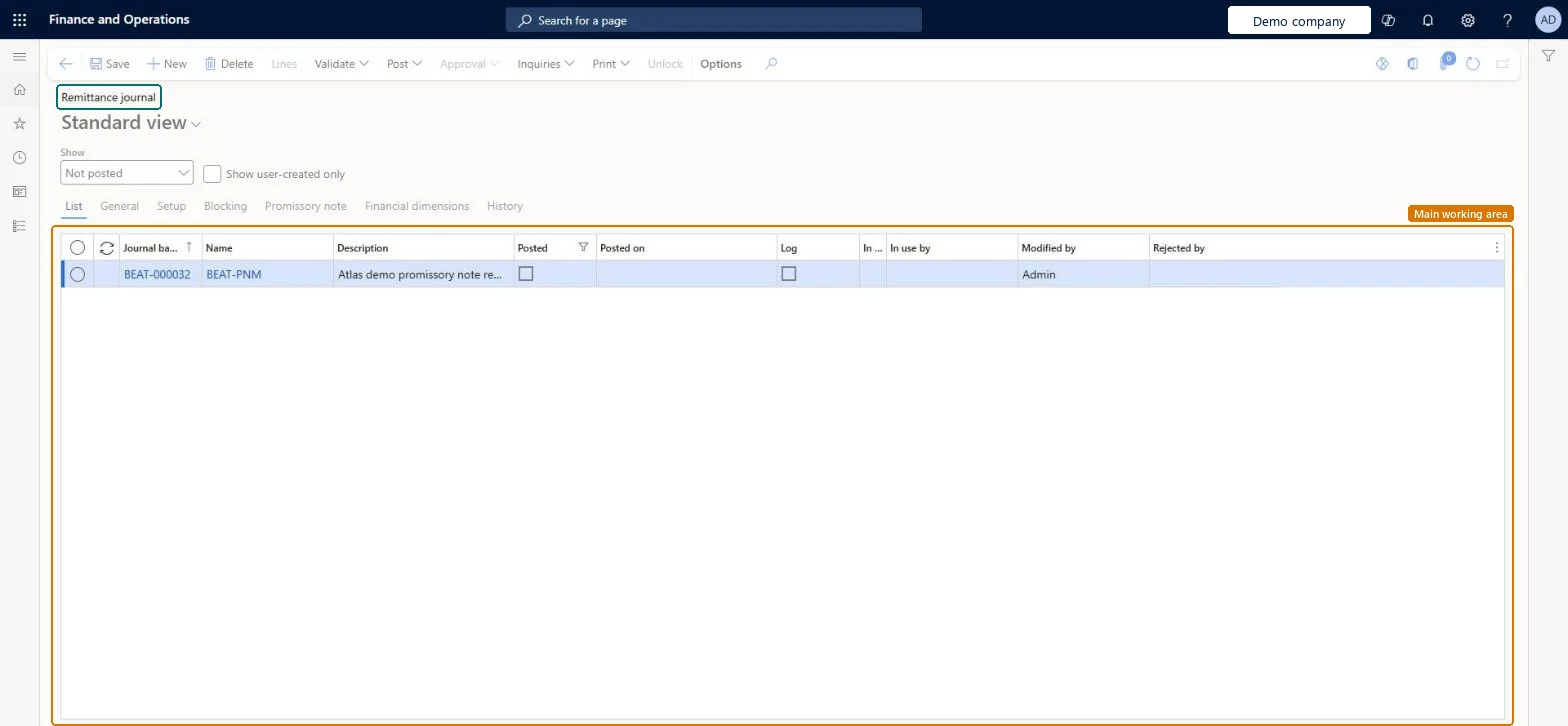
Transaction page · Accounts payable
The journal page for the Vendor bank remittance journal type.
LedgerJournalTable_VendPaymRemittanceLedgerJournalTableAssetJournalEntity| What it is | The journal page for the Vendor bank remittance journal type. |
|---|---|
| What you do here | Use this journal to create a promissory note remittance file to send to the organization's bank. |
| Business process | Manage accounts payable › Manage promissory notes › Generate remittance for a promissory note in Dynamics 365 Finance |
|---|---|
| Menu path | Accounts payable › Payments › Promissory notes › Remittance journal |
| Related pages | Draw promissory note journal Microsoft Learn Redraw promissory note journal Microsoft Learn Settle promissory note journal Microsoft Learn |
About the examples: Examples and screenshots in this guide use BEAT, a demo company in a Dynamics 365 test environment. Use your own company's codes and values instead of copying them.
Source: Checked in Dynamics 365
| Shared or per company | Per company: each legal entity has its own records. Microsoft data model |
|---|---|
| If you change it later | For companies in Spain, the Confirming invoices treatment parameter decides whether payment proposals here create one line per invoice. Microsoft Learn |
| Menu item | LedgerJournalTable_VendPaymRemittance Checked in Dynamics 365 |
|---|---|
| Form | LedgerJournalTable Checked in Dynamics 365 |
| Table | LedgerJournalTableShown as “Ledger journal table” in Record infoKey field: JournalNumChecked in Dynamics 365 |
| Data entities | AssetJournalEntityFixed asset journal Microsoft data model AssetJournalV2EntityFixed asset journal V2 entity Microsoft data model BankJournalHeaderEntityBank journal header Microsoft data model CustInvoiceJournalHeaderEntityCustomer invoice journal header Microsoft data model CustomerPaymentJournalHeaderEntityCustomer payment journal header Microsoft data model ExpenseJournalHeaderEntityProject expense journal header Microsoft data model LedgerJournalEntityGeneral journal Microsoft data model LedgerReportingCurrencyAdjustmentJournalHeaderEntityReporting currency adjustment journal header Microsoft data model RAssetJournalHeaderEntityFixed asset journal header (Russia) Microsoft data model SlipJournalEntitySlip journal Microsoft data model VendInvoiceJournalHeaderEntityVendor invoice journal header Microsoft data model VendInvoiceRegisterHeaderEntityVendor invoice register header Microsoft data model VendorPaymentJournalHeaderEntityVendor payment journal header Microsoft data model AssetJournalHeaderEntityFixed asset journal table Microsoft data model LedgerJournalHeaderEntityLedger journal table Microsoft data model |
| Who can open it | PrivilegesMaintain promissory note remittance journal transactions LedgerJournalTable_VendPaymRemiMaintainView promissory note remittance journal transactions LedgerJournalTable_VendPaymRemittViewDutiesMaintain promissory notes PaymPromissoryNotesMaintainInquire into promissory note status PaymPromissoryNoteStatusInquire9 security rolesChief financial officerCompanyChiefFinancialOfficerAccountant LedgerAccountantAccounting manager LedgerAccountingManagerAccounting supervisor LedgerAccountingSupervisorFinancial controller LedgerFinancialControllerAccounts payable centralized payments clerk PaymAccountsPayableCentralPaymClerkAccounts payable payments clerk PaymAccountsPayablePaymentsClerkAccounts payable clerk VendInvoiceAccountsPayableClerkAccounts payable manager VendInvoiceAccountsPayableManager |
| Roles to set it up and use it | To set it up or change itAccounts payable payments clerk PaymAccountsPayablePaymentsClerkTo use itAccounts payable manager VendInvoiceAccountsPayableManagerAccounting supervisor LedgerAccountingSupervisorAccounting manager LedgerAccountingManagerAccounts payable clerk VendInvoiceAccountsPayableClerkChief financial officer CompanyChiefFinancialOfficerGive people one of these roles. On this system, 9 roles can open this page.Checked in Dynamics 365 |
| Actions on the page | Buttons: Lines, Validate, Post, Approval, Inquiries, PrintChecked in Dynamics 365 |
| Open it by URL | https://<your-environment>/?mi=LedgerJournalTable_VendPaymRemittance |
|---|---|
| Integrate with | AssetJournalEntity data entity Microsoft data model |
| Table definition | LedgerJournalTable columns and relations Microsoft data model |