About the examples: Examples and screenshots in this guide use BEAT, a demo company in a Dynamics 365 test environment. Use your own company's codes and values instead of copying them.
Setup steps on this page
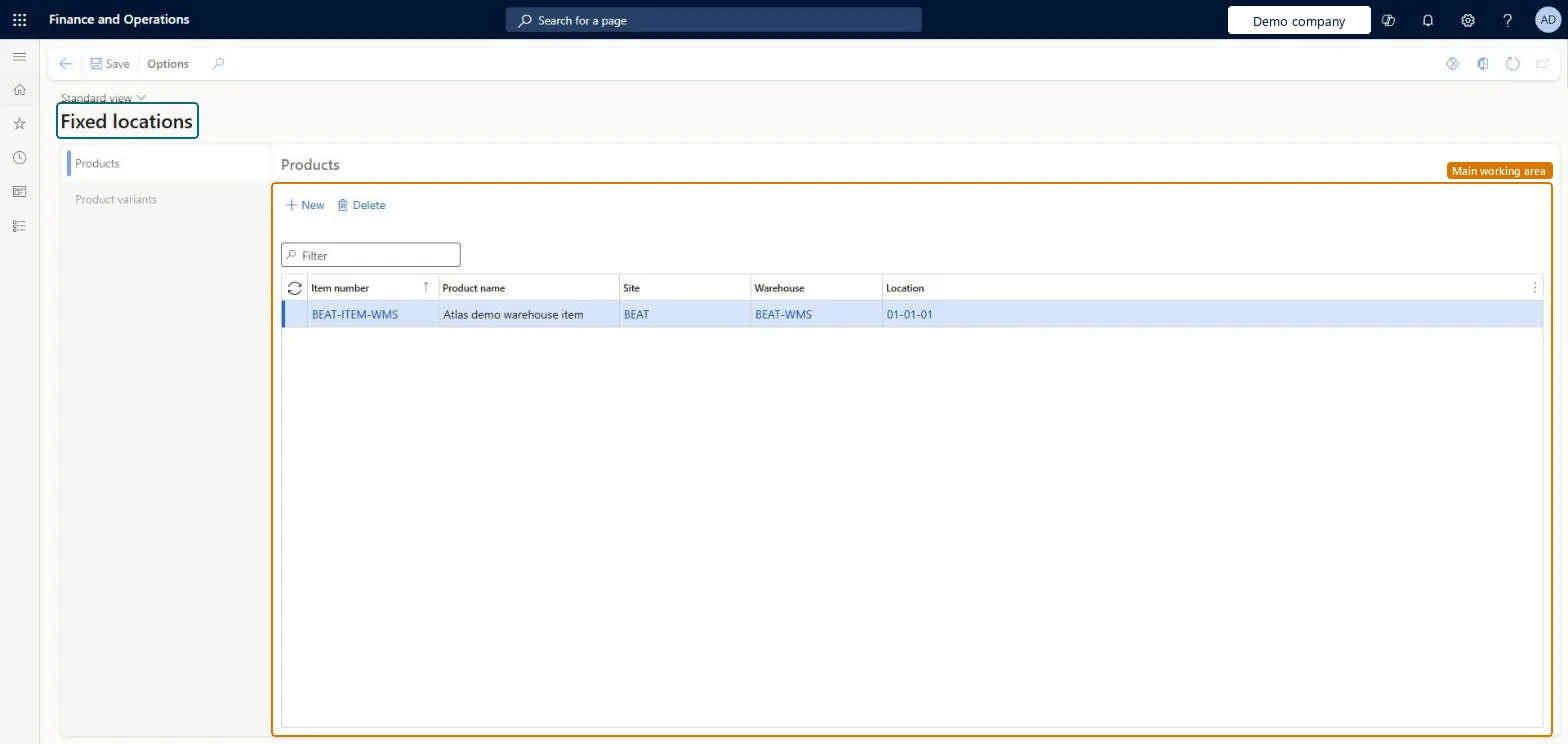
Set up Fixed locations
Use this page to define which locations are the fixed locations for each product or product variant.
Steps from Microsoft
Go to Warehouse management > Setup > Warehouse > Fixed locations.
Fixed picking locations for fast-moving products, replenished from bulk with min/max replenishmentLearn describes fixed picking locations, often replenished from bulk by min/max replenishment, to optimise outbound processes; a product can have several fixed locations in one warehouse.
Setting fixed locations without a replenishment process, so pick faces run empty.
Reversible: Fixed locations can be added or removed per product; directives and replenishment use the current setup.
Technical architect
6Technical
Menu item
WHSInventFixedLocationChecked in Dynamics 365
Form
WHSInventFixedLocationChecked in Dynamics 365
Table
WHSInventFixedLocationShown as “FIXED PRODUCT LOCATIONS” in Record infoKey field: ItemId, InventLocationId, InventSiteId, WMSLocationIdChecked in Dynamics 365
To set it up or change itWarehouse manager WMSWarehouseManagerProcess engineer RouteProcessEngineerTo use itWarehouse worker WMSWarehouseWorkerShipping clerk InventShippingClerkGive people one of these roles. On this system, 4 roles can open this page.Checked in Dynamics 365