Setup step on the Reservation hierarchy page · Warehouse management
Set up Reservation hierarchy
Use this page to decide which inventory dimensions sit above and which sit below the location level when inventory is reserved for warehouse-managed items.
Product designer, Product design manager, Materials manager and 4 more roles
Business process
Manage warehouse operations
Menu item
WHSReservationHierarchy
Main table
WHSReservationHierarchy
Data entity
WHSInventoryReservationHierarchyEntity
Setup steps
1 on this page
Show what matters for
SETUP GUIDEHow to set it up8 sections. Choose a role to highlight what matters to you.
Everyone
1What it is and why
What it is
A setup page where you define inventory reservation hierarchies, each listing the levels at which inventory can be reserved.
What you do here
Use this page to decide which inventory dimensions sit above and which sit below the location level when inventory is reserved for warehouse-managed items.
Example
For example, a dimension placed above the location level, such as the batch number, becomes a strict picking requirement that workers cannot change.
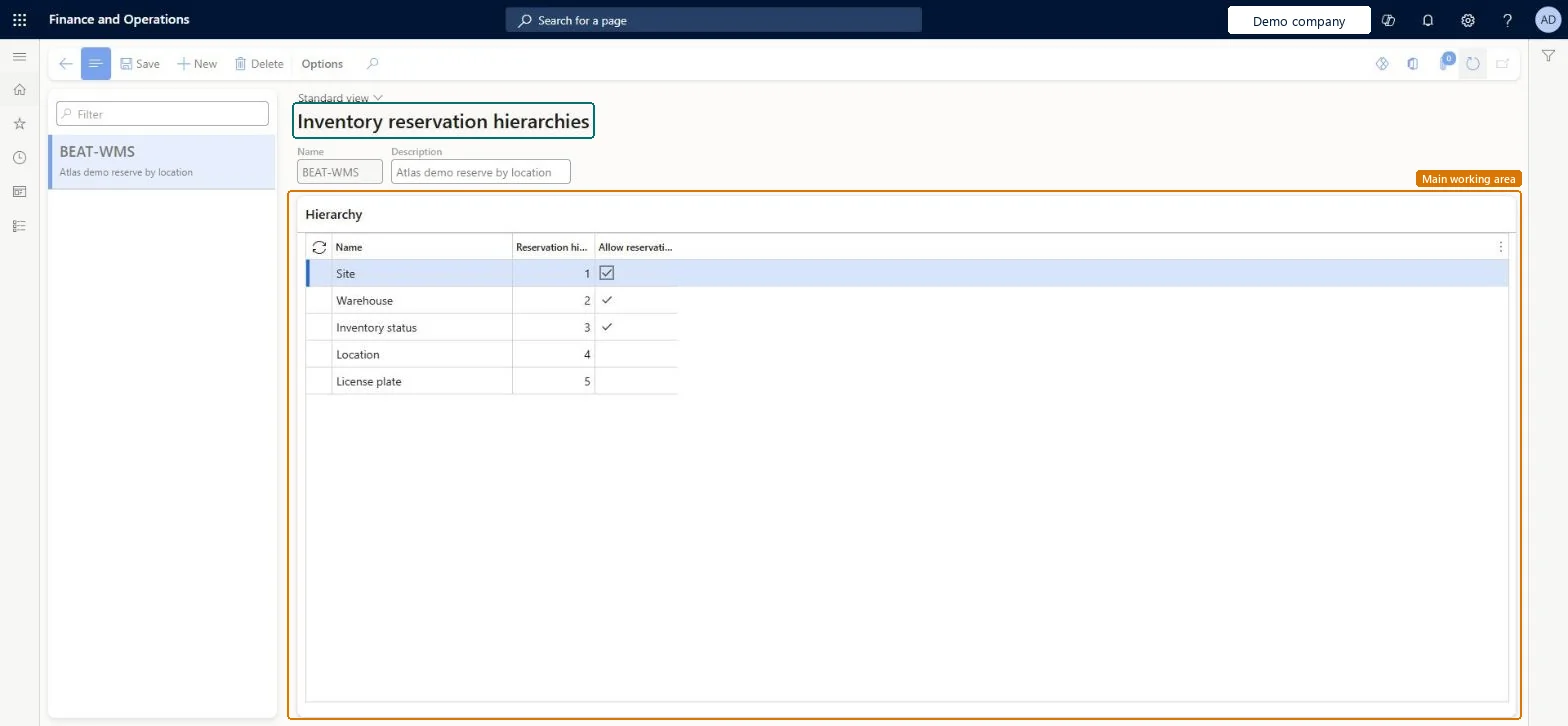
The page in Dynamics 365. page title tab to open what to set or check
About the examples: Examples and screenshots in this guide use BEAT, a demo company in a Dynamics 365 test environment. Use your own company's codes and values instead of copying them.
Setup steps on this page
Set up Reservation hierarchy
Use this page to decide which inventory dimensions sit above and which sit below the location level when inventory is reserved for warehouse-managed items.
Steps from Microsoft
Go to Warehouse management > Setup > Inventory > Reservation hierarchy.
Select New.
In the Name field, enter a name for the hierarchy, and enter a description in the Description field.
Choose which dimensions the hierarchy contains, such as batch number, serial number or owner.
In the Hierarchy grid, check the Reservation hierarchy level of each dimension and set Allow reservation on demand order where a level can be reserved at order entry.
The position of a dimension in the hierarchy. A higher value means more detail is needed to reserve at that level.Microsoft Learn
ReservationHierarchyLevel
Common errors and fixes
Message
What to do
To be assigned to wave, load lines must specify the dimensions above the location. To assign these dimensions, reserve and recreate the load line.
For batch-above items, reserve the line so every dimension above Location is filled, then recreate the load line before release to warehouse. Microsoft Learn
Test checklist
Create a batch-tracked WMS item with a batch-above hierarchy and another with a batch-below hierarchy.
Enter a sales order for each without a batch and release to warehouse.
Check the batch-above line gets a batch reserved before work is created, and the batch-below line creates work with the batch chosen at picking.
On the batch-above item, try to pick a different batch in the mobile app and check it is refused.
Keep Site, Warehouse and Inventory status above Location. Put Batch number above Location only when the batch must be fixed on the order (FEFO, same batch reservation, batch disposition codes and attributes); otherwise keep batch and serial below Location so the warehouse chooses them at pickingDimensions above Location are strict picking requirements that workers can't change; process-industry batch functions need Batch number above Location, while below Location postpones the batch choice to picking.
One-way: Warning: only one hierarchy can be assigned to a released product, and the timing it sets for batch or serial reservation can't be changed order by order. Once items using the hierarchy have Reserved ordered, Reserved physical or Ordered issue transactions, you can't clear Allow reservation on demand order, and Learn describes moving an item only to a hierarchy with the same level structure.
If you change it later
The hierarchy assigned to a product decides when batch or serial numbers are reserved, and that timing cannot be changed order by order. Microsoft Learn
Technical architect
6Technical
Menu item
WHSReservationHierarchyChecked in Dynamics 365
Form
WHSReservationHierarchyChecked in Dynamics 365
Table
WHSReservationHierarchyShown as “RESERVATION HIERARCHY” in Record infoKey field: NameChecked in Dynamics 365
PrivilegesMaintain reservation hierarchy WHSReservationHierarchyMaintainView reservation hierarchy WHSReservationHierarchyViewDutiesInquire into shipping policies InventShippingPoliciesInquireEnable shipping process InventShippingProcessEnableInquire into reservation hierarchy WHSReservationHierarchyMasterInquireSet up reservation hierarchy WHSReservationHierarchyMasterMaintainInquire into warehouse operation policies WMSWarehouseOperationPoliciesInquireEnable warehouse operation process WMSWarehouseOperationProcessEnable7 security rolesProduct designer BOMProductDesignerProduct design manager BOMProductDesignManagerMaterials manager InventMaterialsManagerQuality control manager InventQualityControlManagerProcess engineering manager RouteProcessEngineeringManagerWarehouse planner WHSWarehousePlannerWarehouse manager WMSWarehouseManagerChecked in Dynamics 365
Roles to set it up and use it
To set it up or change itWarehouse manager WMSWarehouseManagerMaterials manager InventMaterialsManagerProduct designer BOMProductDesignerTo use itWarehouse planner WHSWarehousePlannerProcess engineering manager RouteProcessEngineeringManagerQuality control manager InventQualityControlManagerProduct design manager BOMProductDesignManagerGive people one of these roles. On this system, 7 roles can open this page.Checked in Dynamics 365
WHSInventoryReservationHierarchyEntity (Reservation hierarchy): shared by all companies, in Microsoft's default template 310 - Product information management.Load order: Microsoft's default template 310 - Product information management loads Reservation hierarchy at execution unit 1, level 30, sequence 10. Lower levels load first, and entities at the same level load in sequence order.Load first: the default templates at lower levels (System setup to General ledger)Microsoft Learn