About the examples: Examples and screenshots in this guide use BEAT, a demo company in a Dynamics 365 test environment. Use your own company's codes and values instead of copying them.
Setup steps on this page
Set up Miscellaneous charges
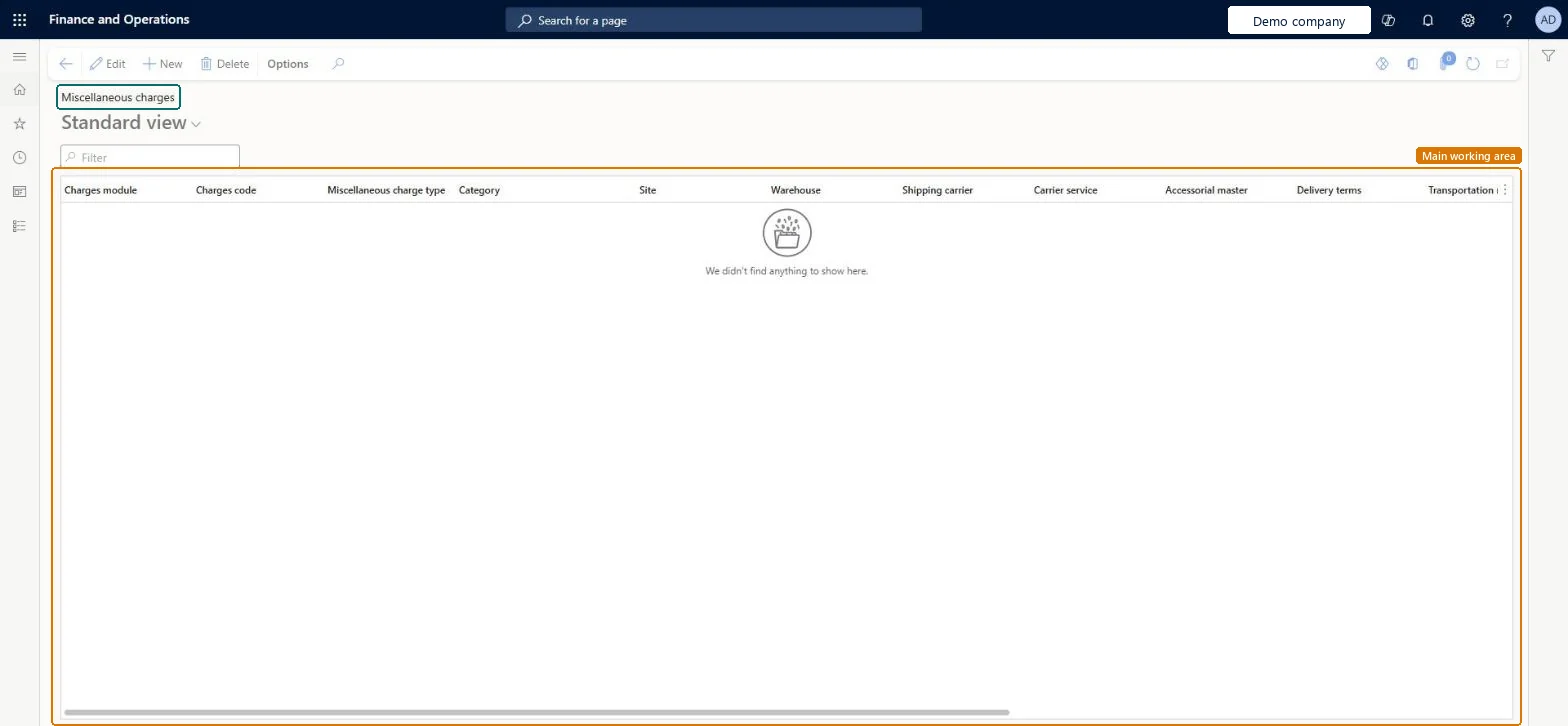
Use this page to link transportation-generated charges to a charges code, so that they are added back to the order as miscellaneous charges.
How to use it
Go to Transportation management > Setup > Rating > Miscellaneous charges.
Select New.
Select the Charges module and the Charges code.
Select the Miscellaneous charge type and the Category.
Enter the qualifying criteria, such as Site, Warehouse, Shipping carrier, Carrier service, Accessorial master and Delivery terms.
Source: Checked in Dynamics 365
Fields on the page
Field
What it means
Table column
Charges code
Determines how the charge is accounted for in relation to the order and order line where it is added.Microsoft Learn
MiscellaneousChargeCode
Test checklist
Check there is one record with Charges module Customer and one with Charges module Vendor, both with Miscellaneous charge type None and a Charges code.
Rate and confirm a load for a sales order and check that the freight shows as a miscellaneous charge on the order with the expected Charges code.
Do the same for a purchase order load and check the vendor-side charge.
In a test company, remove the Customer None record and check that the charge is no longer added to the sales order.
At least one record for each Charges module (Customer and Vendor) with Miscellaneous charge type set to None, plus specific records for charges that need their own Charges codeTransportation-generated charges must be linked to a charges code to be added back to the order, and Microsoft says to keep at least one None record per relevant Charges module.
Missing the None record for Customer or Vendor. The miscellaneous charge is then not added to the order, so freight is never charged to the customer or accrued for the vendor.
Reversible: Records can be changed at any time; the Charges code decides how a charge is accounted for when it is added to the order.
If you change it later
Keep at least one record for each relevant Charges module (Customer and Vendor) with the Miscellaneous charge type set to None. Without it, the miscellaneous charge is not added to the order. Microsoft Learn
Technical architect
6Technical
Menu item
TMSMiscellaneousChargeChecked in Dynamics 365
Form
TMSMiscellaneousChargeChecked in Dynamics 365
Table
TMSMiscellaneousChargeShown as “MISCELLANEOUS CHARGES” in Record infoChecked in Dynamics 365
PrivilegesMaintain miscellaneous charges TMSMiscellaneousChargeMaintainView miscellaneous charges TMSMiscellaneousChargeViewDutiesInquire into carrier master and network planning information TMSCarrierMasterInquireMaintain carrier and network planning master TMSCarrierMasterMaintain2 security rolesLogistics manager TMSLogisticsManagerTransportation coordinator TMSTransportationCoordinatorChecked in Dynamics 365
Roles to set it up and use it
To set it up or change itLogistics manager TMSLogisticsManagerTo use itTransportation coordinator TMSTransportationCoordinatorGive people one of these roles. On this system, 2 roles can open this page.Checked in Dynamics 365