SETUP GUIDEHow to set it up8 sections. Choose a role to highlight what matters to you.
Everyone
1What it is and why
What it is
A periodic job that adds missing clock-out registrations for workers who did not clock out at the end of the workday.
What you do here
Use this page to insert clock-out registrations at the end time of each worker's profile, so that calculation and approval include complete registrations.
Example
For example, if a worker's day profile expects clock-out at 15:00 and the worker forgot to clock out, the job adds a clock-out registration at 15:00.
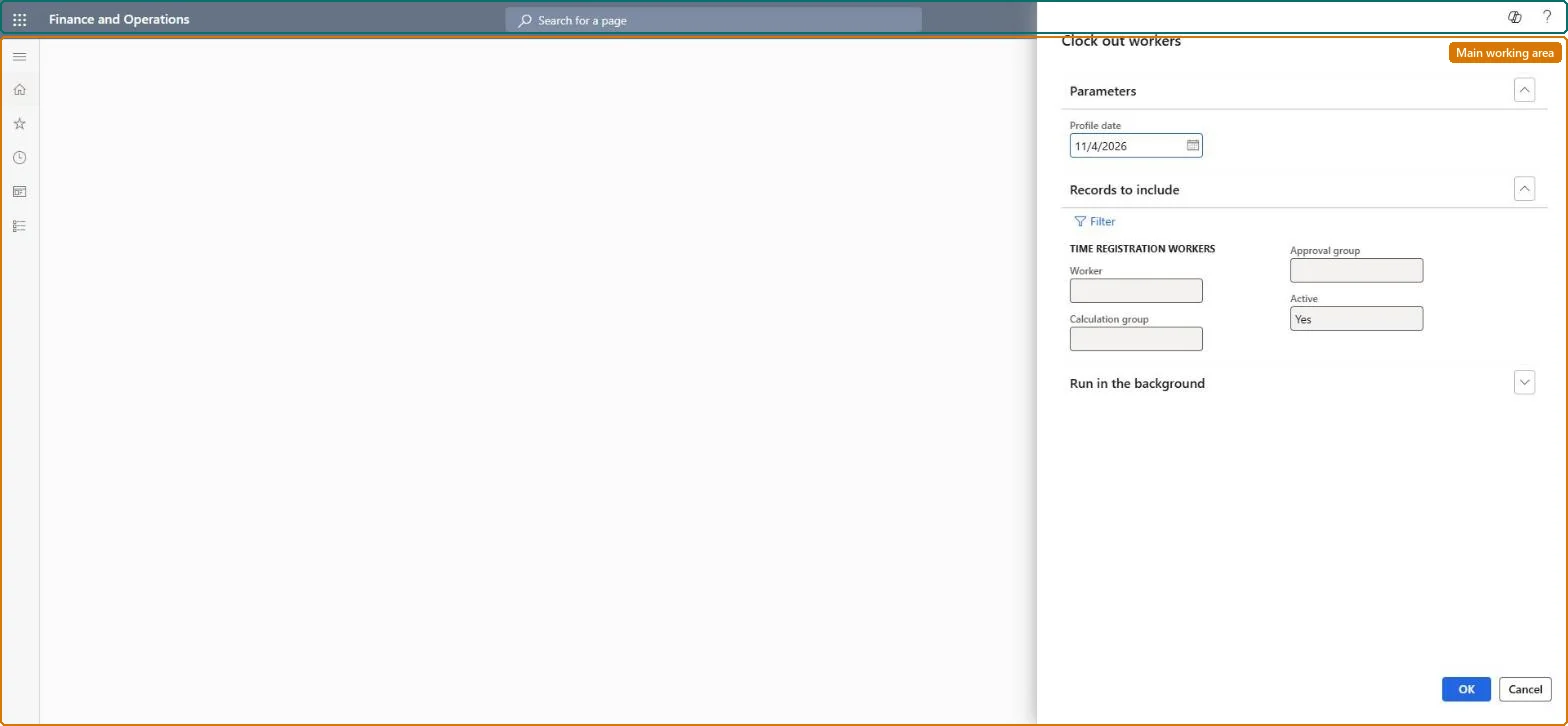
The page in Dynamics 365. page title tab to open what to set or check
About the examples: Examples and screenshots in this guide use BEAT, a demo company in a Dynamics 365 test environment. Use your own company's codes and values instead of copying them.
When to run it
When to run it
After the shift's profile end time and before registrations are calculated.
How often
Daily.
Batch settings
A recurring batch job each night, before Calculate All.
What the output shows
Clock-out registrations at the profile end time for workers who didn't clock out and have no registration after that time.
The date for which clock-out registrations are created.Microsoft Learn
Select
Chooses the workers to create clock-out registrations for.Microsoft Learn
Common errors and fixes
Message
What to do
A missing clock-out added as a new journal line doesn't stop the worker's day
Create missing clock-outs only with Clock-in and out > Missing clock-out or Clock out workers; only these options write the clock-out to the raw registrations. Microsoft Learn
A worker's clock-out registers as a clock-in
A registration with a future timestamp is in the raw registrations, often from Missing clock-out entered with the wrong date. Run Archive future registrations and ask the worker to register again. Microsoft Learn
Test checklist
Clock a test worker in without clocking out.
Run Clock out workers for the profile date before you calculate.
Check a clock-out registration is added at the end time of the worker's profile.
Clock in a second worker after the profile end time and check no clock-out is added for them.
Calculate the day and check no missing clock-out error remains.
A daily batch run for the previous profile date, before Calculate All.Microsoft says the batch job must run before registrations are calculated; it adds a clock-out at the profile end time only for workers with no registration after that time.
Time and attendance roles come from the security read in the Technical section. On this system access comes from duties such as Production supervisor, Shop supervisor. The Microsoft Learn article for this page names no Feature management feature to turn on.
Per company: Time and attendance data is kept per legal entity (every Time and attendance entity in Data management is per company), so the job or report works on the registrations of the company it is run in. Microsoft Learn
Can it be undone
Reversible: Correct an inserted clock-out on Calculate before approval.
If you change it later
The job does not add a clock-out for a worker whose clock-in or job registration falls after the profile end time, because that worker is treated as working overtime. Microsoft Learn
Technical architect
6Technical
Menu item
JmgInsertMissingClockOutRegistrationsChecked in Dynamics 365
Form
DialogChecked in Dynamics 365
Roles to set it up and use it
To set it up or change itProduction supervisor ProdProductionSupervisorShop supervisor JmgShopSupervisorGive people one of these roles. On this system, 2 roles can open this page.Checked in Dynamics 365
Load order: Clock out workers has no data entity in Data management, so it can't be loaded from a file or a configuration template. It is a job, not data; set up its batch recurrence again in each environment.Checked in Dynamics 365
Checked in a working Dynamics 365 system, version 10.0.49: the menu item, form, table and security, the page.
To cite this step: TA-PROC-060, Clock out workers before calculation. Beyond ERP Atlas Hub, 2026-11-11. https://www.beyonderp.cloud/atlas/step/TA-PROC-060