SETUP GUIDEHow to set it up8 sections. Choose a role to highlight what matters to you.
Everyone
1What it is and why
What it is
An inquiry page that lists the pay items (payroll transactions) generated when worker registrations are transferred, broken down into standard time, overtime, paid breaks and so on.
What you do here
Use this page to review the pay items that form the basis of each worker's pay before they are exported to the payroll system.
Example
For example, a worker clocked in at 06:30 and out at 17:00; the pay items show standard time 1201 with 10.00 units at rate 10 (100.00) and overtime 1301 with 1.50 units at rate 5 (7.50), 107.50 in total.
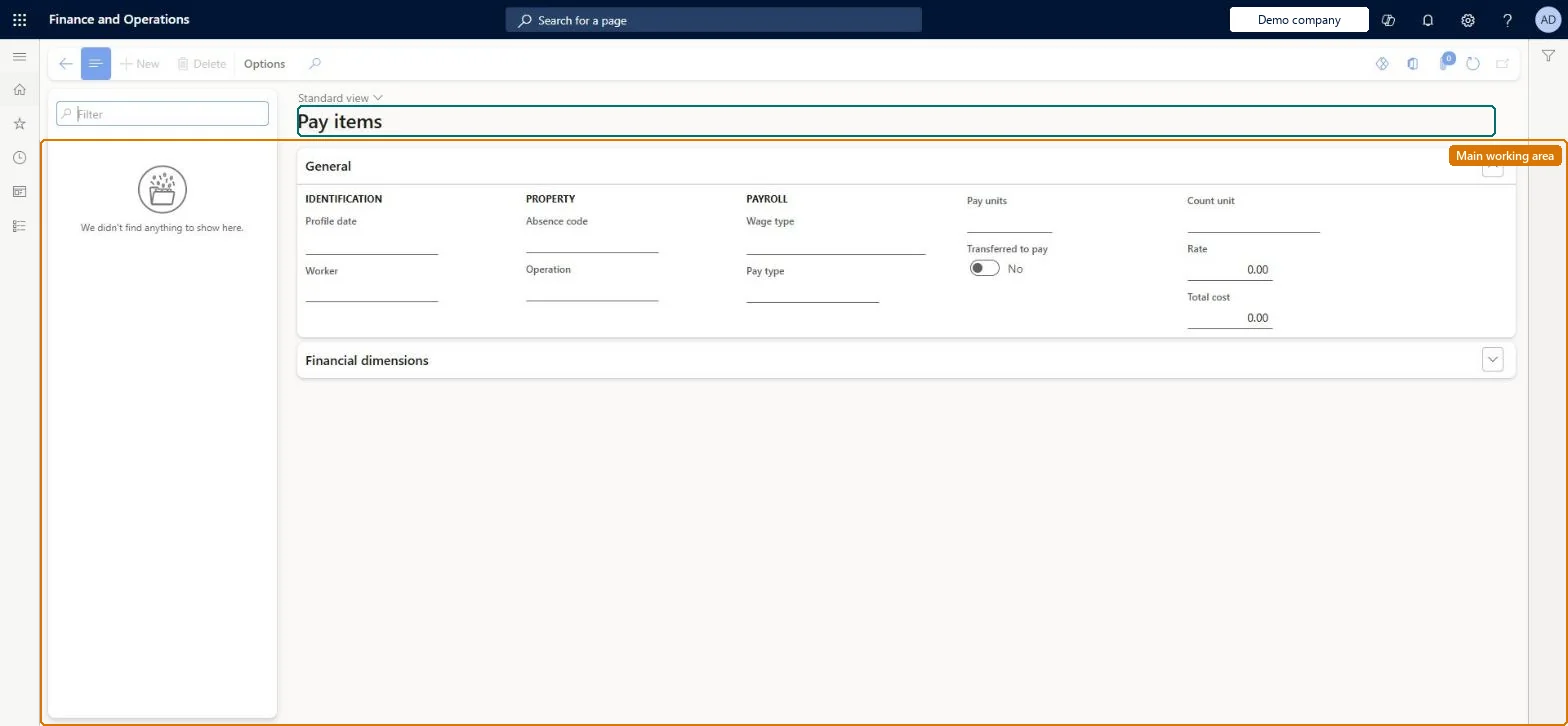
The page in Dynamics 365. page title tab to open what to set or check
About the examples: Examples and screenshots in this guide use BEAT, a demo company in a Dynamics 365 test environment. Use your own company's codes and values instead of copying them.
Setup steps on this page
Check a worker's pay items before export
Read the page to answer one question about registrations or pay.
How to use it
Go to Time and attendance > Inquiries and reports > Payroll > Pay items.
Use the Filter box in the list pane to find a pay item.
On the General FastTab, review Profile date, Worker, Absence code, Operation, Wage type, Pay type, Pay units, Transferred to pay, Count unit, Rate and Total cost.
Expand the Financial dimensions FastTab to see the dimensions.
Source: Checked in Dynamics 365
Fields on the page
Field
What it means
Table column
Wage type
The pay agreement wage type that produced the pay item.Microsoft Learn
Overtime is merged into the standard time pay item
Calculation parameters merge standard time, flex- and overtime by default. Set the Overtime profile specification type to pay overtime separately. Microsoft Learn
Test checklist
Approve and transfer a day with 1.50 hours overtime.
Time and attendance roles come from the security read in the Technical section. On this system the page is opened with roles such as Payroll manager, Production supervisor. The Microsoft Learn article for this page names no Feature management feature to turn on.
Per company: each legal entity has its own pay items. Checked in Dynamics 365
Can it be undone
Reversible: The report or inquiry only reads data; nothing is changed.
If you change it later
Pay items are created when registrations are transferred and are exported by Transfer to pay. Microsoft Learn
Technical architect
6Technical
Menu item
JmgPayEventsChecked in Dynamics 365
Form
JmgPayEventsChecked in Dynamics 365
Table
JmgPayEventsShown as “PAY ITEMS” in Record infoChecked in Dynamics 365
Who can open it
PrivilegesView pay items JmgPayEventsViewDutiesMaintain job approvals JmgJobApprovalMaintainInquire into time and attendance payroll policies JmgTimeAttandancePayrollPoliciesInquireInquire into time and attendance payroll data JmgTimeAttendancePayrollProgressInquire2 security rolesPayroll manager HcmPayrollManagerProduction supervisor ProdProductionSupervisorChecked in Dynamics 365
Roles to set it up and use it
To use itProduction supervisor ProdProductionSupervisorPayroll manager HcmPayrollManagerGive people one of these roles. On this system, 2 roles can open this page.Checked in Dynamics 365
Developer
7Developer
Open it by URL
https://<your-environment>/?mi=JmgPayEvents
Data migration
Load order: A pay item has no data entity in Data management, so it can't be loaded from a file or a configuration template. Pay items are produced by transfer; export the old system's pay before go-live and start fresh.Checked in Dynamics 365
Checked in a working Dynamics 365 system, version 10.0.49: the menu item, form, table and security, the page.
To cite this step: TA-INQ-090, Check a worker's pay items before export. Beyond ERP Atlas Hub, 2026-11-11. https://www.beyonderp.cloud/atlas/step/TA-INQ-090