SETUP GUIDEHow to set it up8 sections. Choose a role to highlight what matters to you.
Everyone
1What it is and why
What it is
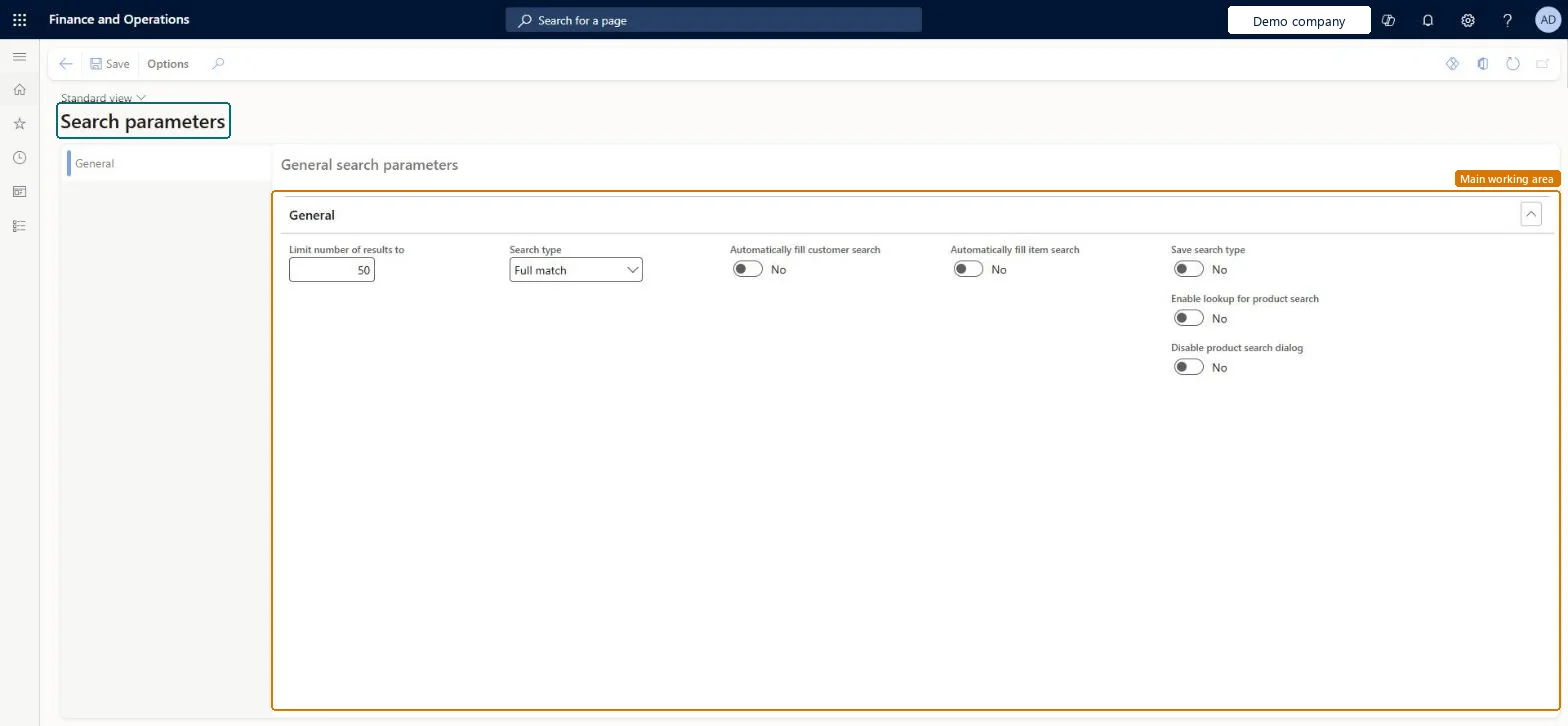
A setup page with the settings that control how product search and the search lookup work on order lines.
What you do here
Use this page to choose the search type, limit the number of results, and turn on the search lookup for products and product variants.
Example
BEAT's order desk sells 12,000 product variants. It sets Search type Full match, a limit of 50 results and Enable lookup for search, so typing GLOVE-RED in the Item number field of order line SO-001234 shows matching variants in a lookup without leaving the line.
The page in Dynamics 365. page title tab to open what to set or check
About the examples: Examples and screenshots in this guide use BEAT, a demo company in a Dynamics 365 test environment. Use your own company's codes and values instead of copying them.
Step by step, with screenshots
Set up Search parameters1 screen
Use this page to choose the search type, limit the number of results, and turn on the search lookup for products and product variants.
Screen 1
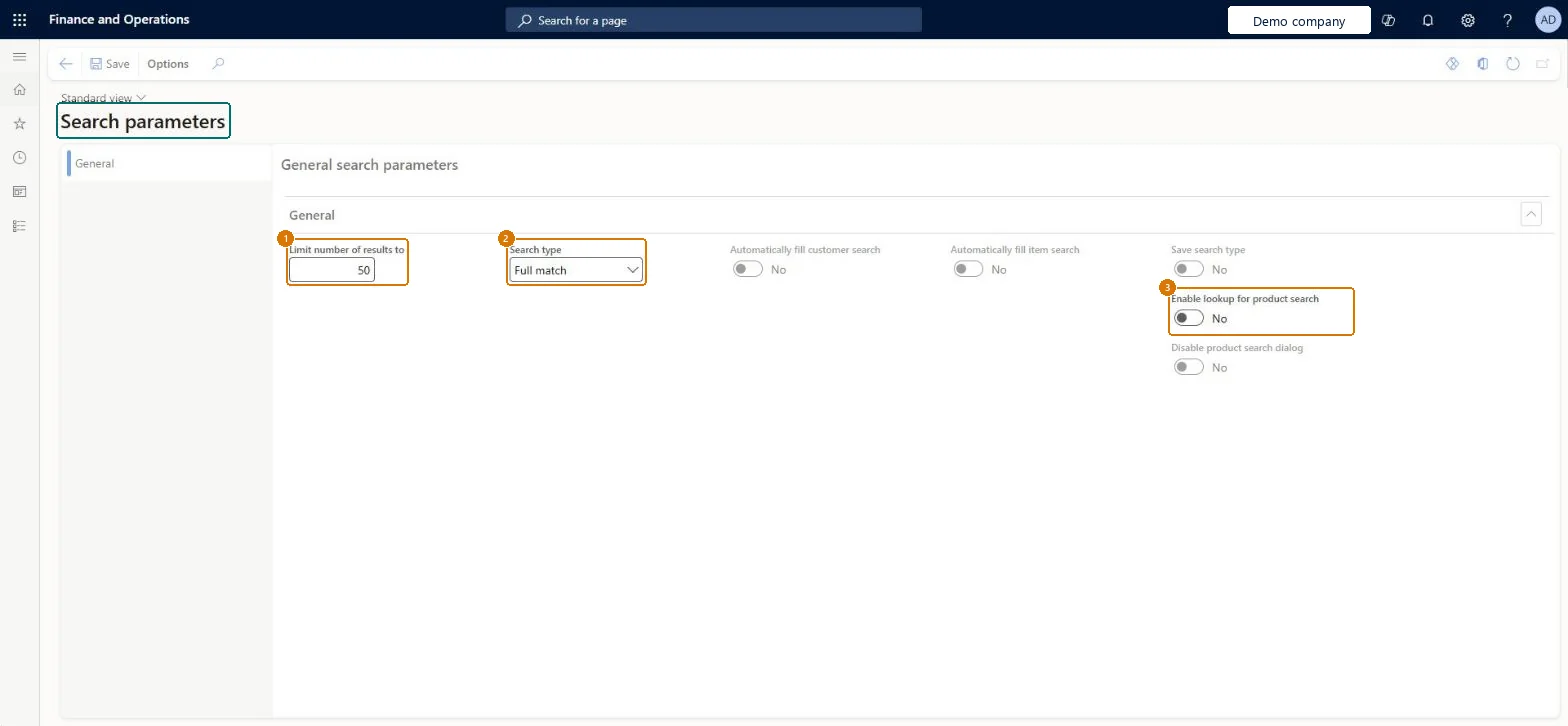
Review the search parameters
Go to Sales and marketing > Setup > Search > Search parameters
Enter the maximum number of results to show
Select the search type, such as Full match
Turn on Enable lookup for product search to use the search lookup for products and product variants
Select Save
1Limit number of results to
50
2Search type
Full match
3Enable lookup for product search
No
Show the full screen page title tab to open what to set or check
Steps from Microsoft
Go to Sales and marketing > Setup > Search > Search parameters.
Choose the Search type, for example Full match.
Enter the number of results to return (0 returns all).
Set Enable lookup for search to Yes so results show in a lookup on the order line, and Enable lookup for product search to Yes to include product variants.
Open Search criteria and make sure the product search data has been updated.
Product search on the order line returns no or wrong results
Run Update search data on Search criteria with Source = Product; until the search table is filled, product search doesn't return correct results. Microsoft Learn
Test checklist
Add DisplayProductNumber and configId to Search criteria (Product) and run Update search data.
Set Enable lookup for search to Yes and Search type to Full match.
On a sales order line, type part of a product name in Item number and check the lookup lists matches.
Type text that only exists in a configuration and check the variant is found.
Enable lookup for search Yes so order takers get results in a lookup without leaving the line; set Number of results to a limit that fits your catalogue (0 returns all)Without the lookup, typing in Item number and pressing Tab opens the Product search page and changes context; Number of results caps the matches returned.
Reversible: Settings can be changed at any time and act on the next search.
If you change it later
The settings act on the next search: Search type changes which products match, and the lookup setting changes whether order takers stay on the order line or go to the Product search page. Microsoft Learn
Technical architect
6Technical
Menu item
MCRFullTextParametersChecked in Dynamics 365
Form
MCRFullTextParametersChecked in Dynamics 365
Table
MCRFullTextParametersShown as “Show record count” in Record infoChecked in Dynamics 365
Who can open it
PrivilegesDefine parameters for full text searches MCRFullTextParametersMaintainDutiesMaintain full text search MCRSearchMaintainEnable quotation to sales order process SalesQuotationToSalesOrderProcessEnable3 security rolesAccounts receivable manager CustInvoiceAccountsReceivableManagerRetail service RetailServiceSales manager TradeSalesManagerChecked in Dynamics 365
Roles to set it up and use it
To set it up or change itSales manager TradeSalesManagerAccounts receivable manager CustInvoiceAccountsReceivableManagerRetail service RetailServiceGive people one of these roles. On this system, 3 roles can open this page.Checked in Dynamics 365
Actions on the page
Options: Personalize, Page options, Edit, ShareChecked in Dynamics 365
Load order: Search parameters has no data entity in Data management. Set the parameters by hand in each legal entity, then run Update search data on Search criteria.Checked in Dynamics 365
Checked in a working Dynamics 365 system, version 10.0.49: the menu item, form, table and security, the page, the demo records and the values in the screenshots.
To cite this step: SM-SETUP-750, Set up Search parameters. Beyond ERP Atlas Hub, 2026-11-11. https://www.beyonderp.cloud/atlas/step/SM-SETUP-750