Accounts receivable clerk, Accounts receivable manager, Accounts receivable centralized payments clerk and 7 more roles
Business process
Develop sales policies
Menu item
PriceDiscActivation_Sales
Main table
PriceParameters
Data entity
PriceDiscPurchaseTradeAgreementActivationEntity
Setup steps
1 on this page
Show what matters for
SETUP GUIDEHow to set it up8 sections. Choose a role to highlight what matters to you.
Everyone
1What it is and why
What it is
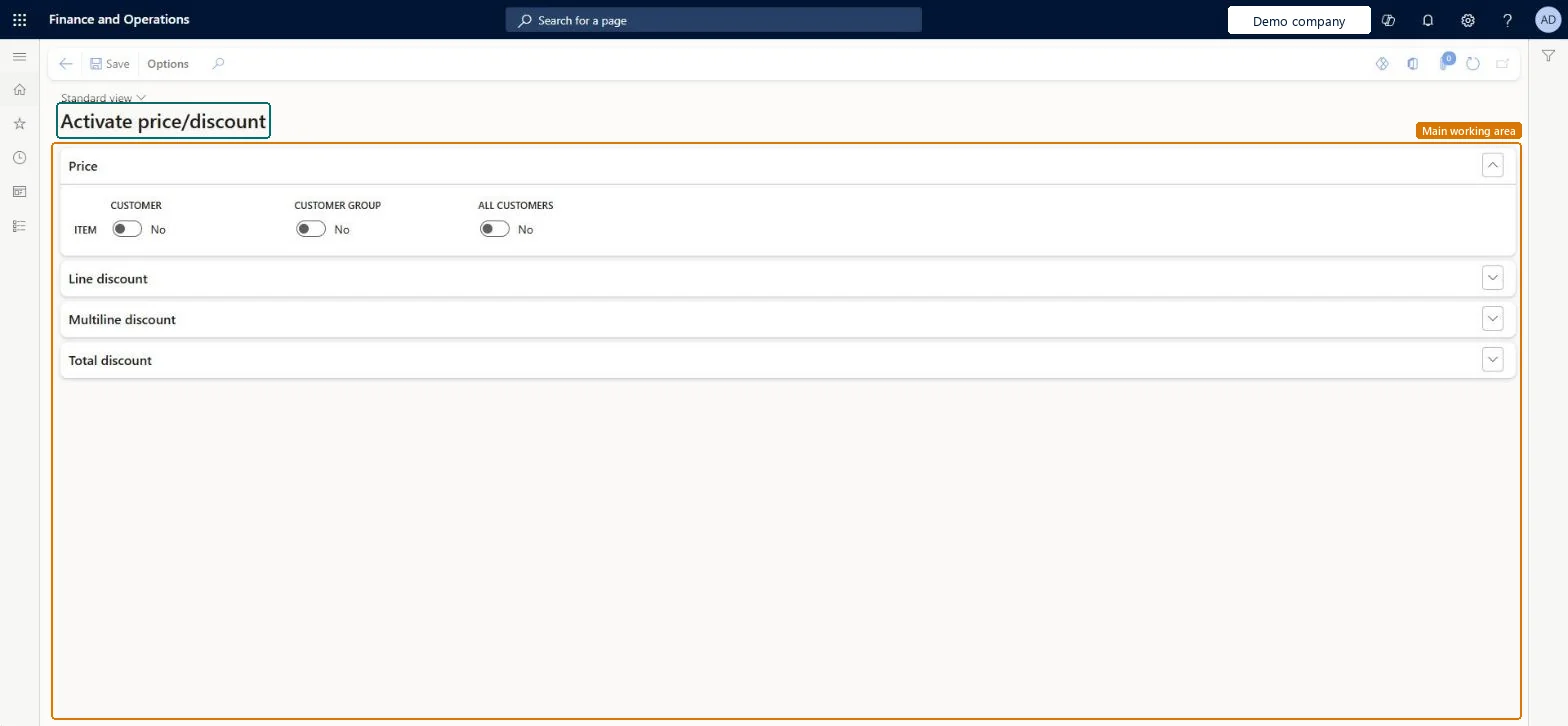
A setup page where you turn on which combinations of customer and item levels sales trade agreements can use for prices and discounts.
What you do here
Use this page to activate only the price and discount structures your business needs and turn off the rest.
Example
BEAT activates Price for Item and Customer group and Line discount for Item group and Customer group. A sales price agreement of 18.50 USD for item BEAT-000123 and price group WHOLESALE is then used on sales order SO-001234; a price for Item and All customers would be ignored because that combination is off.
The page in Dynamics 365. page title tab to open what to set or check
About the examples: Examples and screenshots in this guide use BEAT, a demo company in a Dynamics 365 test environment. Use your own company's codes and values instead of copying them.
Step by step, with screenshots
Activate price/discount1 screen
Use this page to activate only the price and discount structures your business needs and turn off the rest.
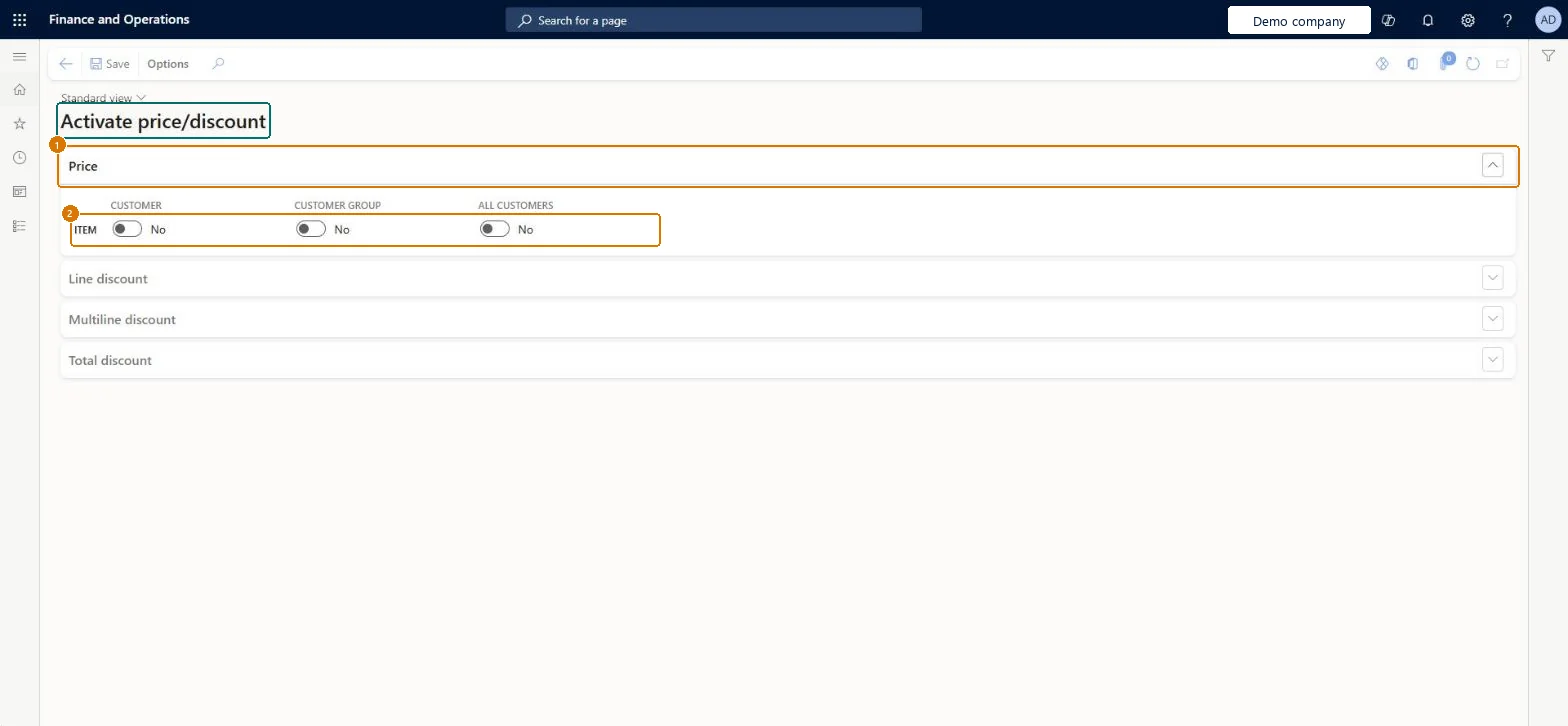
Screen 1
Check which price and discount combinations are active
Go to Sales and marketing > Setup > Prices and discounts > Activate price/discount
Open each section: Price, Line discount, Multiline discount and Total discount
Read which item and customer combinations are switched on
Switch on only the combinations your trade agreements use, then select Save
Price: Item and Customer
No
Price: Item and Customer group
No
Price: Item and All customers
No
Show the full screen page title tab to open what to set or check
How to use it
Go to Sales and marketing > Setup > Prices and discounts > Activate price/discount.
In the Price section, switch on the Customer, Customer group or All customers option for Item.
Expand the Line discount, Multiline discount and Total discount sections.
Switch each option on or off as needed.
Select Save.
Source: Checked in Dynamics 365
Fields on the page
Field
What it means
Example
Price
Sales prices can only be activated for specific items.Microsoft Learn
Line discount
Line discounts can be activated for items, item line discount groups or all items.Microsoft Learn
Price: Item and Customer
Turns on sales price trade agreements for a specific item and a specific customer.Microsoft Learn
No
Price: Item and Customer group
Turns on sales price trade agreements for a specific item and a customer price group.Microsoft Learn
Yes
Price: Item and All customers
Turns on sales price trade agreements for a specific item and all customers.Microsoft Learn
No
Common errors and fixes
Message
What to do
A posted trade agreement price isn't used on sales order lines.
Turn on the matching combination on this page (for example Price for Item and Customer group); agreements are used only for activated combinations. Microsoft Learn
Test checklist
Activate Price for Item and Customer group on the Price tab.
Post a sales price trade agreement for an item and a customer price group.
Create a sales order line for a customer in that price group and check the unit price comes from the agreement.
Turn the combination off and add a new line; check the price no longer comes from the agreement.
Turn on only the customer and item combinations your trade agreements actually use; if you price only with Unified pricing management, set all options to NoTrade agreements on sales orders and quotations are used only for activated combinations, so activating just what you need keeps price search controlled. These options have no effect on Unified pricing management rules.
On the live system, Sales manager, Rental manager, Rental coordinator agent, Rental sales manager and Accounts receivable manager can maintain this page.
Reversible: Options can be turned on or off at any time; they control which trade agreement combinations the system looks for.
If you change it later
If you use only Unified pricing management and no traditional trade agreements, these settings aren't needed and can all be set to No. Microsoft Learn
Technical architect
6Technical
Menu item
PriceDiscActivation_SalesChecked in Dynamics 365
Form
PriceDiscActivationSalesChecked in Dynamics 365
Table
PriceParametersShown as “Price parameters” in Record infoChecked in Dynamics 365
Data entities
PriceDiscPurchaseTradeAgreementActivationEntityActivate purchase prices and discounts Microsoft data model PriceDiscSalesTradeAgreementActivationEntityActivate sales prices and discounts Microsoft data model
Who can open it
PrivilegesMaintain price and discount combinations related to sales PriceDiscActivation_SalesMaintainView price and discount combinations related to sales PriceDiscActivation_SalesViewDutiesInquire into quotation to sales order policies RentalSalesQuotationToSlsOrdPoliciesInquireEnable quotation to sales order process RentalSalesQuotationToSlsOrdProcessEnableInquire into quotation to sales order policies SalesQuotationToSalesOrderPolInquireEnable quotation to sales order process SalesQuotationToSalesOrderProcessEnableInquire into quotation to sales order reference data SalesQuotationToSalesOrderRefDataInquir10 security rolesAccounts receivable clerk CustInvoiceAccountsReceivableClerkAccounts receivable manager CustInvoiceAccountsReceivableManagerAccounts receivable centralized payments clerk PaymAccountsReceivableCentralPaymClerkAccounts receivable payments clerk PaymAccountsReceivablePaymentsClerkRental coordinator agent RentalCoordinatorAgentRental manager RentalManagerRental representative RentalRepresentativeRental sales manager RentalSalesManagerRetail service RetailServiceSales manager TradeSalesManagerChecked in Dynamics 365
Roles to set it up and use it
To set it up or change itSales manager TradeSalesManagerRental manager RentalManagerRental coordinator agent RentalCoordinatorAgentRental sales manager RentalSalesManagerAccounts receivable manager CustInvoiceAccountsReceivableManagerTo use itAccounts receivable clerk CustInvoiceAccountsReceivableClerkRental representative RentalRepresentativeAccounts receivable centralized payments clerk PaymAccountsReceivableCentralPaymClerkAccounts receivable payments clerk PaymAccountsReceivablePaymentsClerkGive people one of these roles. On this system, 10 roles can open this page.Checked in Dynamics 365
Actions on the page
Options: Personalize, Page options, Edit, ShareChecked in Dynamics 365
PriceDiscPurchaseTradeAgreementActivationEntity (Activate purchase prices and discounts): loaded for each company, in Microsoft's default template 320 - Procurement and sourcing.PriceDiscSalesTradeAgreementActivationEntity (Activate sales prices and discounts): loaded for each company, in Microsoft's default template 330 - Sales and marketing.Load order: Microsoft's default template 320 - Procurement and sourcing loads Activate purchase prices and discounts at execution unit 1, level 30, sequence 10. Lower levels load first, and entities at the same level load in sequence order.Load first: the default templates at lower levels (System setup to General ledger)Microsoft Learn
Checked in a working Dynamics 365 system, version 10.0.49: the menu item, form, table and security, the page, the demo records and the values in the screenshots.
To cite this step: SM-SETUP-530, Activate price/discount. Beyond ERP Atlas Hub, 2026-11-11. https://www.beyonderp.cloud/atlas/step/SM-SETUP-530