About the examples: Examples and screenshots in this guide use BEAT, a demo company in a Dynamics 365 test environment. Use your own company's codes and values instead of copying them.
Setup steps on this page
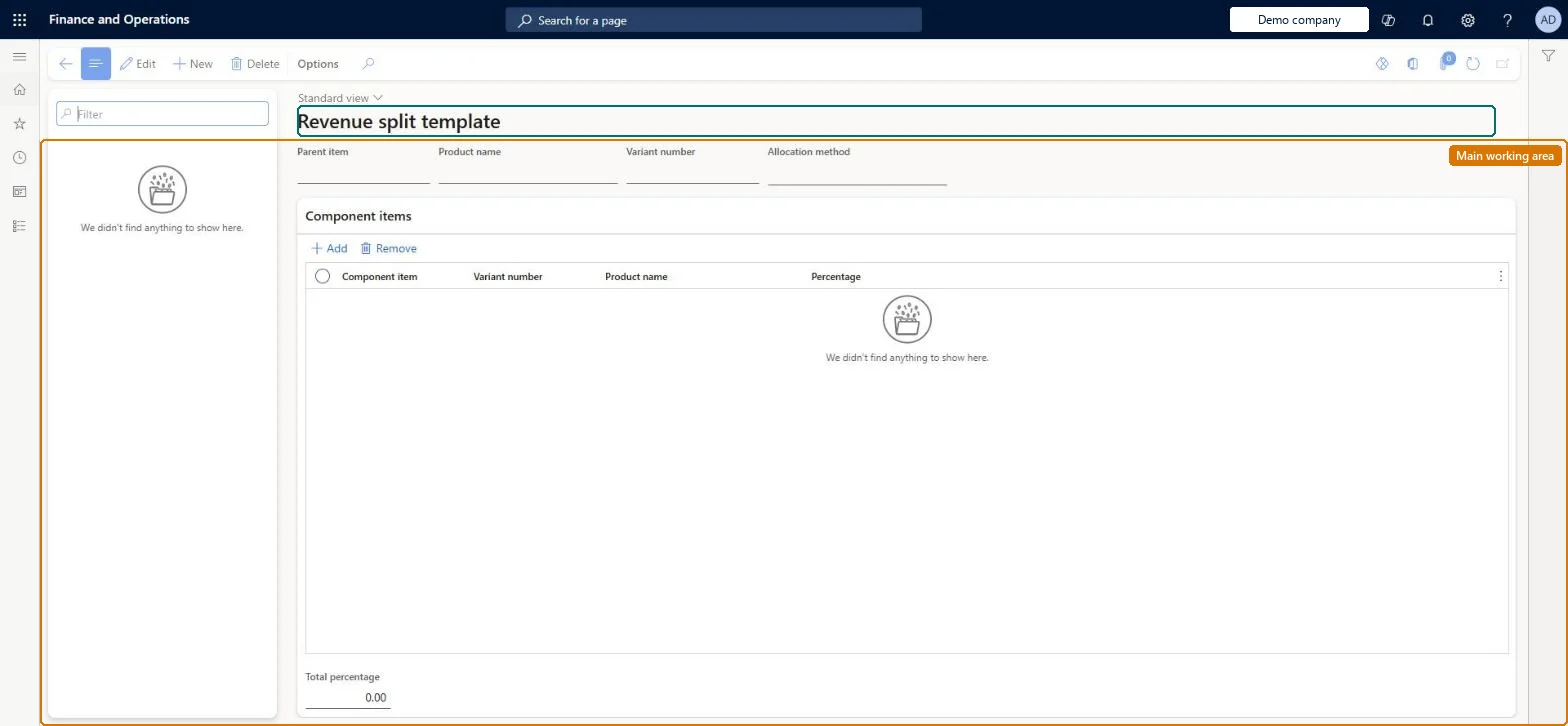
Set up Revenue split template
Use this page to set up items that are sold as one item or bundle and to choose how the parent amount is allocated to the child items.
Steps from Microsoft
Go to Subscription billing > Recurring contract billing > Setup > Revenue split template.
Select New.
In the Parent item field, select the parent item, and check the variant number.
In the Allocation method field, select an allocation method.
In the Component items list, select Add to add child items.
If the allocation method is Percentage, enter a percentage for each child item.
The share of the parent amount for the child item, between 0 and 100.Microsoft Learn
SubBillRevenueSplitPercentage
Total percentage
The sum of the child percentages, which must be 100 for the Equal amount and Percentage methods.Microsoft Learn
Common errors and fixes
Message
What to do
A revenue split child line can't be edited on its own
Child start and end dates, quantity, unit, site and warehouse follow the parent. Change the parent line, or add and remove children with Add revenue split child. Microsoft Learn
A discount can't be added to a revenue split line
Discounts aren't allowed on revenue split items. Agree the price on the parent line. Microsoft Learn
A revenue split template can't be saved
An item can be the parent of only one template, a template needs at least one child, and with Percentage the children must total 100. Microsoft Learn
Test checklist
Create a template with a parent item, Allocation method Percentage and child items totalling 100.
Set Automatically create revenue split to Yes on Recurring contract billing parameters.
Add the parent item to a billing schedule and check the Revenue split checkbox is selected and child lines are added.
Change the parent amount and check the child net amounts are Percentage x Parent amount and the pricing method is Flat.
One template per bundle, with Percentage when the contract fixes the split and Zero parent amount only for internal splits customers never see; parent and children in the same item group.The allocation method decides how the parent price reaches the children, and the parent and children must share an item group.
Subscription billing (Must be on)Recurring contract billing (Must be on)
Licence or add-in
Turn off the Revenue recognition feature first: Subscription billing can't be used while it is on. Then, in Feature management, turn on Subscription billing and after it Recurring contract billing. Revenue recognition was deprecated in January 2024 and replaced by Subscription billing. Subscription billing managers maintain this setup; Subscription billing users can view it.
Reversible: Templates can be changed; they default the child lines when the parent is added to a sales order or billing schedule, where child items can still be added or removed.
If you change it later
New sales order and billing schedule lines for the parent item add the template's children; with Automatically create revenue split = Yes the Revenue split check box is selected by itself. Existing lines keep their children. Microsoft Learn
Technical architect
6Technical
Menu item
SubBillRevenueSplitTemplateChecked in Dynamics 365
Form
SubBillRevenueSplitTemplateChecked in Dynamics 365
Table
SubBillRevenueSplitHeaderShown as “SUBSCRIPTION BILLING REVENUE SPLIT HEADER” in Record infoKey field: SubBillRevenueSplitParentItem, SubBillRevenueSplitParentVariantChecked in Dynamics 365
Data entities
SubBillRevenueSplitHeaderEntitySubscription billing revenue split header Checked in Dynamics 365
Who can open it
PrivilegesSubscription billing manager SubBillBillingMaintainMaintain Subscription billing billing setup SubBillBillingSetupMaintainView Subscription billing billing setup SubBillBillingSetupViewSubscription billing user SubBillBillingViewSubscription billing allocation, deferral, and billing manager SubBillMaintainSubscription billing module user with capabilities including billing, allocation, and deferral features SubBillViewDutiesSubscription billing user SubBillBillingInquireSubscription billing manager SubBillBillingMaintainSubscription billing module user with capabilities including billing, allocation, and deferral features SubBillInquireSubscription billing allocation, deferral, and billing manager SubBillMaintain4 security rolesSubscription billing manager SubBillBillingMaintainSubscription billing user SubBillBillingViewSubscription billing allocation, deferral, and billing manager SubBillMaintainSubscription billing module user with capabilities including billing, allocation, and deferral features SubBillViewChecked in Dynamics 365
Roles to set it up and use it
To set it up or change itSubscription billing manager SubBillBillingMaintainSubscription billing allocation, deferral, and billing manager SubBillMaintainTo use itSubscription billing user SubBillBillingViewSubscription billing module user with capabilities including billing, allocation, and deferral features SubBillViewGive people one of these roles. On this system, 4 roles can open this page.Checked in Dynamics 365
SubBillRevenueSplitHeaderEntity data entity Checked in Dynamics 365
Data migration
SubBillRevenueSplitHeaderEntity (Subscription billing revenue split header): the template headers.Load order: Load the setup in reference order: support and renewal levels, milestone templates and consumer price index schedules first; then billing schedule groups (a group can name a milestone template), item setup, item group setup, revenue split templates and unbilled revenue setup (they name items, templates and main accounts); then Recurring contract billing parameters, which name the default billing schedule group and support and renewal level; billing schedules come last.Load first: Released products, Item groupsMicrosoft Learn