Subscription billingRecurring contract billingInquiries and reports
SubBillNewContractSales
Business process
Bill subscriptions
Menu item
SubBillNewContractSales
Setup steps
1 on this page
Show what matters for
SETUP GUIDEHow to set it up8 sections. Choose a role to highlight what matters to you.
Everyone
1What it is and why
What it is
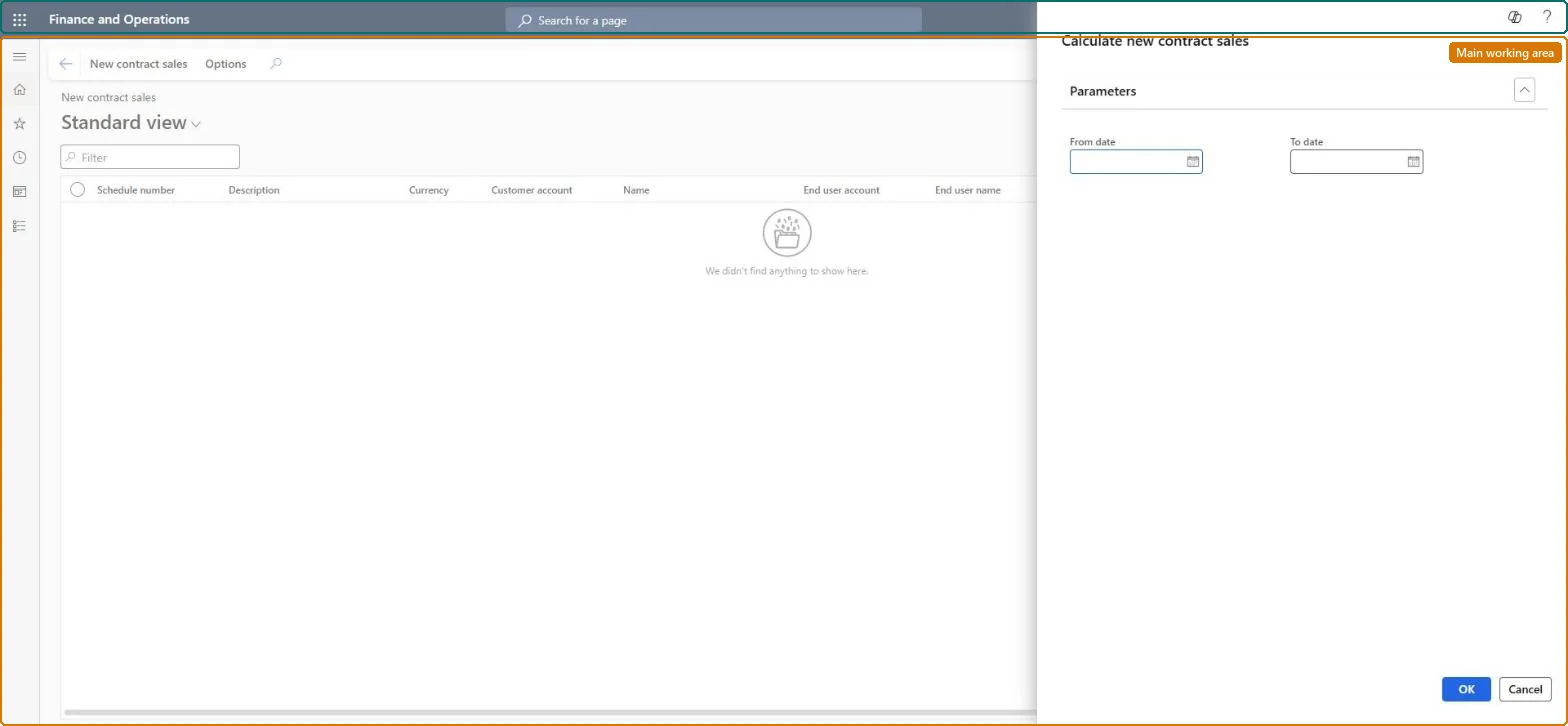
A report page that calculates, for the from date and to date you enter, the billing schedules sold in that period, with schedule number, description, currency, customer and end user.
What you do here
Use this page to see the new subscription sales of a period, for example a month, and compare periods.
Example
For example, on 1 November a BEAT sales manager runs it for 1 to 31 October to list the contracts signed in October.
The page in Dynamics 365. page title tab to open what to set or check
About the examples: Examples and screenshots in this guide use BEAT, a demo company in a Dynamics 365 test environment. Use your own company's codes and values instead of copying them.
Setup steps on this page
Read New contract sales for the right dates
Use this page to see the new subscription sales of a period, for example a month, and compare periods.
Steps from Microsoft
Go to Subscription billing > Recurring contract billing > Inquiries and reports > New contract sales.
In the Calculate new contract sales dialog, enter the From date and To date of the period, such as one month.
Select OK to calculate the new contract sales and show them on the page.
Run it again with the previous period's dates to compare two periods, and open a schedule on All billing schedules for detail.
The period whose new contract sales are calculated.Checked in Dynamics 365
Schedule number / Description
The new billing schedule.Checked in Dynamics 365
Currency
The currency of the schedule.Checked in Dynamics 365
Customer account / Name
The customer of the new contract.Checked in Dynamics 365
End user account / End user name
The end user of the contract.Checked in Dynamics 365
Common errors and fixes
Message
What to do
The report page shows no lines after OK
The page only lists billing schedules in the dates you entered. Widen From date and To date, and check that the schedules aren't archived; archived lines no longer appear on inquiry pages. Microsoft Learn
One calendar month at a time, matching the sales reporting period.The page calculates each time you select OK, so the dates decide which contracts count as new.
Subscription billing (Must be on)Recurring contract billing (Must be on)
Licence or add-in
Turn off the Revenue recognition feature first: Subscription billing can't be used while it is on. Then, in Feature management, turn on Subscription billing and after it Recurring contract billing. Revenue recognition was deprecated in January 2024 and replaced by Subscription billing. Subscription billing users and managers can open this page.
The page calculates from the billing schedules each time; it changes no data. Microsoft Learn
Technical architect
6Technical
Menu item
SubBillNewContractSalesChecked in Dynamics 365
Form
SysOperationTemplateFormChecked in Dynamics 365
Roles to set it up and use it
To use itSubscription billing manager SubBillBillingMaintainSubscription billing allocation, deferral, and billing manager SubBillMaintainSubscription billing user SubBillBillingViewSubscription billing module user with capabilities including billing, allocation, and deferral features SubBillViewGive people one of these roles. On this system, 4 roles can open this page.Checked in Dynamics 365
Load order: New contract sales has no data entity in Data management, so there is nothing to load from a file or a configuration template. It is calculated from the billing schedules when you run it, so load the billing schedules and run the page in the new environment.Microsoft Learn
Checked in a working Dynamics 365 system, version 10.0.49: the menu item, form, table and security, the page.
To cite this step: SB-INQ-050, Read New contract sales for the right dates. Beyond ERP Atlas Hub, 2026-11-11. https://www.beyonderp.cloud/atlas/step/SB-INQ-050