SETUP GUIDEHow to set it up8 sections. Choose a role to highlight what matters to you.
Everyone
1What it is and why
What it is
A periodic job that deletes all batch job history entries older than a set number of days.
What you do here
Use this periodic task to keep the batch history small, because too much history slows down later batch jobs.
Example
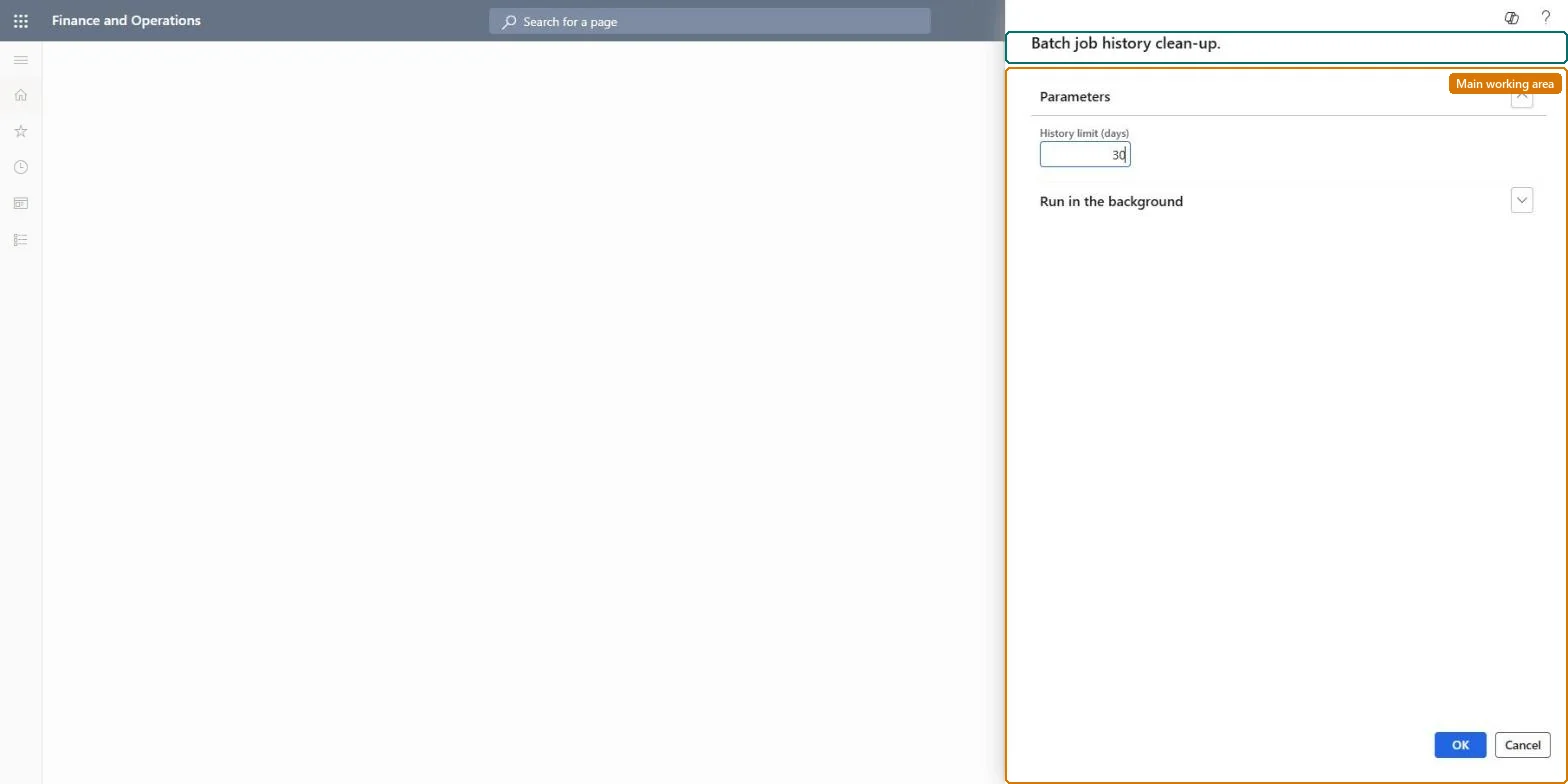
For example, Optimization advisor reports too many batch job history entries in BEAT; the administrator schedules Batch job history clean-up every night with History limit (days) set to 30, the low end of the 30 to 60 days Microsoft keeps in production.
The page in Dynamics 365. page title tab to open what to set or check
About the examples: Examples and screenshots in this guide use BEAT, a demo company in a Dynamics 365 test environment. Use your own company's codes and values instead of copying them.
When to run it
When to run it
When the batch job history has grown enough to slow down batch jobs, for example when Optimization advisor reports too many batch job history entries.
How often
Regularly, outside business hours, as Microsoft recommends. In production, Microsoft also cleans batch history on a 30 to 60 day retention.
Batch settings
Run it as a recurring batch job at night, with no other history cleanup scheduled at the same time.
What the output shows
All batch job history older than the history limit is gone, across every job. If history you still needed for an investigation disappeared, the history limit was set too short.
Keep the batch job history small so it doesn't slow down later batch jobs.
Steps from Microsoft
Go to System administration > Periodic tasks > Batch job history clean-up (the menu label ends with a period).
In History limit (days), enter how many days of batch job history to keep. Every older entry is deleted from BatchJobHistory together with its BatchHistory and BatchConstraintsHistory records.
Use this standard version, not the custom one, when you want to remove everything older than the limit; it is faster because it doesn't filter.
Schedule it outside business hours and never start it while another history cleanup is running, because parallel runs can cause database deadlocks.
Afterwards, open the batch job history and confirm that no entries older than the limit remain.
A recurring night run of the standard version with a history limit your support team agrees, never in parallel with another history cleanupLearn: too much history slows future jobs; clean regularly outside business hours, and parallel history cleanups can deadlock. The standard version is faster because it doesn't filter.
Shared: the batch job history table has no company key, and this version deletes all history older than the limit, whatever company or user. Use the custom version to filter by company. Microsoft data model
Can it be undone
No: Deleted batch job history can't be restored.
If you change it later
Run history cleanups one at a time and outside business hours, because parallel runs can cause database deadlocks. Microsoft Learn
Technical architect
6Technical
Menu item
action:BatchJobHistoryCleanupFastChecked in Dynamics 365
Load order: Batch job history clean-up has no data entity in Data management, so it can't be loaded from a file or a configuration template. It is a periodic job; schedule it again in each environment. The history itself can be read with the Batch jobs history entity, not loaded back.Checked in Dynamics 365
Checked in a working Dynamics 365 system, version 10.0.49: the menu item, form, table and security, the page.
To cite this step: SA-JOB-820, Schedule the batch job history clean-up. Beyond ERP Atlas Hub, 2026-11-11. https://www.beyonderp.cloud/atlas/step/SA-JOB-820