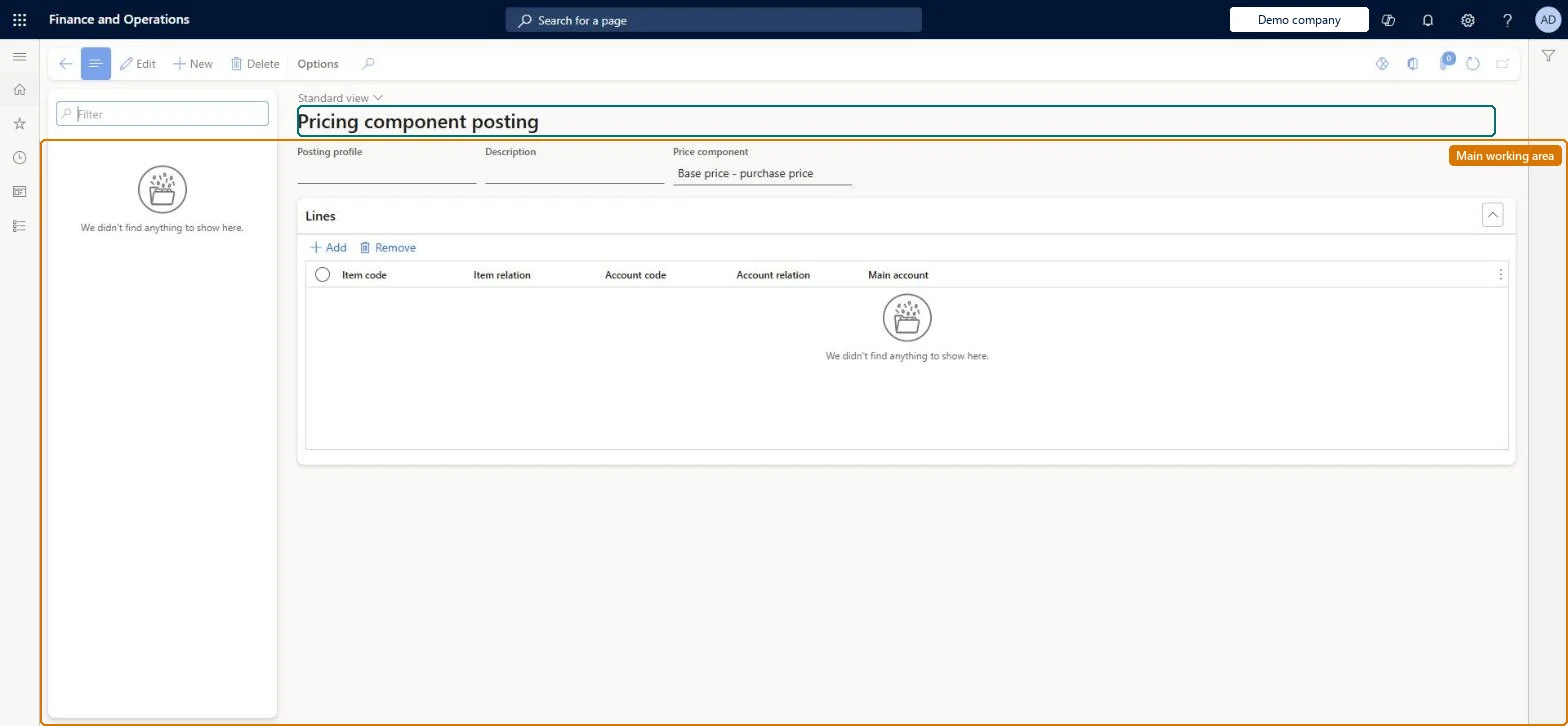
Setup step on the Pricing component posting page · Pricing management
Set up Pricing component posting
Use this page to post base prices, sales trade agreement prices, margin component price adjustments and discounts to separate ledger accounts so each pricing layer shows up in the ledger.
Auditor, Chief financial officer, Inventory accountant and 6 more roles
Business process
Set product prices
Menu item
GUPPriceComponentCodePostingProfile
Main table
GUPPriceComponentCodePos
Data entity
GUPPriceComponentCodePostingProfileEntity
Setup steps
1 on this page
Show what matters for
SETUP GUIDEHow to set it up8 sections. Choose a role to highlight what matters to you.
Everyone
1What it is and why
What it is
A setup page where you create posting profiles that assign main accounts to price component amounts by item and customer scope.
What you do here
Use this page to post base prices, sales trade agreement prices, margin component price adjustments and discounts to separate ledger accounts so each pricing layer shows up in the ledger.
Example
For example, a profile for margin component adjustments can post the adjustments for one item group to its own main account.
The page in Dynamics 365. page title tab to open what to set or check
About the examples: Examples and screenshots in this guide use BEAT, a demo company in a Dynamics 365 test environment. Use your own company's codes and values instead of copying them.
Setup steps on this page
Set up Pricing component posting
Use this page to post base prices, sales trade agreement prices, margin component price adjustments and discounts to separate ledger accounts so each pricing layer shows up in the ledger.
Steps from Microsoft
Go to Pricing management > Setup > Posting > Pricing component posting.
Select New.
Enter the Posting profile, Description and Price component.
On the Lines FastTab, add lines and set Item code, Item relation, Account code, Account relation and Main account.
One posting profile per price component with an Item All / Account All line as the catch-all, plus fallback accounts on Pricing management parametersProfile lines can target a table, group or all items and customers. The fallback account on the Posting tab of the parameters is used for price component code lines with no profile.
Creating profiles but not switching them on. Post sales base price, Post margin component adjustments or Post periodic discount must be Yes on the parameters, and Post to price component code must be selected with the profile on the price tree line.Test: Discount account on the rule overrides the profile
Solution architect
5Design impact
Can it be undone
Reversible: The account is taken from the profile when a sales invoice is posted, so a change affects invoices posted afterwards.
If you change it later
When a sales invoice is posted, the account comes from the posting profile assigned to each price component code line, so changing a profile changes where those amounts post. Microsoft Learn
Technical architect
6Technical
Menu item
GUPPriceComponentCodePostingProfileChecked in Dynamics 365
Form
GUPPriceComponentCodePostingProfileChecked in Dynamics 365
Table
GUPPriceComponentCodePosShown as “PRICE COMPONENT CODE POSTING PROFILE” in Record infoKey field: NameChecked in Dynamics 365
Data entities
GUPPriceComponentCodePostingProfileEntityPrice component code posting profile Checked in Dynamics 365
Who can open it
PrivilegesMaintain item posting GUPItemPostingMaintainView item posting GUPItemPostingViewMaintain price component for sales posting GUPSalesPostingPriceComponentMaintainView price component for sales posting GUPSalesPostingPriceComponentViewDutiesInquire into general ledger policies GUPGeneralLedgerPolicyInquiryEnable general ledger process GUPGeneralLedgerProcessMaintainInquiries into price component for sales posting GUPSalesPostingPriceComponentInquiryMaintain price component for sales posting GUPSalesPostingPriceComponentMaintain9 security rolesAuditor AuditPolicyManagerChief financial officer CompanyChiefFinancialOfficerInventory accountant InventCostAccountantInventory accountant clerk InventCostCostClerkAccountant LedgerAccountantAccounting manager LedgerAccountingManagerAccounting supervisor LedgerAccountingSupervisorFinancial controller LedgerFinancialControllerRetail service RetailServiceChecked in Dynamics 365
Roles to set it up and use it
To set it up or change itRetail service RetailServiceAccounting supervisor LedgerAccountingSupervisorAccounting manager LedgerAccountingManagerTo use itAccountant LedgerAccountantInventory accountant InventCostAccountantInventory accountant clerk InventCostCostClerkAuditor AuditPolicyManagerChief financial officer CompanyChiefFinancialOfficerGive people one of these roles. On this system, 9 roles can open this page.Checked in Dynamics 365
Checked in a working Dynamics 365 system, version 10.0.49: the menu item, form, table and security, the page.
To cite this step: PRM-SETUP-080, Set up Pricing component posting. Beyond ERP Atlas Hub, 2026-11-11. https://www.beyonderp.cloud/atlas/step/PRM-SETUP-080