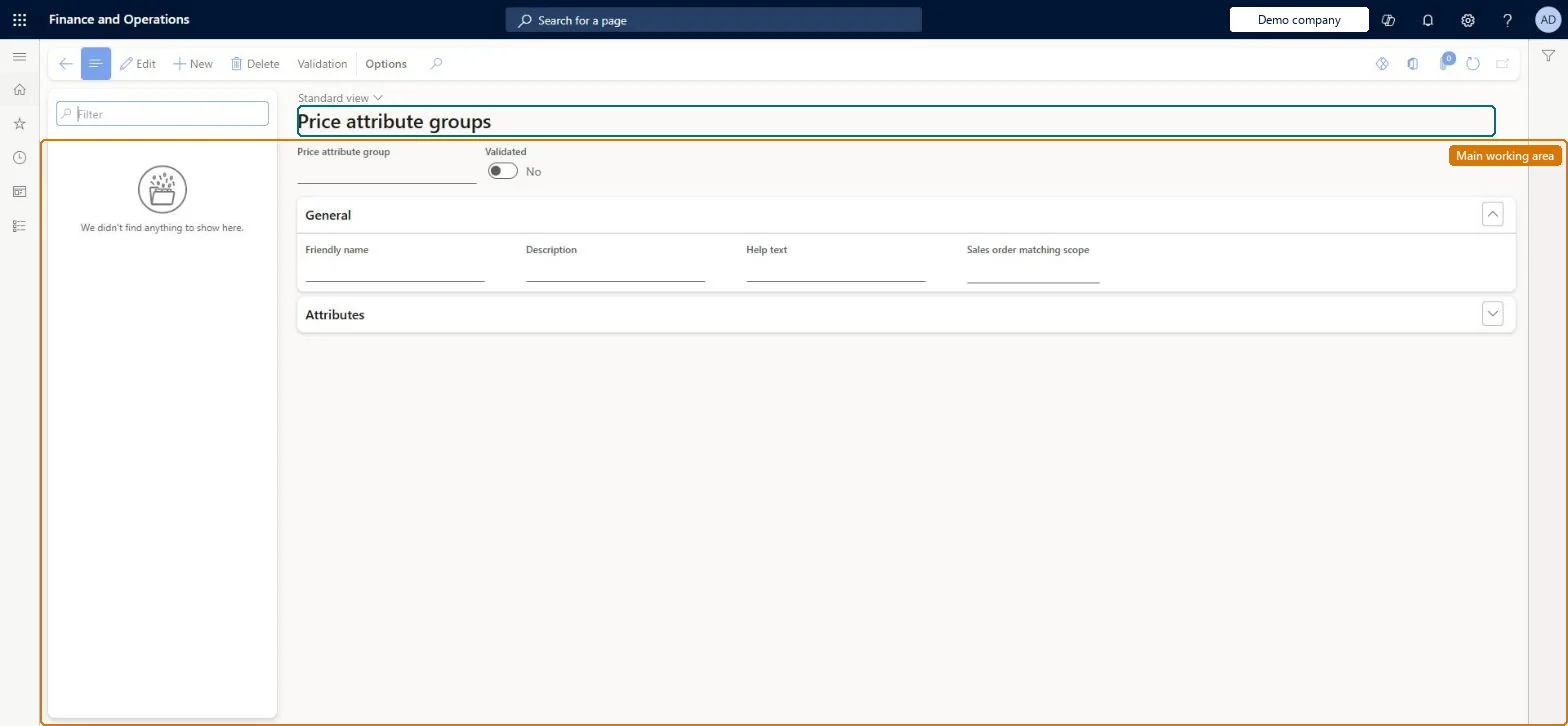
About the examples: Examples and screenshots in this guide use BEAT, a demo company in a Dynamics 365 test environment. Use your own company's codes and values instead of copying them.
Setup steps on this page
Set up Price attribute groups
Use this page to choose the attributes a pricing rule can set values for, rank them, and validate the group so that it can be used in pricing rules.
Steps from Microsoft
Go to Pricing management > Setup > Price attribute groups > Price attribute groups.
Select New.
Enter a unique name in the Price attribute group field.
On the General FastTab, enter Friendly name, Description and Help text, and select the Sales order matching scope.
Select Save.
On the Attributes FastTab, add attributes and use Move up and Move down to set their rank.
Separate header and line groups, with attributes ordered by rank so the most specific attribute (for example customer loyalty program before segment) is at the top; validate each group after every editEach pricing rule combines one header group and one line group, and the attribute rank decides which rule wins when several match. Only validated groups can be used in pricing rules.
Editing a validated group and forgetting to run Validation again: Validated goes back to No and the group can't be used in pricing rules until it passes.
Solution architect
5Design impact
Can it be undone
Hard to reverse: Price attribute group and Sales order matching scope become read-only after the first save. To change the name or scope you need a new group and must re-point the pricing rules.
If you change it later
Editing a group that was already validated sets Validated back to No, so the group must be validated again before pricing rules can use it. Microsoft Learn
Technical architect
6Technical
Menu item
GUPPricingAttributeGroupChecked in Dynamics 365
Form
GUPPricingAttributeGroupChecked in Dynamics 365
Table
GUPPricingAttributeGroupShown as “PRICE ATTRIBUTE GROUPS” in Record infoKey field: NameChecked in Dynamics 365
Data entities
GUPPricingAttributeGroupEntityPrice attribute groups Checked in Dynamics 365GUPPricingAttributeLinkEntityPrice attribute link Checked in Dynamics 365
Who can open it
PrivilegesMaintain price attribute groups master GUPPricingAttributeGroupsMaintainView price attribute groups master GUPPricingAttributeGroupsViewDutiesInquiries into policies governing pricing setting process GUPMasterDataInquiryEnable pricing setting process GUPMasterDataMaintain9 security rolesAccounts receivable manager CustInvoiceAccountsReceivableManagerMCRTestUserRoleRetail merchandising manager RetailMerchandisingManagerRetail operations manager RetailOperationsManagerRetail service RetailServiceRetail store IT RetailStoreITPurchasing manager TradePurchasingManagerSales clerk TradeSalesClerkSales manager TradeSalesManagerChecked in Dynamics 365
Roles to set it up and use it
To set it up or change itRetail service RetailServiceSales manager TradeSalesManagerRetail merchandising manager RetailMerchandisingManagerPurchasing manager TradePurchasingManagerRetail store IT RetailStoreITTo use itSales clerk TradeSalesClerkAccounts receivable manager CustInvoiceAccountsReceivableManagerGive people one of these roles. On this system, 8 roles can open this page.Checked in Dynamics 365
Actions on the page
(Action Pane without tabs): ValidationChecked in Dynamics 365
Checked in a working Dynamics 365 system, version 10.0.49: the menu item, form, table and security, the page.
To cite this step: PRM-SETUP-020, Set up Price attribute groups. Beyond ERP Atlas Hub, 2026-11-11. https://www.beyonderp.cloud/atlas/step/PRM-SETUP-020