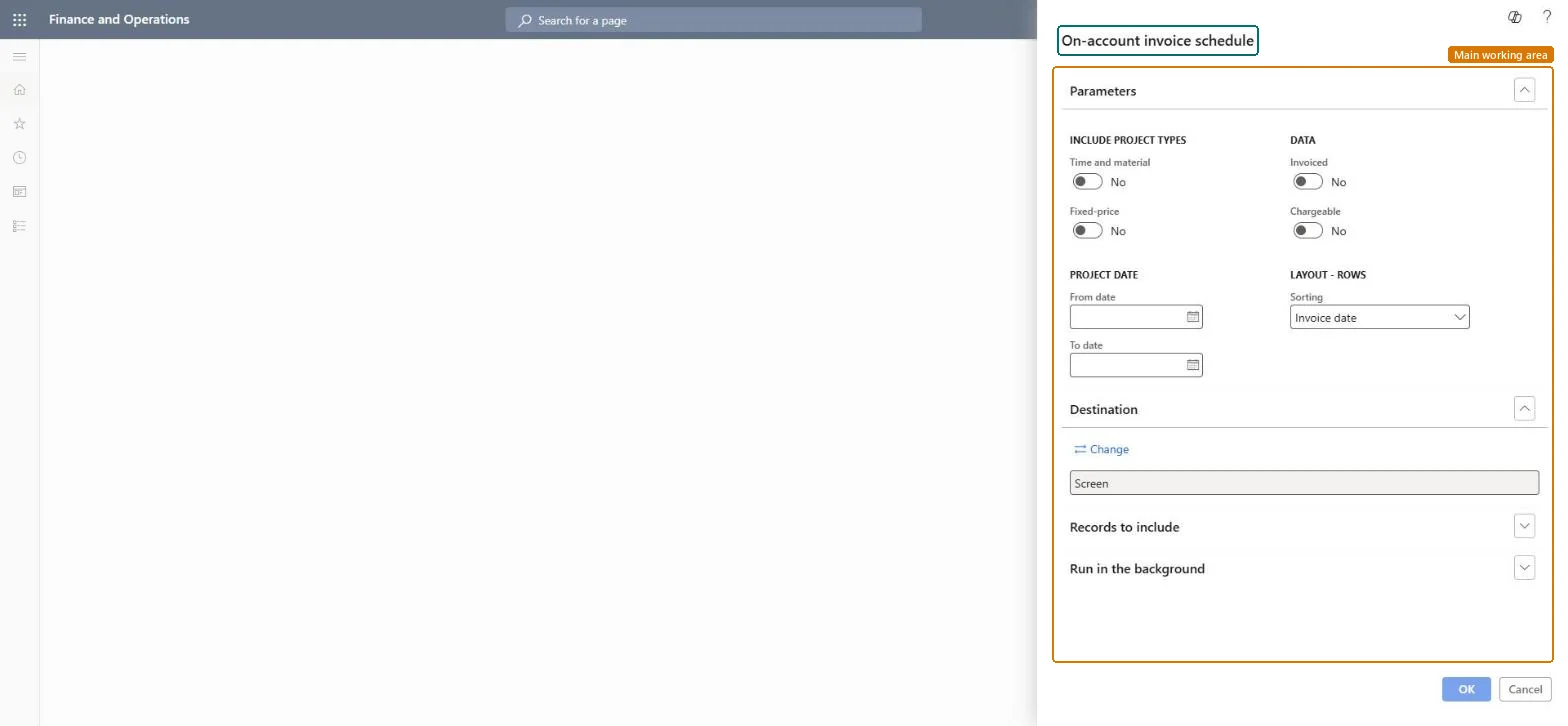
Select the on-account transactions for the billing run
Project management and accountingInquiries and reportsOn account reports
output:ProjOnAccount
Business process
Analyze project performance
Menu item
output:ProjOnAccount
Setup steps
1 on this page
Show what matters for
SETUP GUIDEHow to set it up8 sections. Choose a role to highlight what matters to you.
Everyone
1What it is and why
What it is
A report that lists the on-account transactions of time and material and fixed-price projects, such as billing milestones and prepayments, for a project date range, showing which are already invoiced and which can still be invoiced.
What you do here
Use it before an on-account billing run to see which milestones and prepayments are due and which were billed already.
Example
Before the November 2026 billing run BEAT's project assistant lists fixed-price on-account transactions dated 2026-11-01 to 2026-11-30: PRJ-0057 milestone 3 for 30,000.00 is chargeable and not yet invoiced, milestone 2 for 25,000.00 shows as invoiced.
The page in Dynamics 365. page title tab to open what to set or check
About the examples: Examples and screenshots in this guide use BEAT, a demo company in a Dynamics 365 test environment. Use your own company's codes and values instead of copying them.
When to run it
When to run it
Before you create invoice proposals for on-account billing, or when a customer asks which on-account amounts are scheduled or already billed.
How often
On demand, before each on-account billing run.
What the output shows
The on-account invoice lines per project, sorted by the level you chose, with dates and amounts. A scheduled amount that is missing usually has a project date outside the range or isn't marked chargeable.
Include on-account transactions that are already on a posted project invoice.Microsoft Learn
Yes
Chargeable
Include on-account transactions that are not invoiced yet and can still go on an invoice proposal.Microsoft Learn
Yes
Sorting
First sort level of the rows; the dialog proposes Invoice date.Checked in Dynamics 365
Invoice date
Time and material
Include on-account transactions of time and material projects, which are prepayments.Checked in Dynamics 365
No
Fixed-price
Include on-account transactions of fixed-price projects, which are milestone, unit of delivery or progress billings.Checked in Dynamics 365
Yes
From date
First project date of the on-account transactions to include.Checked in Dynamics 365
2026-11-01
To date
Last project date of the on-account transactions to include.Checked in Dynamics 365
2026-11-30
Common errors and fixes
Message
What to do
A milestone you expect to bill is not listed.
Check that the on-account transaction exists on the project, that its date is in the project date range and that the project type (Time and material or Fixed-price) is turned on. Microsoft Learn
Turn on Fixed-price (and Time and material if you bill prepayments), turn on Chargeable and leave Invoiced off, and enter the billing period as project dates.Chargeable without Invoiced leaves only the on-account transactions that still have to go on an invoice proposal, which is the list the billing run needs.
On the live system, Project manager, Project supervisor, Project assistant, Accounts receivable clerk and Accounts receivable centralized payments clerk can run this page.
Checked in Dynamics 365
Solution architect
5Design impact
Shared or per company
Per legal entity: the report reads only the project data of the company you are signed in to, so run it in each company you close. Checked in Dynamics 365
Can it be undone
Reversible: Running or rerunning the report changes no data.
If you change it later
The report reads on-account transactions. An on-account amount is set on the transaction, not calculated from posted hours or items, so if a milestone amount changes before invoicing, update the on-account transaction and run the report again. Microsoft Learn
Technical architect
6Technical
Menu item
output:ProjOnAccountChecked in Dynamics 365
Form
SysOperationTemplateFormChecked in Dynamics 365
Roles to set it up and use it
To use itProject manager ProjProjectManagerProject supervisor ProjProjectSupervisorProject assistant ProjProjectClerkAccounts receivable clerk CustInvoiceAccountsReceivableClerkAccounts receivable centralized payments clerk PaymAccountsReceivableCentralPaymClerkGive people one of these roles. On this system, 6 roles can run this page.Checked in Dynamics 365
Load order: On-account invoice schedule has no data entity in Data management: the menu item ProjOnAccount opens a report that only reads posted project data. There is nothing to migrate for the report itself; load the project data it reads, for example opening balances through Journals > Beginning balance, then run the report in the new system and compare its totals with the old one.Checked in Dynamics 365
Checked in a working Dynamics 365 system, version 10.0.49: the menu item, form, table and security, the page.
To cite this step: PM-RC-130, Select the on-account transactions for the billing run. Beyond ERP Atlas Hub, 2026-11-11. https://www.beyonderp.cloud/atlas/step/PM-RC-130