BeyondERP.Newsletter
Menu

Setup step on the Send quotation page · Project management and accounting

Send final quotations in bulk

Send many final quotations at once.

Business process
Manage project contracts
Menu item
action:SalesQuotationEditLinesForm_Proj_Send
Setup steps
1 on this page
Show what matters for
SETUP GUIDEHow to set it up8 sections. Choose a role to highlight what matters to you.
Everyone

1What it is and why

What it isA periodic page that sends several project quotations at the same time and sets their status to Sent, after which they can't be changed.
What you do hereUse it to send final quotations with the status Created to prospects for confirmation, by email or as a printed copy.
ExampleOn 11/04/2026 BEAT sends 9 renewal quotations for support projects, such as QT-002317 for 18,500.00 to customer C-1042, with expiration date 12/04/2026 and the Detailed quote format.
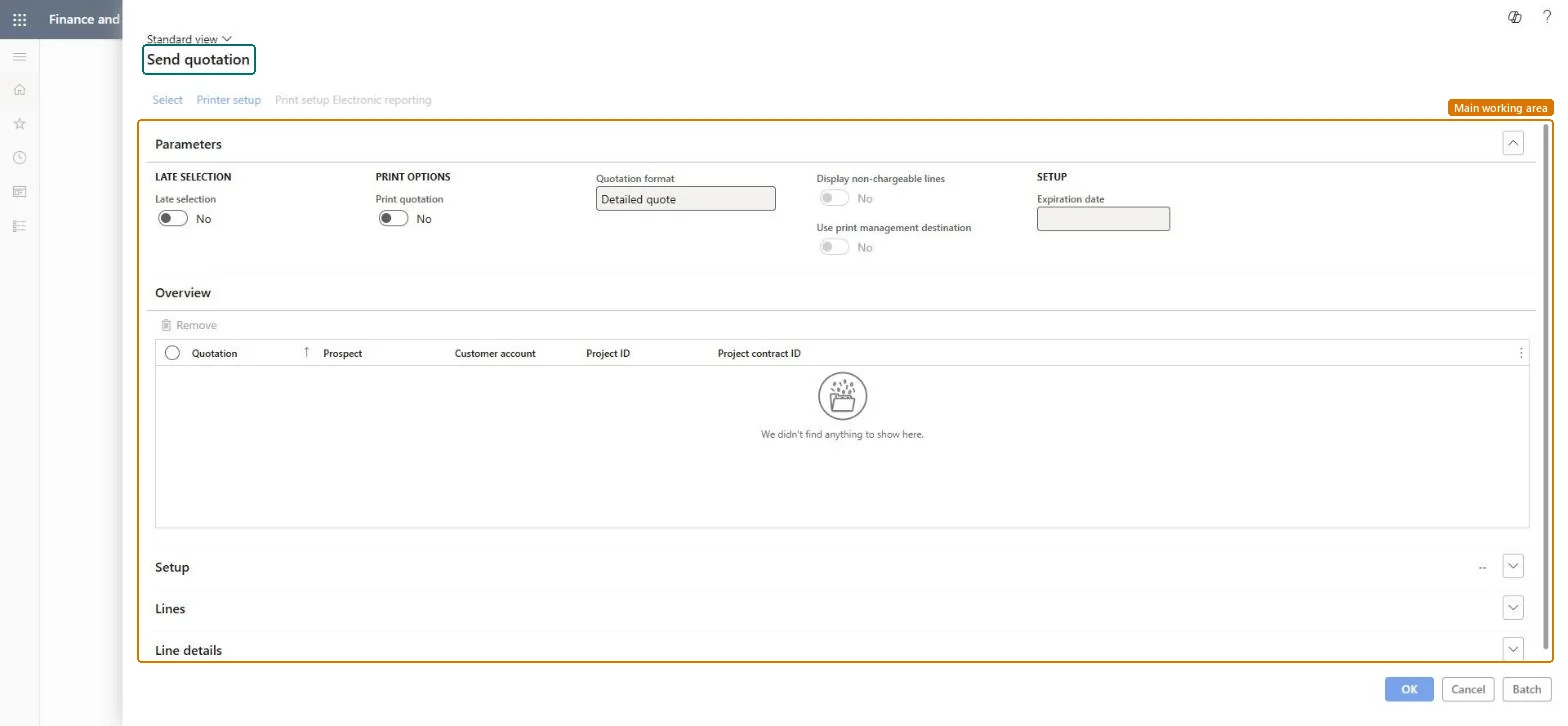
Send quotation page in Dynamics 365
The page in Dynamics 365. page title tab to open what to set or check
Functional consultant · Solution architect

2Where it fits

Business processManage project contracts
Menu pathProject management and accounting › Periodic › Quotations › Send quotation
Set up firstProject quotations Microsoft Learn
Used next byConfirm quotation Microsoft Learn
Related pagesLose quotation Microsoft Learn Cancel quotation Microsoft Learn
In this processConfirm accepted quotations in bulk
End user · Functional consultant

3How to do it

About the examples: Examples and screenshots in this guide use BEAT, a demo company in a Dynamics 365 test environment. Use your own company's codes and values instead of copying them.

When to run it

When to run itWhen several project quotations are final and must go to prospects.
How oftenOn demand.
Batch settingsUse Batch for large selections.
What the output showsSent or printed quotations with the status Sent.

Source: Microsoft Learn

Setup steps on this page

Send final quotations in bulk

Send many final quotations at once.

Steps from Microsoft

  1. Go to Project management and accounting > Periodic > Quotations > Send quotation.
  2. Select Select to choose the project quotations with the status Created to send; they appear in the Overview list.
  3. Under Print options, turn Print quotation on and check the Quotation format.
  4. Enter the Expiration date, and select Remove for any quotation that shouldn't be sent yet.
  5. Select OK, then check in Quotations > Project quotations that the quotations have the status Sent.

Source: Microsoft Learn

Fields on the page

FieldWhat it meansExample
Late selectionFor a batch run, selects the quotations again when the job runs.Checked in Dynamics 365
Print quotationPrints or sends the quotation document.Checked in Dynamics 365Yes
Quotation formatThe layout of the printed quotation.Checked in Dynamics 365Detailed quote
Expiration dateThe expiry date set on the sent quotations.Checked in Dynamics 36512/04/2026

Common errors and fixes

MessageWhat to do
A sent quotation needs a change.A quotation can't be modified once Sent. Make all changes while it is Created, before sending. Microsoft Learn

Test checklist

  1. Select 9 quotations with the status Created.
  2. Send them.
  3. Filter project quotations on Sent: the 9 appear.
  4. Try to edit QT-002317: it can't be changed.

Source: Microsoft Learn

Functional consultant

4Setup decisions

Setup stepRecommended value and whyDecision, common mistake and test
Send final quotations in bulkSend only quotations that are final, with an expiration date.Once Sent, a quotation can't be changed.Send quotations one by one or in bulk?Sending drafts that still need a price change.Test: Send quotations in bulk

Feature management and licence

Licence or add-inOn the live system, Project manager, Sales representative and Sales clerk use this page.

Checked in Dynamics 365

Solution architect

5Design impact

Shared or per companyPer company: it sends the quotations of the legal entity you run it in. Microsoft data model
Can it be undoneIrreversible: Sent quotations can't be changed.
If you change it laterSends the quotations and sets their status to Sent, after which they can't be changed. Microsoft Learn
Technical architect

6Technical

Menu itemaction:SalesQuotationEditLinesForm_Proj_Send Checked in Dynamics 365
FormSalesQuotationEditLines Checked in Dynamics 365
Roles to set it up and use itTo use itProject manager ProjProjectManagerSales representative TradeSalesRepresentativeSales clerk TradeSalesClerkGive people one of these roles. On this system, 3 roles can run this page.Checked in Dynamics 365
Developer

7Developer

Open it by URLhttps://<your-environment>/?mi=action:SalesQuotationEditLinesForm_Proj_Send
Data migrationLoad order: Send quotation has no data entity in Data management: it is a periodic job and keeps no records of its own. Migrate open quotations with ProjQuotationHeaderEntity and send them from the target system.Load first: ProjQuotationHeaderEntityMicrosoft data model
Everyone

8Sources

To cite this step: PM-JOB-190, Send final quotations in bulk. Beyond ERP Atlas Hub, 2026-11-11. https://www.beyonderp.cloud/atlas/step/PM-JOB-190