BeyondERP.Newsletter
Menu

Setup step on the Color groups page · Product information management

Set up Color groups

Use this page to group colours so that a product master that is assigned the color group can use all the colours in it.

Used by
Purchasing agent, Purchasing Agent - Public Sector, Product designer and 15 more roles
Business process
Develop product strategy
Menu item
RetailColorGroupTable
Main table
RetailColorGroupTable
Data entity
EcoResProductColorGroupEntity
Setup steps
1 on this page
Show what matters for
SETUP GUIDEHow to set it up8 sections. Choose a role to highlight what matters to you.
Everyone

1What it is and why

What it isA setup page where you create color groups, which are sets of predefined colour values that can be assigned to a product master.
What you do hereUse this page to group colours so that a product master that is assigned the color group can use all the colours in it.
ExampleFor example, you can create a color group that includes all the available colours of a product.
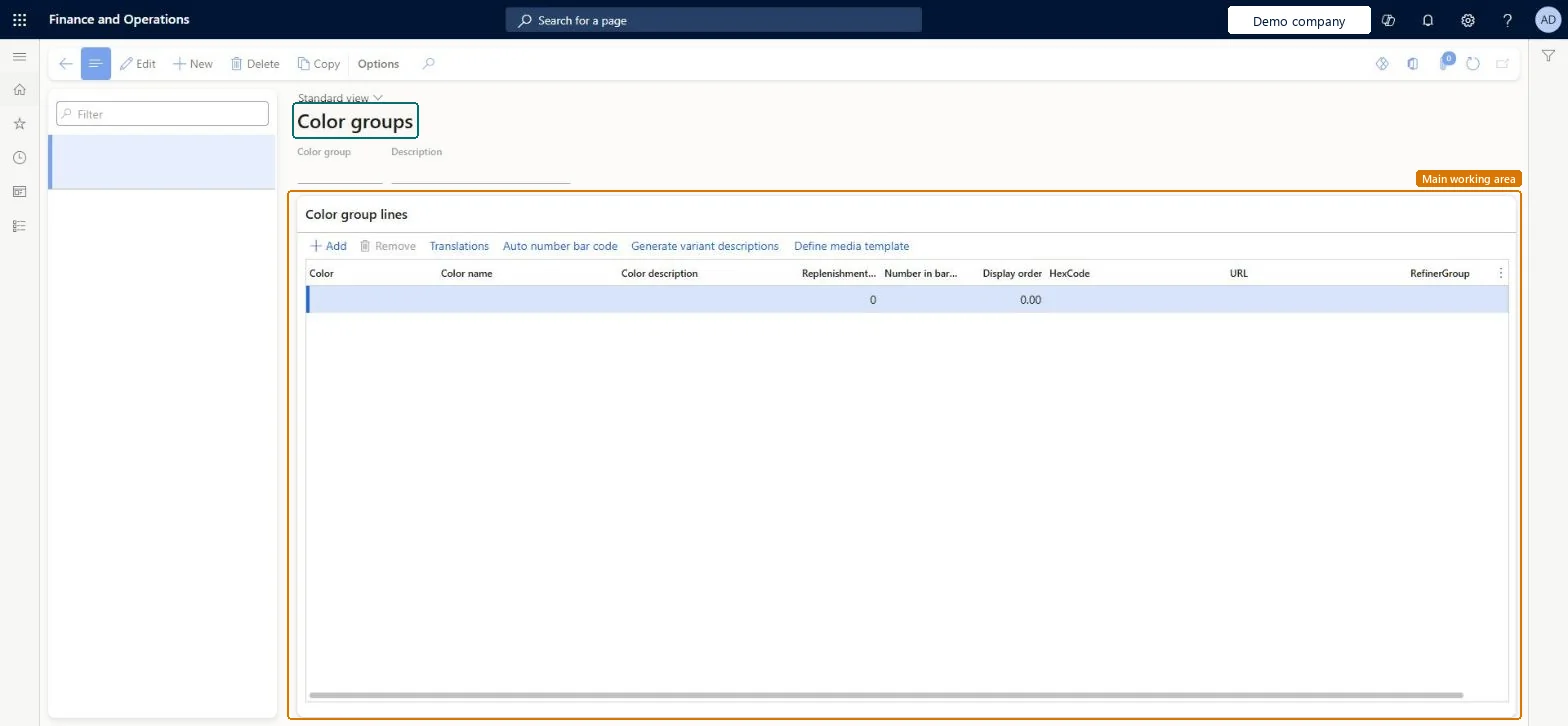
Color groups page in Dynamics 365
The page in Dynamics 365. page title tab to open what to set or check
Functional consultant · Solution architect

2Where it fits

Business processDevelop product strategy
Menu pathProduct information management › Setup › Dimension and variant groups › Color groups
Used next byProduct masters Microsoft Learn
In this process Set up Hazardous material packing group · Set up Hazardous material label
End user · Functional consultant

3How to do it

About the examples: Examples and screenshots in this guide use BEAT, a demo company in a Dynamics 365 test environment. Use your own company's codes and values instead of copying them.

Setup steps on this page

Set up Color groups

Use this page to group colours so that a product master that is assigned the color group can use all the colours in it.

Steps from Microsoft

  1. Go to Product information management > Setup > Dimension and variant groups > Color groups.
  2. On the Action Pane, select New.
  3. In the Color group field, enter a name for the group, and in the Description field, enter a description.
  4. Under Color group lines, select Add.
  5. Enter the Color, Color name, Replenishment weight, Number in barcode and Display order for each colour.
  6. Select Save.

Source: Microsoft Learn

Fields on the page

FieldWhat it meansTable column
Replenishment weightA number that represents the replenishment weight of the line.Microsoft Learn weight
Number in barcodeA number that represents the line in the barcode.Microsoft Learn
Display orderA number that sets the display order of the line.Microsoft Learn DisplayOrder

Test checklist

  1. Create a color group with three colours.
  2. Assign it in the Color group field of a new product master.
  3. Run Variant suggestions and check all three colours are offered.
  4. Create and release the variants.

Source: Microsoft Learn

Functional consultant

4Setup decisions

Setup stepRecommended value and whyDecision, common mistake and test
Set up Color groupsOne color group per colour range or season, assigned to each product master that uses itWhen you assign a color group to a product master, the product can use all the colours in that group.Using a group as a substitute for variant generation. The group gives the master its allowed colours; variants still have to be generated and released.
Solution architect

5Design impact

Shared or per companyShared: the same records are used by every legal entity. Microsoft data model
Can it be undoneReversible: Groups can be edited at any time; they predefine values for product masters and don't post anything.
Technical architect

6Technical

Menu itemRetailColorGroupTable Checked in Dynamics 365
FormRetailColorGroupTable Checked in Dynamics 365
TableRetailColorGroupTableShown as “COLOR GROUP” in Record infoChecked in Dynamics 365
Data entitiesEcoResProductColorGroupEntityProduct color groups Microsoft data model
Who can open itPrivilegesMaintain retail color groups RetailColorGroupsMaintainView retail color groups RetailColorGroupsViewMaintain retail colors RetailColorsMaintainDutiesInquire into products definition master EcoResProductDefinitionMasterInquireMaintain products definition master EcoResProductDefinitionMasterMaintainInquire into products for operations master EcoResProductForOperationsMasterInquireMaintain products for operations master InventProductsForOperationsMasterMaintaMaintain retail product reference data RetailItemReferenceDataMaintainMaintain retail product reference data RetailProductReferenceDataMaintain
18 security rolesProduct designer BOMProductDesignerProduct design manager BOMProductDesignManagerMaterials manager InventMaterialsManagerQuality control manager InventQualityControlManagerLanded cost agent ITMAgentLanded cost manager ITMManagerShop supervisor JmgShopSupervisorProduction supervisor ProdProductionSupervisorRetail catalog manager RetailCatalogManagerRetail merchandising manager RetailMerchandisingManagerRetail service RetailServiceProcess engineer RouteProcessEngineerProcess engineering manager RouteProcessEngineeringManagerBuying agent TradeBuyingAgentPurchasing manager TradePurchasingManagerPurchasing agent VendPurchasingAgentPurchasing Agent - Public Sector VendPurchasingAgent_PSNWarehouse manager WMSWarehouseManager
Checked in Dynamics 365
Roles to set it up and use itTo set it up or change itProduct designer BOMProductDesignerProcess engineer RouteProcessEngineerRetail service RetailServiceRetail merchandising manager RetailMerchandisingManagerRetail catalog manager RetailCatalogManagerTo use itProduct design manager BOMProductDesignManagerProcess engineering manager RouteProcessEngineeringManagerMaterials manager InventMaterialsManagerProduction supervisor ProdProductionSupervisorWarehouse manager WMSWarehouseManagerGive people one of these roles. On this system, 18 roles can open this page.Checked in Dynamics 365
Actions on the page(Action Pane without tabs): CopyChecked in Dynamics 365
Developer

7Developer

Open it by URLhttps://<your-environment>/?mi=RetailColorGroupTable
Integrate withEcoResProductColorGroupEntity data entity Microsoft data model
Table definitionRetailColorGroupTable columns and relations Microsoft data model
Everyone

8Sources

To cite this step: PIM-DIM-070, Set up Color groups. Beyond ERP Atlas Hub, 2026-11-11. https://www.beyonderp.cloud/atlas/step/PIM-DIM-070