Product information managementSetupDimension and variant groups
RetailEcoResColor
Used by
Product designer, Product design manager, Materials manager and 11 more roles
Business process
Develop product strategy
Menu item
RetailEcoResColor
Main table
EcoResColor
Data entity
EcoResProductColorEntity
Setup steps
1 on this page
Show what matters for
SETUP GUIDEHow to set it up8 sections. Choose a role to highlight what matters to you.
Everyone
1What it is and why
What it is
A setup page where you create the colour values that are used for the Color product dimension of product variants.
What you do here
Use this page to maintain the list of colours that product masters can combine with other product dimensions to define product variants.
Example
For example, a company that sells jeans in blue, black and brown creates those colours so that they can be combined with sizes to form product variants.
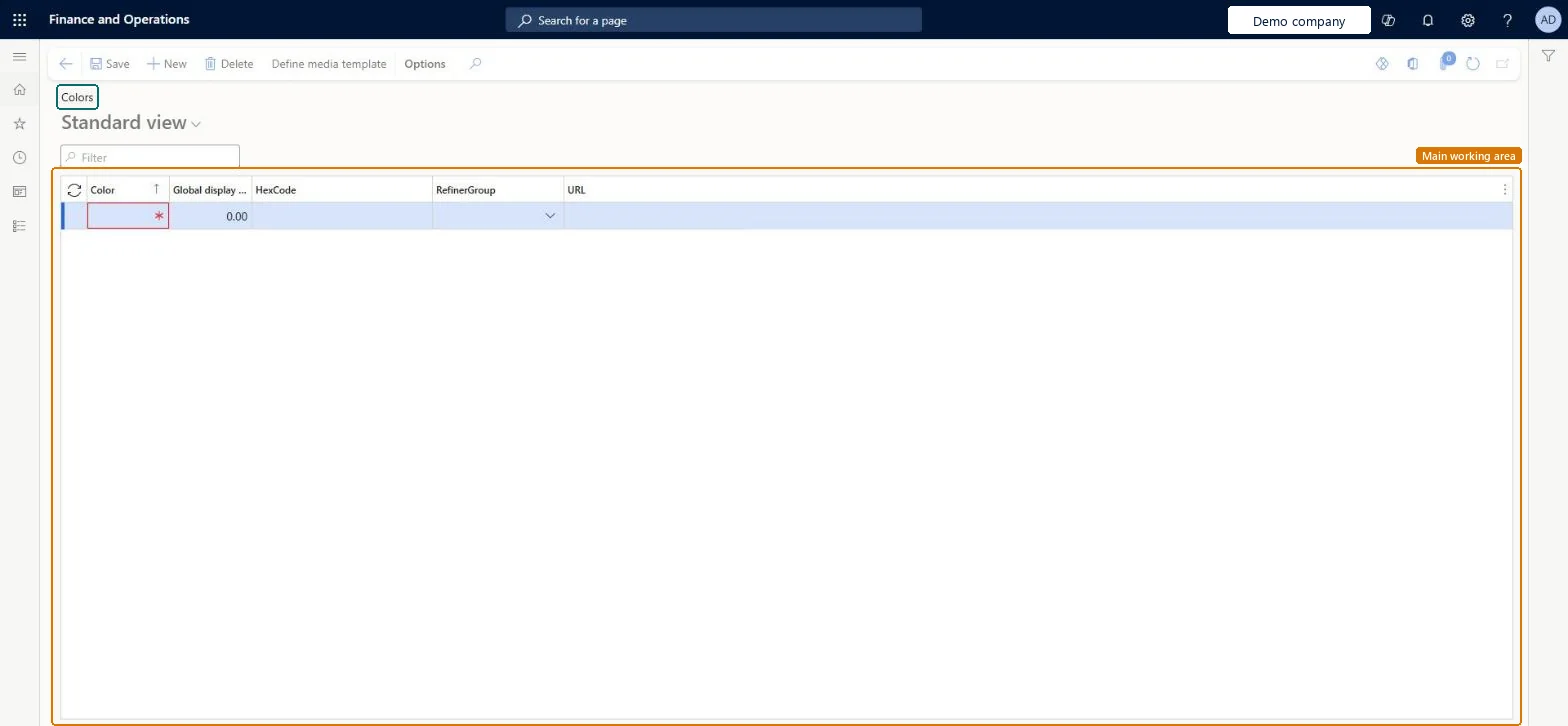
The page in Dynamics 365. page title tab to open what to set or check
About the examples: Examples and screenshots in this guide use BEAT, a demo company in a Dynamics 365 test environment. Use your own company's codes and values instead of copying them.
Setup steps on this page
Set up Colors
Use this page to maintain the list of colours that product masters can combine with other product dimensions to define product variants.
How to use it
Go to Product information management > Setup > Dimension and variant groups > Colors.
On the Action Pane, select New to add a row.
In the Color field, enter the colour value.
Fill in the other columns shown as needed, such as HexCode, RefinerGroup and URL.
Select Save.
Source: Checked in Dynamics 365
Test checklist
Create colours Red and Blue.
Open a product master with a Color dimension and add them on Product dimensions.
One shared list of colour values, bundled into color groups that you assign to product mastersColour values are created once on this page and shared; color groups let a product master use all the colours in the group.
Expecting a new colour to appear on existing products. It must be added to the product master's product dimensions and variants must be created and released for it.
PrivilegesMaintain retail EcoResColors RetailEcoResColorsMaintainView colors RetailEcoResColorsViewDutiesMaintain products definition master EcoResProductDefinitionMasterMaintainInquire into products for operations master EcoResProductForOperationsMasterInquireMaintain products for operations master InventProductsForOperationsMasterMaintaMaintain retail product reference data RetailItemReferenceDataMaintain14 security rolesProduct designer BOMProductDesignerProduct design manager BOMProductDesignManagerMaterials manager InventMaterialsManagerQuality control manager InventQualityControlManagerLanded cost agent ITMAgentLanded cost manager ITMManagerShop supervisor JmgShopSupervisorProduction supervisor ProdProductionSupervisorRetail catalog manager RetailCatalogManagerRetail merchandising manager RetailMerchandisingManagerRetail service RetailServiceProcess engineer RouteProcessEngineerProcess engineering manager RouteProcessEngineeringManagerWarehouse manager WMSWarehouseManagerChecked in Dynamics 365
Roles to set it up and use it
To set it up or change itProduct designer BOMProductDesignerProcess engineer RouteProcessEngineerRetail service RetailServiceRetail merchandising manager RetailMerchandisingManagerRetail catalog manager RetailCatalogManagerTo use itProduct design manager BOMProductDesignManagerProcess engineering manager RouteProcessEngineeringManagerMaterials manager InventMaterialsManagerProduction supervisor ProdProductionSupervisorWarehouse manager WMSWarehouseManagerGive people one of these roles. On this system, 14 roles can open this page.Checked in Dynamics 365
Actions on the page
(Action Pane without tabs): Define media templateChecked in Dynamics 365
EcoResProductColorEntity (Colors): shared by all companies, in Microsoft's default template 310 - Product information management.Load order: Microsoft's default template 310 - Product information management loads Colors at execution unit 1, level 30, sequence 10. Lower levels load first, and entities at the same level load in sequence order.Load first: the default templates at lower levels (System setup to General ledger)Microsoft Learn