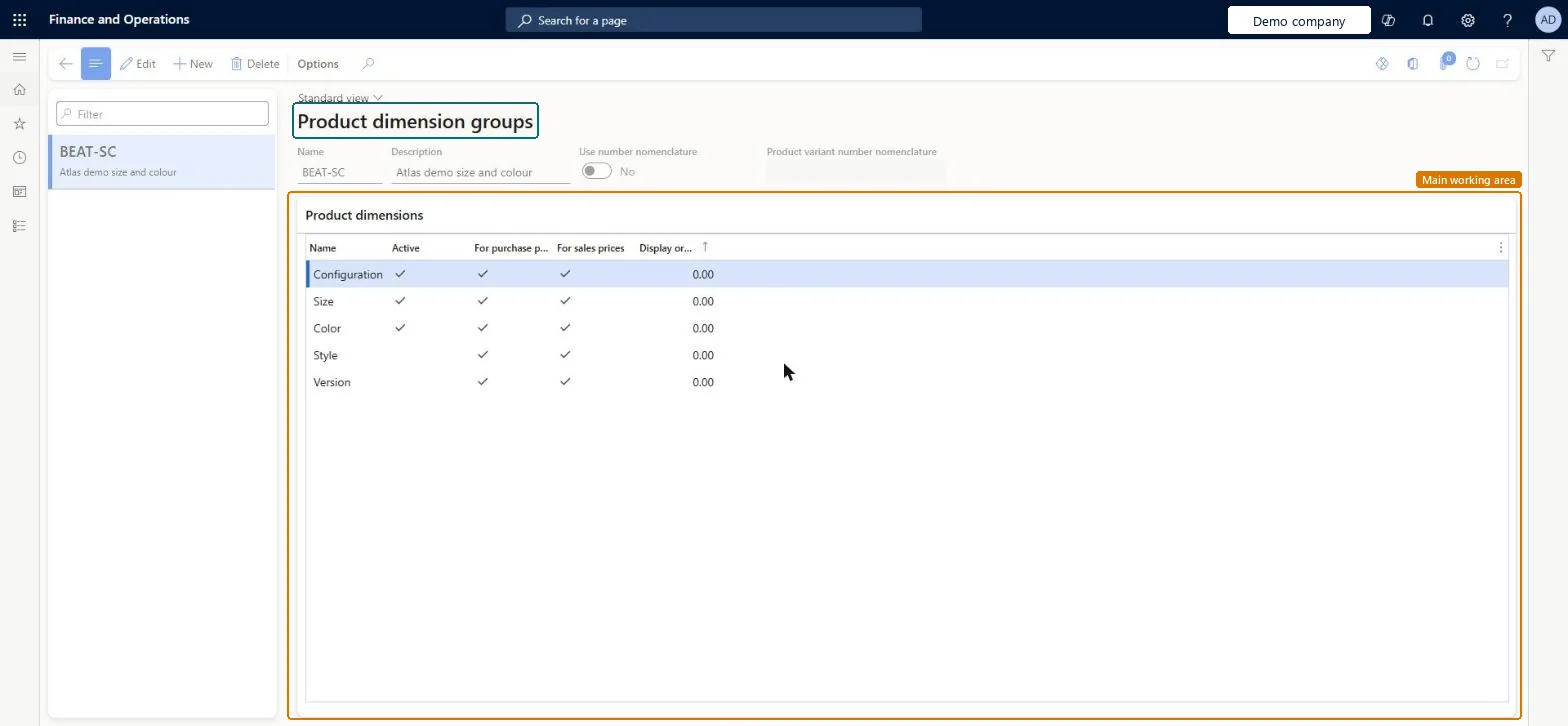
Setup step on the Product dimension groups page · Product information management
Set up Product dimension groups
Use this page to decide which product dimensions, such as color, configuration, size, style and version, define the product variants of the product masters that use each group.
Product information managementSetupDimension and variant groups
EcoResProductDimensionGroup
Used by
Product designer, Product design manager, Accounts receivable manager and 10 more roles
Business process
Develop product strategy
Menu item
EcoResProductDimensionGroup
Main table
EcoResProductDimensionGr
Data entity
EcoResProductDimensionGroupEntity
Setup steps
1 on this page
Show what matters for
SETUP GUIDEHow to set it up8 sections. Choose a role to highlight what matters to you.
Everyone
1What it is and why
What it is
A setup page where you combine product dimensions into product dimension groups that you assign to product masters.
What you do here
Use this page to decide which product dimensions, such as color, configuration, size, style and version, define the product variants of the product masters that use each group.
The page in Dynamics 365. page title tab to open what to set or check
About the examples: Examples and screenshots in this guide use BEAT, a demo company in a Dynamics 365 test environment. Use your own company's codes and values instead of copying them.
Setup steps on this page
Set up Product dimension groups
Use this page to decide which product dimensions, such as color, configuration, size, style and version, define the product variants of the product masters that use each group.
Steps from Microsoft
Go to Product information management > Setup > Dimension and variant groups > Product dimension groups.
Select the product dimension group, for example the SizeCol group.
Select Edit.
Select Yes in the Use number nomenclature field.
In the Product variant number nomenclature field, enter or select a value.
Only the product dimensions that identify a variant for that product family (for example Color and Size for clothing); use Version only when product versions must be trackedLearn defines variants as combinations of the active product dimensions, needs at least one dimension per product master, and describes Version as a dimension for tracking product versions through the lifecycle.
Assigning the wrong product dimension group to a product master. You can't change the product dimension group after the product record is created.
Feature management and licence
Licence or add-in
Configuration key Product dimension - Version (only needed for the Version dimension; on by default for new systems from version 10.0.36)
One-way: Warning: a product's product dimension group can't be changed after the record is created, and after transactions exist the group's Active, Physical inventory and Financial inventory settings can't be changed.
Technical architect
6Technical
Menu item
EcoResProductDimensionGroupChecked in Dynamics 365
Form
EcoResProductDimensionGroupChecked in Dynamics 365
Table
EcoResProductDimensionGrShown as “PRODUCT DIMENSION GROUPS” in Record infoKey field: NameChecked in Dynamics 365
PrivilegesManage product dimension groups EcoResProductDimensionGroupMaintainView product dimension groups EcoResProductDimensionGroupViewDutiesInquire into product management policies EcoResProductManagementPoliciesInquireEnable the product management process EcoResProductManagementProcessEnableInquire into logistic policies InventLogisticPoliciesInquireEnable quotation to sales order process RentalSalesQuotationToSlsOrdProcessEnableEnable quotation to sales order process SalesQuotationToSalesOrderProcessEnable13 security rolesProduct designer BOMProductDesignerProduct design manager BOMProductDesignManagerAccounts receivable manager CustInvoiceAccountsReceivableManagerInventory accountant InventCostAccountantInventory accountant clerk InventCostCostClerkProduction supervisor ProdProductionSupervisorRental coordinator agent RentalCoordinatorAgentRental manager RentalManagerRental sales manager RentalSalesManagerRetail service RetailServiceProcess engineer RouteProcessEngineerProcess engineering manager RouteProcessEngineeringManagerSales manager TradeSalesManagerChecked in Dynamics 365
Roles to set it up and use it
To set it up or change itRetail service RetailServiceSales manager TradeSalesManagerProduct design manager BOMProductDesignManagerRental sales manager RentalSalesManagerRental coordinator agent RentalCoordinatorAgentTo use itProduct designer BOMProductDesignerProcess engineer RouteProcessEngineerProcess engineering manager RouteProcessEngineeringManagerProduction supervisor ProdProductionSupervisorInventory accountant InventCostAccountantGive people one of these roles. On this system, 13 roles can open this page.Checked in Dynamics 365
EcoResProductDimensionGroupEntity (Product dimension groups): shared by all companies, in Microsoft's default template 310 - Product information management.Load order: Microsoft's default template 310 - Product information management loads Product dimension groups at execution unit 1, level 30, sequence 10. Lower levels load first, and entities at the same level load in sequence order.Load first: the default templates at lower levels (System setup to General ledger)Microsoft Learn