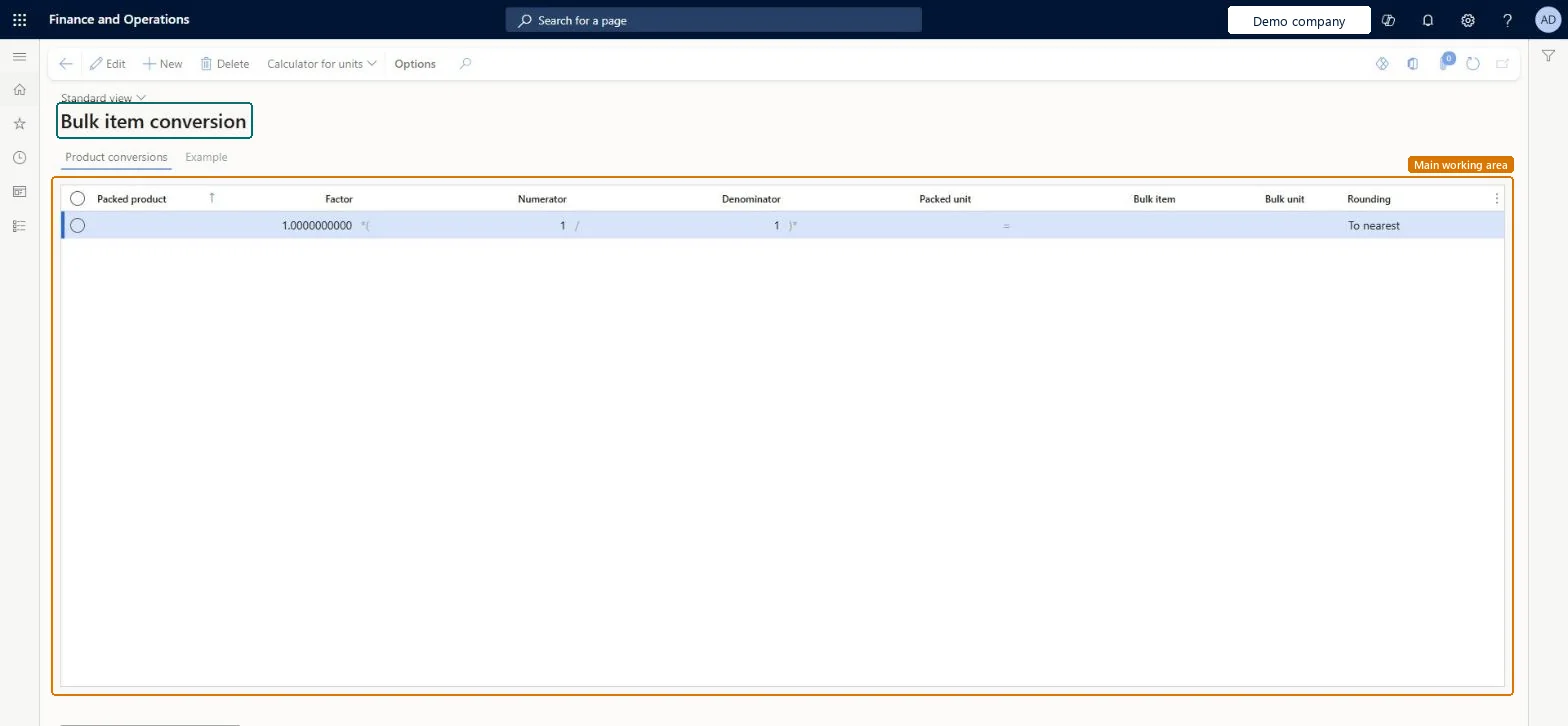
Setup step on the Bulk item conversion page · Product information management
Set up Bulk item conversion
Use this page to record how a quantity of a packed product converts to a quantity of its bulk item, using the factor, numerator, denominator, units and rounding shown on the page.
Product information managementSetupBills of materials and formulas
PmfBulkItemConv
Used by
Product designer, Product design manager, Materials manager and 3 more roles
Business process
Develop product strategy
Menu item
PmfBulkItemConv
Main table
PmfBulkItemConv
Data entity
PmfBulkItemConversionEntity
Setup steps
1 on this page
Show what matters for
SETUP GUIDEHow to set it up7 sections. Choose a role to highlight what matters to you.
Everyone
1What it is and why
What it is
A setup page where you define the conversion between a packed product and the bulk item that it is packed from.
What you do here
Use this page to record how a quantity of a packed product converts to a quantity of its bulk item, using the factor, numerator, denominator, units and rounding shown on the page.
The page in Dynamics 365. page title tab to open what to set or check
About the examples: Examples and screenshots in this guide use BEAT, a demo company in a Dynamics 365 test environment. Use your own company's codes and values instead of copying them.
Setup steps on this page
Set up Bulk item conversion
Use this page to record how a quantity of a packed product converts to a quantity of its bulk item, using the factor, numerator, denominator, units and rounding shown on the page.
How to use it
Go to Product information management > Setup > Bills of materials and formulas > Bulk item conversion.
Select New.
In the Packed product field, select the packed item, and enter the Factor, Numerator and Denominator.
Select the Packed unit, the Bulk item and the Bulk unit.
In the Rounding field, select the rounding method.
Open the Example tab to see the conversion for the selected line.
PrivilegesMaintain bulk item conversions PmfBulkItemConvMaintainView bulk item conversions PmfBulkItemConvViewDutiesInquire into units of measurement master UnitOfMeasureMasterInquireMaintain unit of measure master UnitOfMeasureMasterMaintain6 security rolesProduct designer BOMProductDesignerProduct design manager BOMProductDesignManagerMaterials manager InventMaterialsManagerProcess engineer RouteProcessEngineerProcess engineering manager RouteProcessEngineeringManagerWarehouse manager WMSWarehouseManagerChecked in Dynamics 365
Roles to set it up and use it
To set it up or change itProduct designer BOMProductDesignerProcess engineer RouteProcessEngineerMaterials manager InventMaterialsManagerTo use itProduct design manager BOMProductDesignManagerProcess engineering manager RouteProcessEngineeringManagerWarehouse manager WMSWarehouseManagerGive people one of these roles. On this system, 6 roles can open this page.Checked in Dynamics 365
Actions on the page
(Action Pane without tabs): Calculator for unitsChecked in Dynamics 365
PmfBulkItemConversionEntity (Bulk item conversions): loaded for each company, in Microsoft's default template 412 - Process manufacturing.Load order: Microsoft's default template 412 - Process manufacturing loads Bulk item conversions at execution unit 1, level 412, sequence 10. Lower levels load first, and entities at the same level load in sequence order.Load first: the default templates at lower levels (System setup to Production control)Microsoft Learn