Inventory managementPeriodic tasksBills of materials
CostingVersionPeriodic
Used by
Chief executive officer, Inventory accountant, Inventory accountant clerk and 2 more roles
Business process
Maintain inventory levels
Menu item
CostingVersionPeriodic
Main table
CostingVersion
Data entity
CostingVersionEntity
Setup steps
1 on this page
Show what matters for
SETUP GUIDEHow to set it up8 sections. Choose a role to highlight what matters to you.
Everyone
1What it is and why
What it is
A setup page for costing versions, which hold cost records for items, cost categories and indirect cost formulas.
What you do here
Use this page to maintain standard or planned cost records and to control whether pending costs can be edited or activated.
Example
For example, a costing version with planned costs is often used to simulate how changes in material or process costs affect the cost of manufactured items.
The page in Dynamics 365. page title tab to open what to set or check
About the examples: Examples and screenshots in this guide use BEAT, a demo company in a Dynamics 365 test environment. Use your own company's codes and values instead of copying them.
Step by step, with screenshots
Set up Costing versions1 screen
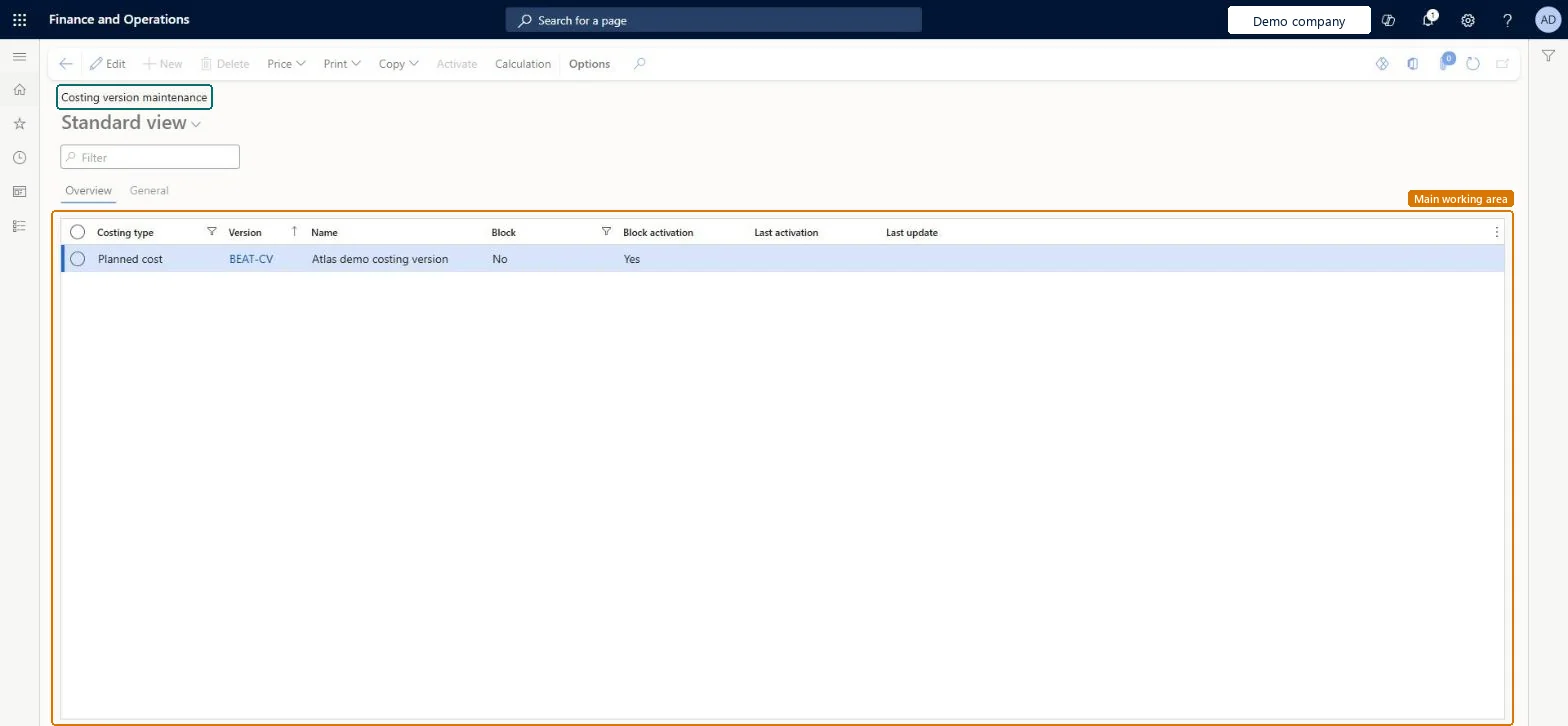
Use this page to maintain standard or planned cost records and to control whether pending costs can be edited or activated.
Screen 1
Maintain a costing version
Go to Inventory management > Periodic tasks > Bills of materials > Costing versions
Make sure the costing version exists (Cost management > Predetermined cost policies setup > Costing versions: New, choose the costing type, enter the version and name, Save)
Open Costing versions and select the version
Use Price to view or edit pending item, cost category and indirect cost prices, and Block or Block activation to control whether pending costs can be edited or activated
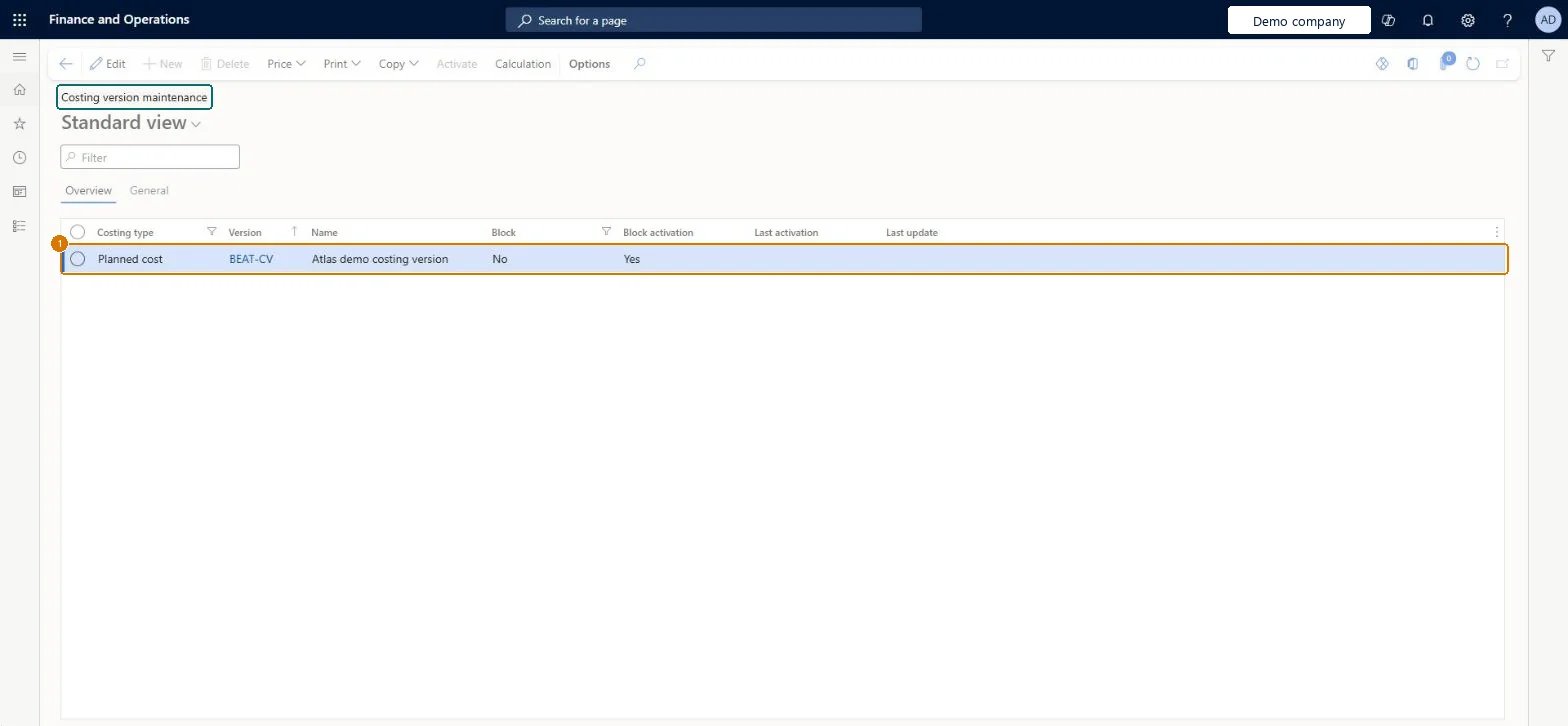
1Version
BEAT-CV
Costing type
Planned cost
Name
Costing version
Block
No
Block activation
Yes
Show the full screen page title tab to open what to set or check
How to use it
Go to Inventory management > Periodic tasks > Bills of materials > Costing versions.
Use the Filter box to find a costing version.
On the Overview tab, check the Costing type, Version, Name, Block, Block activation, Last activation and Last update columns.
Select Edit to change a costing version, or select New to add one.
Use the Price, Print, Copy, Activate and Calculation buttons on the Action Pane when a costing version is selected.
Source: Checked in Dynamics 365
Fields on the page
Field
What it means
Example
Table column
Block
Stops pending costs from being edited in or added to the costing version.Microsoft Learn
One Standard cost version per period (for example 2025-STD) plus a separate Standard cost version for updates, kept on Block activation until the pending costs are checkedLearn describes this two-version approach: the original version stays untouched and each batch of updates is tracked in its own version. Blocking policies let you allow data entry, then stop edits and activation until costs are final.
One-way: Warning: an item cost record that has been activated can't be deactivated or deleted. Activation revalues on-hand inventory for standard cost items; a wrong cost can only be corrected by activating another cost.
If you change it later
Activating an item cost record changes its status from Pending to Active and sets its effective date to the activation date. Microsoft Learn
Technical architect
6Technical
Menu item
CostingVersionPeriodicChecked in Dynamics 365
Form
CostingVersionChecked in Dynamics 365
Table
CostingVersionShown as “Costing versions” in Record infoKey field: VersionId, NameChecked in Dynamics 365
PrivilegesMaintain costing version CostingVersionMaintainView costing version CostingVersionViewDutiesMaintain costing versions CostingVersionMasterMaintainInquire into cost status InventCostCostStatusInquireReview cost process performance InventItemPriceCostProcessPerfReviewMaintain activation of cost InventPriceActivationOfCostAuthorizeInquire into inventory valuation status InventValueInvValuationStatusInquire5 security rolesChief executive officer CompanyChiefExecutiveOfficerInventory accountant InventCostAccountantInventory accountant clerk InventCostCostClerkAccounting manager LedgerAccountingManagerAccounting supervisor LedgerAccountingSupervisorChecked in Dynamics 365
Roles to set it up and use it
To use itAccounting manager LedgerAccountingManagerInventory accountant clerk InventCostCostClerkInventory accountant InventCostAccountantChief executive officer CompanyChiefExecutiveOfficerAccounting supervisor LedgerAccountingSupervisorGive people one of these roles. On this system, 5 roles can open this page.Checked in Dynamics 365
Actions on the page
Options: Personalize, Page options, ShareChecked in Dynamics 365
CostingVersionEntity (Costing versions): loaded for each company, in Microsoft's default template 420 - Costing.Load order: Microsoft's default template 420 - Costing loads Costing versions at execution unit 1, level 300, sequence 50. Lower levels load first, and entities at the same level load in sequence order.Load first: the default templates at lower levels (System setup to Budgeting)Microsoft Learn
Checked in a working Dynamics 365 system, version 10.0.49: the menu item, form, table and security, the page, the demo records and the values in the screenshots.
To cite this step: IM-SETUP-010, Set up Costing versions. Beyond ERP Atlas Hub, 2026-11-11. https://www.beyonderp.cloud/atlas/step/IM-SETUP-010