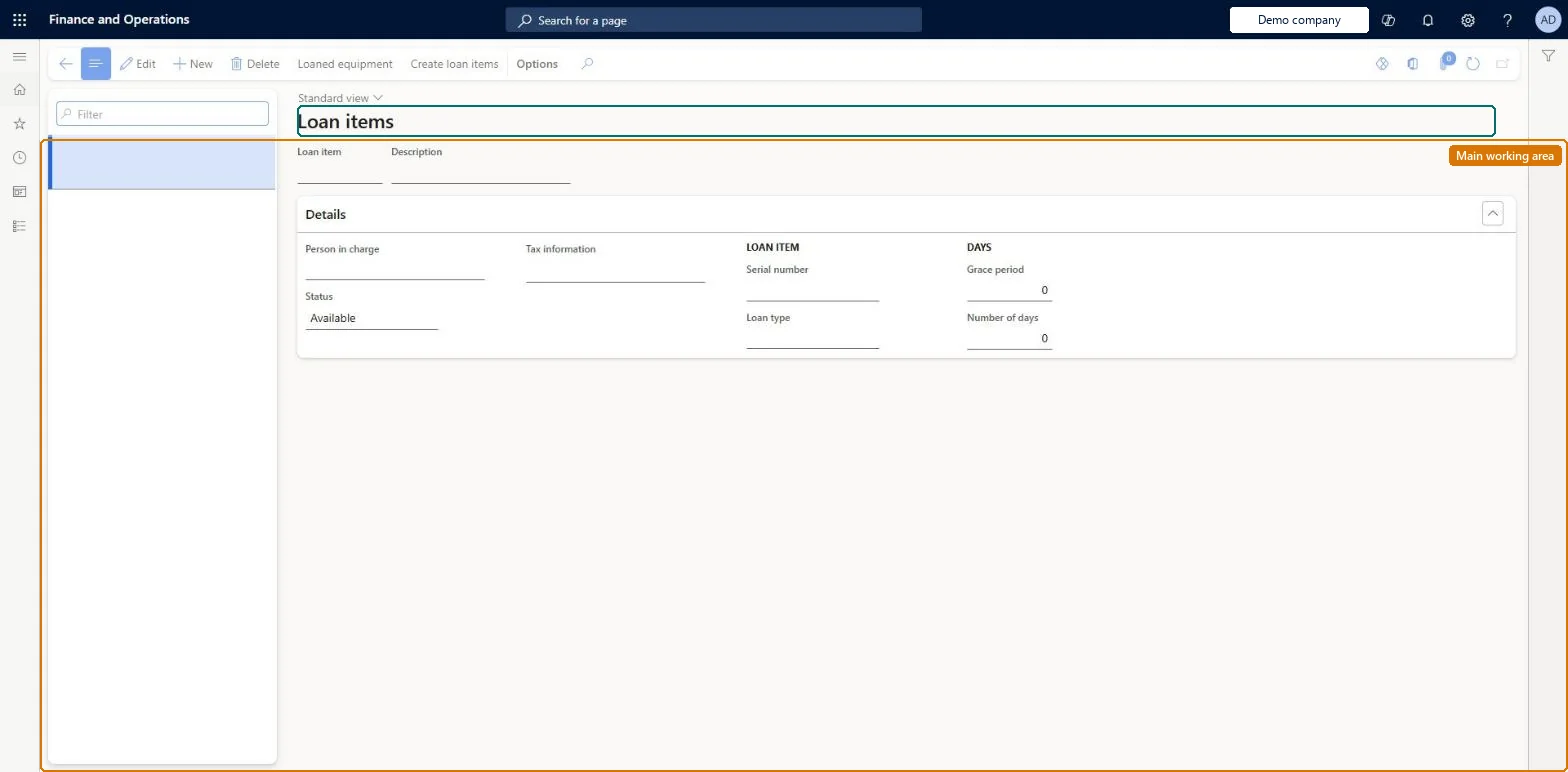
Setup step on the Loan items page · Human resources
Set up Loan items
Use this page to create loan items, describing what is lent, who is in charge of it, and how many days it can be on loan; several items can be created at once.
Compensation and benefits manager, Human resource assistant, Human resource manager and 3 more roles
Business process
Develop people strategy
Menu item
HcmLoanItem
Main table
HcmLoanItem
Data entity
HcmLoanItemEntity
Setup steps
1 on this page
Show what matters for
SETUP GUIDEHow to set it up8 sections. Choose a role to highlight what matters to you.
Everyone
1What it is and why
What it is
A page that holds one record for each physical item, such as a phone or computer, that the company lends to workers.
What you do here
Use this page to create loan items, describing what is lent, who is in charge of it, and how many days it can be on loan; several items can be created at once.
Example
For example, BEAT creates 20 access cards in one step: Qty. 20, loan type Access cards, 365 loan days, Starting value 10, Interval 1 and Format ##, giving items 10 to 29.
The page in Dynamics 365. page title tab to open what to set or check
About the examples: Examples and screenshots in this guide use BEAT, a demo company in a Dynamics 365 test environment. Use your own company's codes and values instead of copying them.
Setup steps on this page
Set up Loan items
Use this page to create loan items, describing what is lent, who is in charge of it, and how many days it can be on loan; several items can be created at once.
Steps from Microsoft
Go to Human resources > Workers > Loan items > Loan items.
Select Create loan items.
In the Qty. field, enter a number, and in the Description field, enter a value.
In the Loan type field, select a loan type.
Enter the number of days the item can be on loan.
In the Person in charge field, select a person.
Enter the Starting value, Interval, and Format for numbering, and then select OK.
One loan item per physical item, with a person in charge and the number of loan days set. Create batches with Create loan items using Qty., Starting value, Interval and a Format with enough number symbols for the numbering.Each physical item must have its own loan item. The loan days set the default Planned return date (today plus the loan days) when the item is lent.
Human resource manager and assistant, Compensation and benefits manager, Payroll administrator and manager, and Recruiter have access. No Feature management feature is needed for this page.
Shared: Data management lists the Loan items entity as shared, so every legal entity uses the same loan items. Checked in Dynamics 365
Can it be undone
Reversible: Loan days only set the default planned return for new loans; existing loan lines keep their dates. Items created in a batch are separate records and must be corrected one by one.
If you change it later
The number of loan days set on a loan item sets the default planned return date when the item is lent on the Loaned equipment page. Microsoft Learn
Technical architect
6Technical
Menu item
HcmLoanItemChecked in Dynamics 365
Form
HcmLoanItemChecked in Dynamics 365
Table
HcmLoanItemShown as “LOAN ITEMS” in Record infoKey field: LoanItemIdChecked in Dynamics 365
Data entities
HcmLoanItemEntityLoan items Checked in Dynamics 365
Who can open it
PrivilegesMaintain loan items HcmLoanItemMaintainView loan items HcmLoanItemViewDutiesEnable workforce management process HcmWorkforceProcessEnableInquire into workforce management process HcmWorkforceProcessInquire6 security rolesCompensation and benefits manager HcmCompensationAndBenefitsManagerHuman resource assistant HcmHumanResourceAssistantHuman resource manager HcmHumanResourceManagerPayroll administrator HcmPayrollAdministratorPayroll manager HcmPayrollManagerRecruiter HcmRecruiterChecked in Dynamics 365
Roles to set it up and use it
To set it up or change itHuman resource assistant HcmHumanResourceAssistantTo use itHuman resource manager HcmHumanResourceManagerCompensation and benefits manager HcmCompensationAndBenefitsManagerRecruiter HcmRecruiterPayroll administrator HcmPayrollAdministratorPayroll manager HcmPayrollManagerGive people one of these roles. On this system, 6 roles can open this page.Checked in Dynamics 365
Actions on the page
(Action Pane without tabs): Loaned equipment, Create loan itemsChecked in Dynamics 365
Developer
7Developer
Open it by URL
https://<your-environment>/?mi=HcmLoanItem
Integrate with
HcmLoanItemEntity data entity Checked in Dynamics 365
Data migration
HcmLoanItemEntity Loan items. Shared.Load order: Load with the Personnel management setup template, after Loan types.Load first: HcmLoanTypeEntityMicrosoft Learn