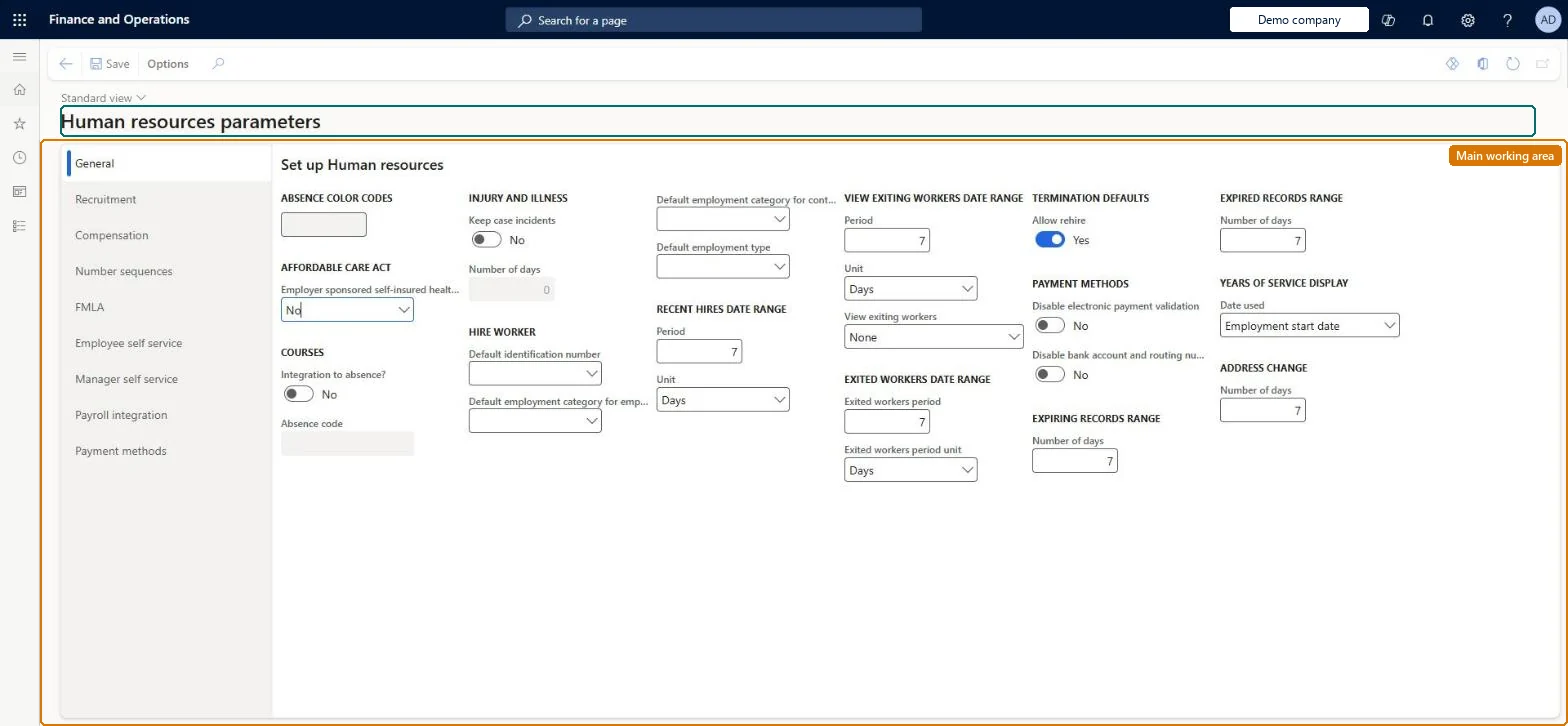
Setup step on the Human resources parameters page · Human resources
Set up Human resources parameters
Use this page to set Human resources defaults and options for the current company, such as number sequences, compensation save validation, self service options and the period used for the recent hires list.
Chief executive officer, Compensation and benefits manager, FMLA administrator and 7 more roles
Business process
Develop people strategy
Menu item
HRMParameters
Main table
HRMParameters
Data entity
hcmParametersEntity
Setup steps
1 on this page
Show what matters for
SETUP GUIDEHow to set it up8 sections. Choose a role to highlight what matters to you.
Everyone
1What it is and why
What it is
A setup page that holds the company-specific Human resources settings, grouped on tabs such as General, Recruitment, Compensation, Number sequences, FMLA, self service, Benefits management, Leave and absence and Payment methods.
What you do here
Use this page to set Human resources defaults and options for the current company, such as number sequences, compensation save validation, self service options and the period used for the recent hires list.
Example
For example, BEAT sets Recent hires to 14 days so the Onboarding tab lists the 6 employees hired in the last two weeks, sets Recruitment project aging to 30 days, and turns on Enable save validation so a compensation clerk is asked before a fixed plan change is saved.
The page in Dynamics 365. page title tab to open what to set or check
About the examples: Examples and screenshots in this guide use BEAT, a demo company in a Dynamics 365 test environment. Use your own company's codes and values instead of copying them.
Setup steps on this page
Set up Human resources parameters
Use this page to set Human resources defaults and options for the current company, such as number sequences, compensation save validation, self service options and the period used for the recent hires list.
How to use it
Go to Human resources > Setup > Human resources parameters.
On the General tab, set the absence color codes, Affordable Care Act option, course integration to absence, injury and illness, hire worker defaults, employment category and type defaults, recent hires, exiting and exited worker date ranges, termination defaults, payment methods, expiring and expired records ranges, years of service display and address change days.
Use the Recruitment, Compensation, Number sequences, FMLA, Employee self service, Manager self service, Payroll integration and Payment methods tabs for their settings.
Select Save.
Source: Checked in Dynamics 365
Fields on the page
Field
What it means
Example
Enable save validation
Asks users to confirm before a fixed or variable compensation record is saved.Microsoft Learn
Yes
Recruitment project aging
The period that decides which recruitment projects appear on the Aging projects tile.Microsoft Learn
30 days
Recent hires
How far back the Onboarding tab lists recently hired employees.Microsoft Learn
14 days
Number sequences
The sequences used to assign IDs to items such as applications, absence registrations, case numbers and courses.Microsoft Learn
A compensation record saved by mistake can't be deleted
Some Compensation management pages don't allow deletion. Turn on Enable save validation on the Compensation tab so users confirm before the record is saved. Microsoft Learn
A new record such as an application or a course gets no ID
The number sequence for that record type isn't set on the Number sequences tab. Set it here, and maintain the codes on Organization administration > Number sequences > Number sequences. Microsoft Learn
Recruitment projects show on the Aging projects tile too early or too late
The tile uses the Recruitment project aging period on the Recruitment tab. Change the period to the age your recruiters treat as overdue. Microsoft Learn
Test checklist
Set Enable save validation to Yes.
Open Fixed compensation plans, change a field, and close the page.
Check a message asks whether to save the record.
On the Number sequences tab, check each sequence (for example Leave request ID) has a code, then create a record and check it gets the next number.
Enable save validation = Yes (Compensation tab), with number sequences set for every Human resources record type in useWith save validation on, users confirm before a compensation record is saved. Some Compensation management pages don't allow deletion, so the prompt limits records that are saved by mistake and can't be removed.
BEAT uses number sequence Huma_13. Checked in Dynamics 365
Absence registration
Per company
BEAT uses number sequence Huma_17. Checked in Dynamics 365
Course ID
Per company
BEAT uses number sequence Huma_21. Checked in Dynamics 365
Agenda
Per company
BEAT uses number sequence Huma_25. Checked in Dynamics 365
Compensation process result
Per company
BEAT uses number sequence Huma_29. Checked in Dynamics 365
Case number
Per company
BEAT uses number sequence Huma_33. Checked in Dynamics 365
Leave request ID
Per company
BEAT uses number sequence Huma_37. Checked in Dynamics 365
Buy sell leave request ID
Per company
BEAT uses number sequence Huma_41. Checked in Dynamics 365
Recruiting request ID
Per company
BEAT uses number sequence Huma_45. Checked in Dynamics 365
Candidate ID
Per company
BEAT uses number sequence Huma_49. Checked in Dynamics 365
Feature management and licence
Licence or add-in
Human resource manager and FMLA administrator maintain the page; Human resource assistant, Compensation and benefits manager, Recruiter, Payroll administrator and Payroll manager view it. No Feature management feature is needed for this page.
Per company: the settings on this page belong to the legal entity you are signed in to. Learn calls them company-specific, and Data management lists the Human resources parameters entity as not shared. Settings for records shared across companies are on Human resources shared parameters. Microsoft Learn
Can it be undone
Reversible: The parameters can be changed at any time, but compensation records saved while save validation was off may not be deletable.
If you change it later
Turning off save validation lets compensation records save immediately, and some compensation pages don't allow records to be deleted afterwards. Microsoft Learn
Technical architect
6Technical
Menu item
HRMParametersChecked in Dynamics 365
Form
HRMParametersChecked in Dynamics 365
Table
HRMParametersShown as “PERSONNEL PARAMETERS” in Record infoChecked in Dynamics 365
Data entities
hcmParametersEntityHuman resources parameters Checked in Dynamics 365HcmExternalLinksEntityExternal links Checked in Dynamics 365
Who can open it
PrivilegesMaintain Human Resources parameters HRMParametersMaintainView Human Resources parameters HRMParametersViewDutiesInquire into absence process HcmAbsenceProcessInquireInquire into benefits process HcmBenefitInquireInquire into compensation process HcmCompensationInquireMaintain FMLA cases HcmFMLAMaintainEnable human resource process HcmHREnableInquire into organizational process HcmOrganizationalProcessInquireInquire into performance process HcmPerformanceProcessInquireInquire into recruitment process HcmRecruitmentProcessInquireInquire into training process HcmTrainingProcessInquireInquire into workforce management process HcmWorkforceProcessInquire10 security rolesChief executive officer CompanyChiefExecutiveOfficerCompensation and benefits manager HcmCompensationAndBenefitsManagerFMLA administrator HcmFMLAAdministratorHuman resource assistant HcmHumanResourceAssistantHuman resource manager HcmHumanResourceManagerPayroll administrator HcmPayrollAdministratorPayroll manager HcmPayrollManagerRecruiter HcmRecruiterTraining manager HcmTrainingManagerAccounting manager LedgerAccountingManagerChecked in Dynamics 365
Roles to set it up and use it
To set it up or change itHuman resource manager HcmHumanResourceManagerFMLA administrator HcmFMLAAdministratorTo use itHuman resource assistant HcmHumanResourceAssistantCompensation and benefits manager HcmCompensationAndBenefitsManagerRecruiter HcmRecruiterPayroll administrator HcmPayrollAdministratorPayroll manager HcmPayrollManagerGive people one of these roles. On this system, 10 roles can open this page.Checked in Dynamics 365
Developer
7Developer
Open it by URL
https://<your-environment>/?mi=HRMParameters
Integrate with
hcmParametersEntity data entity Checked in Dynamics 365
Data migration
hcmParametersEntity Human resources parameters: one record per legal entity, not shared.Load order: Load per legal entity after the number sequence codes exist, because the parameters point to them. The entity isn't in a Human resources default template, so add it to a project of your own.Load first: NumberSequenceTableEntityMicrosoft Learn
Checked in a working Dynamics 365 system, version 10.0.49: the menu item, form, table and security, the page.
To cite this step: HR-SETUP-010, Set up Human resources parameters. Beyond ERP Atlas Hub, 2026-11-11. https://www.beyonderp.cloud/atlas/step/HR-SETUP-010