Human resource assistant, Human resource manager, Manager and 1 more role
Business process
Update worker information
Menu item
HcmWorkerUserRequestListPage
Main table
SysUserRequest
Setup steps
1 on this page
Show what matters for
SETUP GUIDEHow to set it up8 sections. Choose a role to highlight what matters to you.
Everyone
1What it is and why
What it is
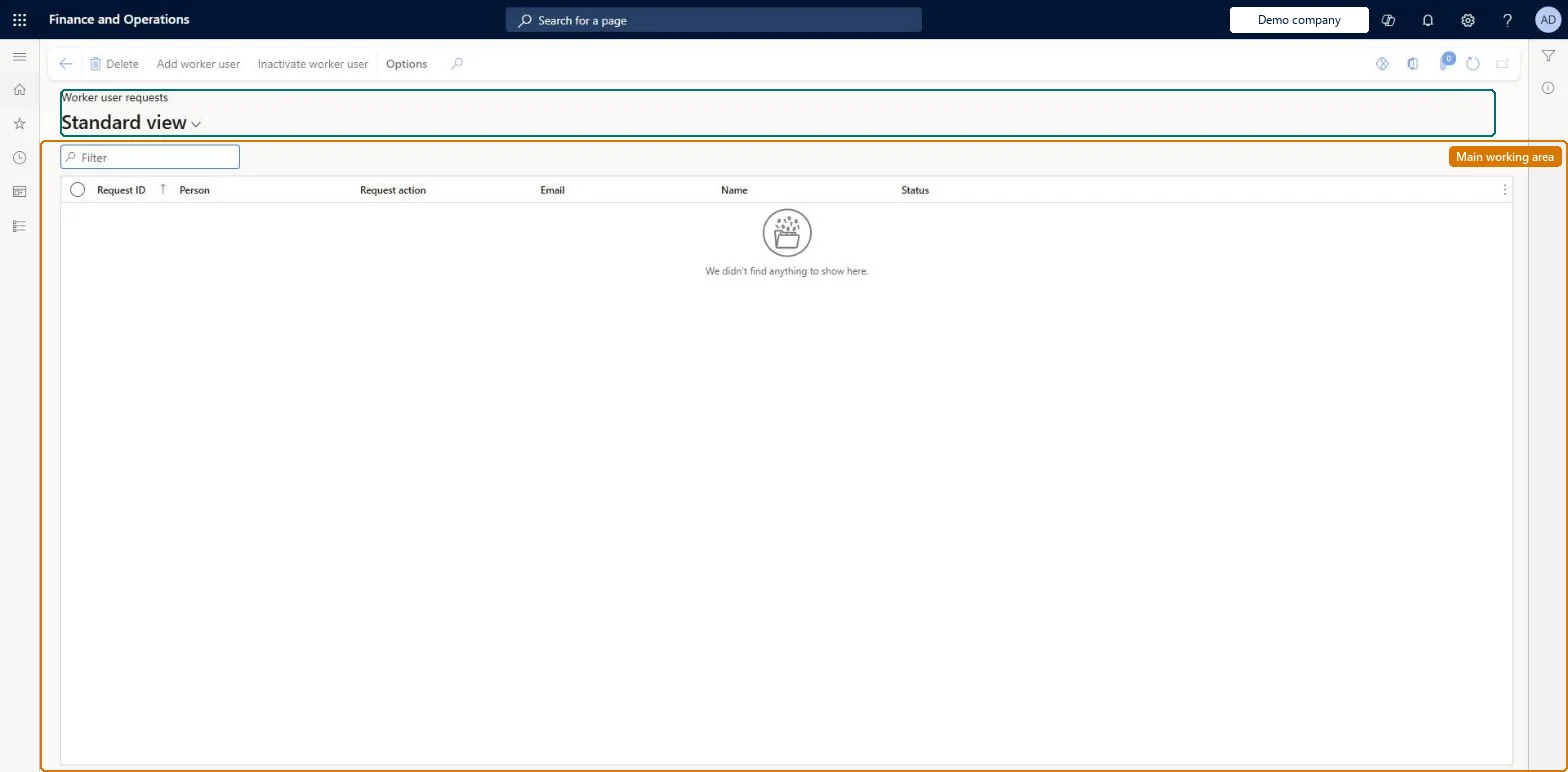
A list page of requests to grant or revoke a worker’s access to the employee portal.
What you do here
Use this page to create, review, and approve worker user requests, and then provision or inactivate the user.
Example
For example, BEAT's HR assistant submits an Add user request for the new employee Sara Lind with request type Worker and the employee role; the HR manager approves it, and the request reaches Pending completion, where Provision user creates the account.
The page in Dynamics 365. page title tab to open what to set or check
About the examples: Examples and screenshots in this guide use BEAT, a demo company in a Dynamics 365 test environment. Use your own company's codes and values instead of copying them.
Setup steps on this page
Request and approve worker access
Give and remove workers' self-service access through approved requests.
Steps from Microsoft
Go to Human resources > Workers > Worker user requests.
In the New group, select Worker user request.
In Request action, select Add user or Inactivate existing user.
Select the User role to assign during provisioning.
Save and submit the request for approval.
After approval, open the request and select Provision user or New user.
Provision user, New user and Inactivate user are unavailable
These buttons are available only when the request's workflow status is Pending completion. Submit the request and have it approved first. Microsoft Learn
A worker who left still has access
Submit an Inactivate existing user request for the worker; Learn's termination process says to revoke access promptly when a worker leaves. Microsoft Learn
Test checklist
Create a worker user request with Request action Add user and Request type Worker.
Submit it and approve it.
Check Provision user is available only once the status is Pending completion.
Provision the user and check the user exists with the role on the request.
One request per worker: Add user with the employee role when the worker is hired, and Inactivate existing user when the worker leaves; approve before provisioning.The request records the action, the request type Worker and the role given at provisioning, and provisioning is only possible after approval.
Human resource assistant and Human resource manager submit and approve requests; Manager and Self-service manager also have access. No Feature management feature is needed for this page.
Reversible: Access given by a request can be removed with an Inactivate existing user request.
If you change it later
Approving an Inactivate existing user request removes the worker's access to the employee portal. Microsoft Learn
Technical architect
6Technical
Menu item
HcmWorkerUserRequestListPageChecked in Dynamics 365
Form
SysUserRequestListPageChecked in Dynamics 365
Table
SysUserRequestShown as “USER REQUESTS” in Record infoKey field: RequestIDChecked in Dynamics 365
Who can open it
PrivilegesApprove worker user requests HcmWorkerUserRequestApproveMaintain worker user requests HcmWorkerUserRequestSubmitDutiesApprove worker user requests HcmWorkerUserRequestApproveMaintain worker user requests HcmWorkerUserRequestMaintain4 security rolesHuman resource assistant HcmHumanResourceAssistantHuman resource manager HcmHumanResourceManagerManager HcmManagerSelf-service manager HcmManagerSelfServiceChecked in Dynamics 365
Roles to set it up and use it
To set it up or change itHuman resource assistant HcmHumanResourceAssistantSelf-service manager HcmManagerSelfServiceManager HcmManagerTo use itHuman resource manager HcmHumanResourceManagerGive people one of these roles. On this system, 4 roles can open this page.Checked in Dynamics 365
Actions on the page
(Action Pane without tabs): Add worker user, Inactivate worker userChecked in Dynamics 365
Load order: Worker user requests has no data entity in Data management, so it can't be loaded from a file or a configuration template. Requests are created per worker in each environment; users and their roles are set up in System administration instead.Microsoft Learn