SETUP GUIDEHow to set it up8 sections. Choose a role to highlight what matters to you.
Everyone
1What it is and why
What it is
A report that lists workers who have no position assignment.
What you do here
Use this page to find workers without a position, so they get one and with it a manager and a reporting line.
Example
For example, after the September 2026 reorganization BEAT runs the report and finds 4 workers whose positions were retired; HR assigns each of them to one of the new positions before the payroll cutoff.
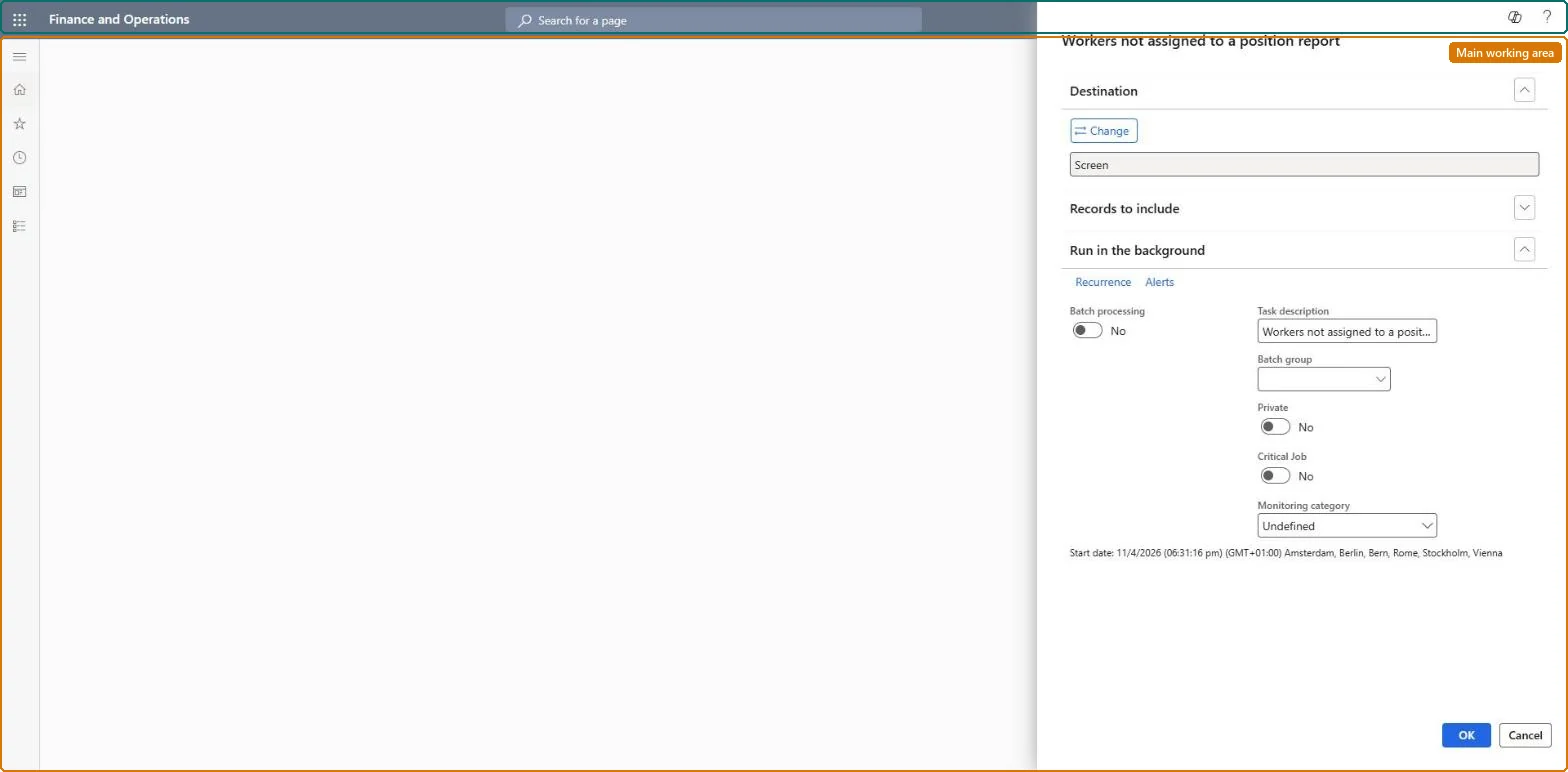
The page in Dynamics 365. page title tab to open what to set or check
About the examples: Examples and screenshots in this guide use BEAT, a demo company in a Dynamics 365 test environment. Use your own company's codes and values instead of copying them.
When to run it
When to run it
After hiring or after a reorganization, to find workers who still need a position assignment.
How often
On demand, for example after each hiring wave.
What the output shows
Workers who have no position assignment. Workers often appear here when the position was retired or when a new hire was created without a position.
The assignment starts later or has ended, or the position was retired; a worker assignment can't extend past the position's retirement date. Check the assignment dates on the position. Microsoft Learn
A new hire's onboarding tasks went to the checklist owner
No position was assigned when the checklist was applied, so the manager couldn't be found. Assign the position, then apply checklists. Microsoft Learn
Run it after each hiring wave and after positions are retired, and assign a position to every worker on it before checklists or workflows run.The reports-to position decides each worker's manager, so a worker without a position has no manager for Manager self service, workflow routing or manager checklist tasks.
Shared worker data: Data management lists the Worker, Employment V2 and Person details entities as shared, so the report reads the same worker records from any legal entity; narrow it with Records to include. Checked in Dynamics 365
Can it be undone
Nothing to undo: The report reads worker and position data and changes nothing.
If you change it later
The reports-to position decides a worker's manager in Manager self service, workflow routing rules and checklist tasks, so for the workers on this list no manager can be found until a position is assigned. Microsoft Learn
Technical architect
6Technical
Menu item
HRMWorkersNotAssignedToPositionsChecked in Dynamics 365
Form
SysOperationTemplateFormChecked in Dynamics 365
Roles to set it up and use it
To use itHuman resource manager HcmHumanResourceManagerHuman resource assistant HcmHumanResourceAssistantCompensation and benefits manager HcmCompensationAndBenefitsManagerRecruiter HcmRecruiterPayroll administrator HcmPayrollAdministratorGive people one of these roles. On this system, 9 roles can run this page.Checked in Dynamics 365
Load order: The Workers not assigned to a position report has no data entity in Data management, so it can't be loaded from a file or a configuration template. It reads workers and position worker assignments; load them with the Worker data migration template (Position worker assignments V2) and run the report in each environment.Microsoft Learn