Compensation and benefits manager, Human resource manager, Payroll administrator and 1 more role
Business process
Develop people strategy
Menu item
HRMCompLocation
Main table
HcmCompLocation
Data entity
HcmCompensationRegionEntity
Setup steps
1 on this page
Show what matters for
SETUP GUIDEHow to set it up8 sections. Choose a role to highlight what matters to you.
Everyone
1What it is and why
What it is
A setup page where you define compensation regions, which let you base employee compensation on the location of the workplace.
What you do here
Use this page to set up the regions that are assigned to positions and used as a criterion in compensation eligibility rules.
Example
For example, BEAT creates the regions NORTH and SOUTH, sets NORTH on its 12 positions in the Hamburg office and limits the plan SAL-2026-N, built on a copied grid with 10% higher amounts, to NORTH with an eligibility rule.
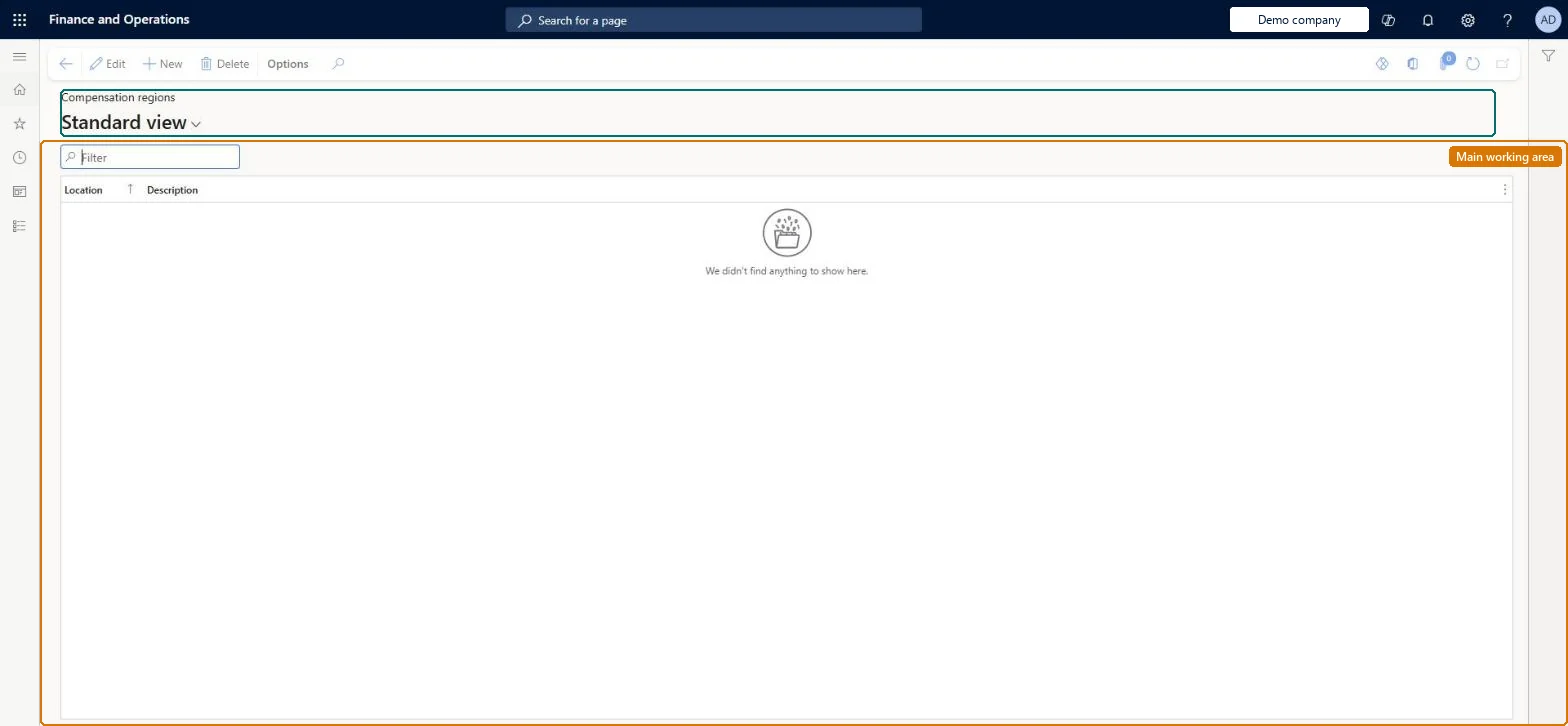
The page in Dynamics 365. page title tab to open what to set or check
About the examples: Examples and screenshots in this guide use BEAT, a demo company in a Dynamics 365 test environment. Use your own company's codes and values instead of copying them.
Setup steps on this page
Set up Compensation regions
Use this page to set up the regions that are assigned to positions and used as a criterion in compensation eligibility rules.
Steps from Microsoft
Go to Human resources > Compensation > Eligibility > Compensation regions.
Use the Filter box to find a region.
Select New and enter the Location and its Description.
Select Save; select Delete to remove a selected region.
One region per workplace location whose pay differs, set on the positions in that location.Compensation regions let you base compensation on workplace location, and eligibility rules read the Compensation region field on the Positions page.
Compensation and benefits managers set up and run compensation; Human resource managers and payroll roles can view it. No Feature management feature is needed for this page.
Shared: compensation regions are not per company. Data management lists the HcmCompensationRegionEntity entity as shared, so every legal entity uses the same list. Checked in Dynamics 365
Can it be undone
Reversible: Regions can be added and changed; positions and eligibility rules that use a region must be updated to match.
If you change it later
Eligibility rules read the Compensation region on the employee's position, so a region change on a position changes which plans the employee is offered. Microsoft Learn
Technical architect
6Technical
Menu item
HRMCompLocationChecked in Dynamics 365
Form
HRMCompLocationChecked in Dynamics 365
Table
HcmCompLocationShown as “COMPENSATION REGIONS” in Record infoKey field: CompLocationIdChecked in Dynamics 365
Data entities
HcmCompensationRegionEntityCompensation regions Checked in Dynamics 365
Who can open it
PrivilegesMaintain locations (human resources) HRMCompLocationMaintainView locations HRMCompLocationViewDutiesInquire into compensation process HcmCompensationInquireEnable compensation process HcmCompensationProcessEnable4 security rolesCompensation and benefits manager HcmCompensationAndBenefitsManagerHuman resource manager HcmHumanResourceManagerPayroll administrator HcmPayrollAdministratorPayroll manager HcmPayrollManagerChecked in Dynamics 365
Roles to set it up and use it
To set it up or change itCompensation and benefits manager HcmCompensationAndBenefitsManagerTo use itHuman resource manager HcmHumanResourceManagerPayroll administrator HcmPayrollAdministratorPayroll manager HcmPayrollManagerGive people one of these roles. On this system, 4 roles can open this page.Checked in Dynamics 365
Developer
7Developer
Open it by URL
https://<your-environment>/?mi=HRMCompLocation
Integrate with
HcmCompensationRegionEntity data entity Checked in Dynamics 365
Data migration
HcmCompensationRegionEntity Compensation regions. Shared by all companies.Load order: Load with the Personnel management setup template (Compensation regions), before positions and eligibility rules.Microsoft Learn