Setup step on the Advanced rule structures page · General ledger
Set up Advanced rule structures
Used to create and activate an advanced rule structure and apply it to an account structure through an advanced rule with criteria; it applies only to the Ledger account type.
- Used by
- Accountant, Accounting manager, Accounting supervisor and 12 more roles
- Business process
- Develop chart of accounts strategy
- Menu item
DimensionConfigureAccountRuleStructure- Main table
DimensionHierarchyView- Data entity
- —
- Setup steps
- 1 on this page
Everyone
1What it is and why
| What it is | Structures of extra financial dimension segments that an advanced rule adds to an account structure when its criteria are met. |
|---|---|
| What you do here | Used to create and activate an advanced rule structure and apply it to an account structure through an advanced rule with criteria; it applies only to the Ledger account type. |
| Example | Create an advanced rule structure with the Store dimension and apply it to an account structure for main accounts in a given range. |
Functional consultant · Solution architect
2Where it fits
| Business process | Define accounting policies › Develop chart of accounts strategy |
|---|---|
| Menu path | General ledger › Chart of accounts › Structures › Advanced rule structures |
| Set up first | Financial dimensions Microsoft Learn ↗ |
| Used next by | Configure account structures Microsoft Learn ↗ |
| Related pages | — |
| In this process | ← Set up Configure account structures |
End user · Functional consultant
3How to do it
Step by step, with screenshots
Set up Advanced rule structures1 screen
Used to create and activate an advanced rule structure and apply it to an account structure through an advanced rule with criteria; it applies only to the Ledger account type.
Screen 1
Create the advanced rule structure
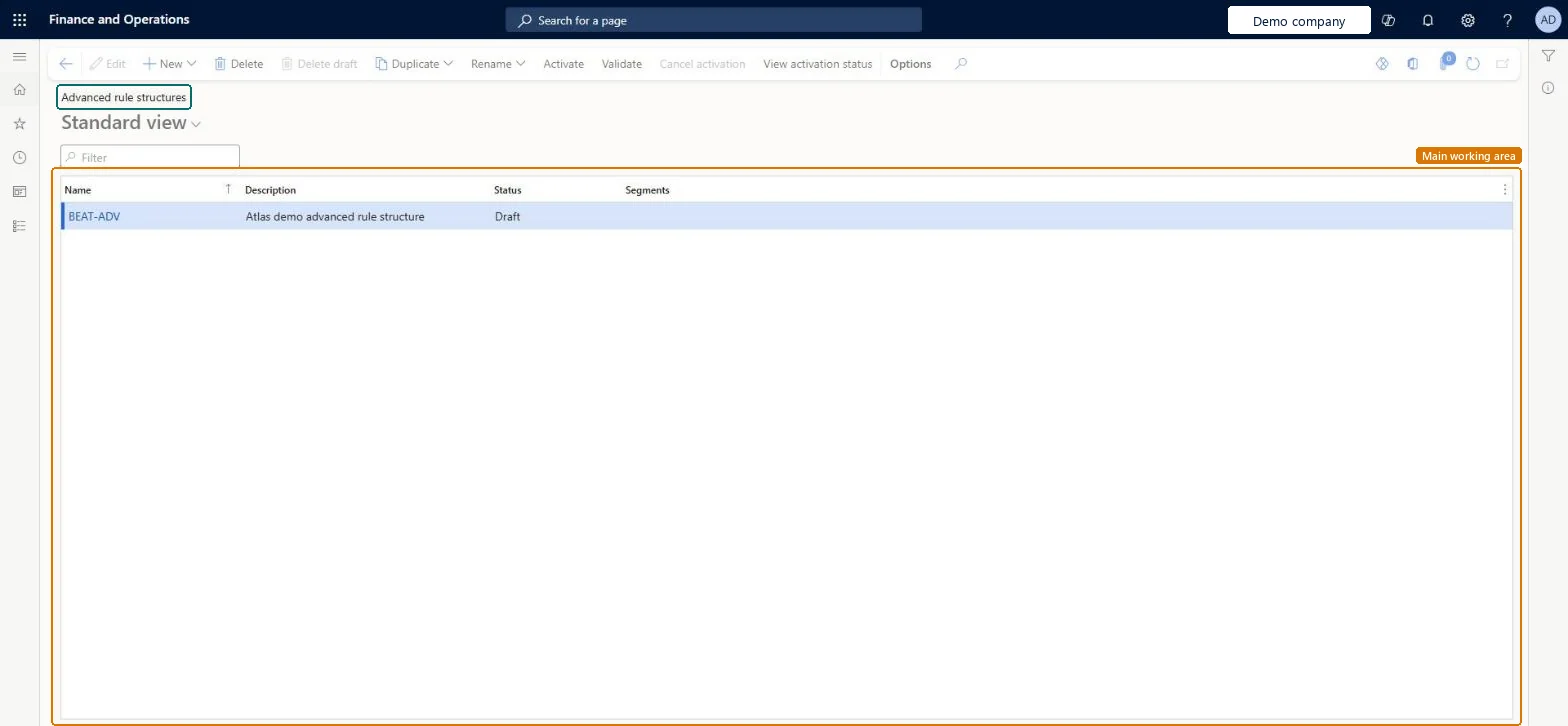
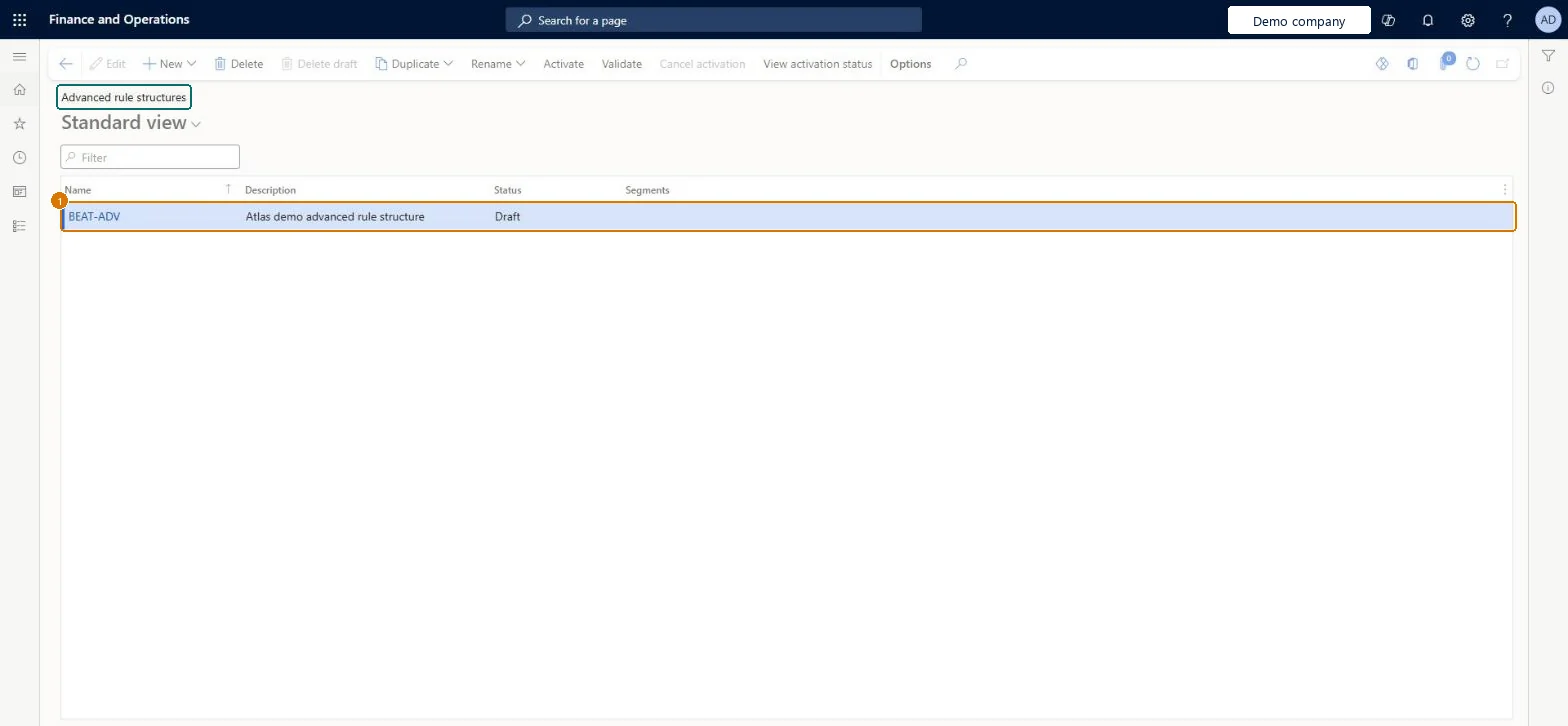
Go to General ledger > Chart of accounts > Structures > Advanced rule structures
- Select New
- Enter the name BEAT-ADV and its description
- Leave it in Draft until rules are added
Description Atlas demo advanced rule structure Status Draft 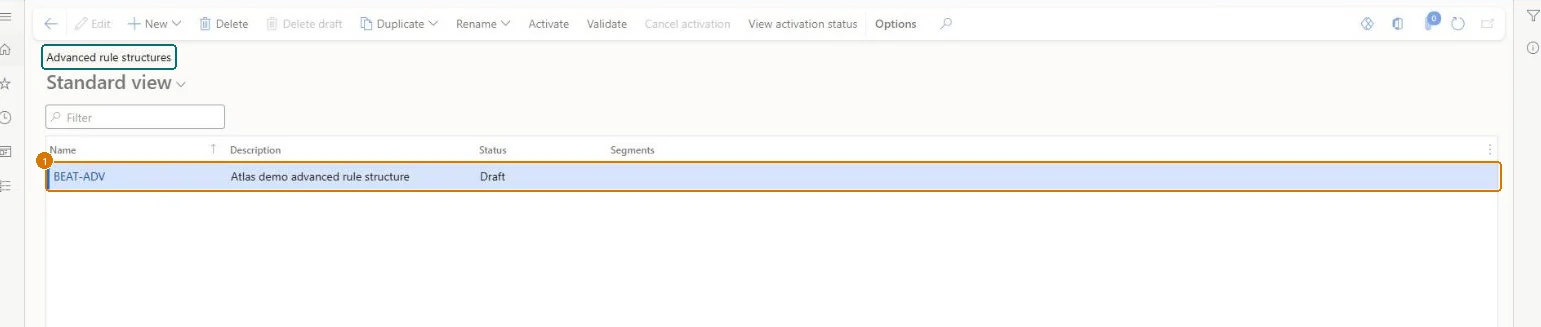
Show the full screen
page title tab to open what to set or check
Microsoft's steps
- Go to General ledger > Chart of accounts > Structures > Advanced rule structures.
- Select New.
- In the Advanced rule structure field, enter a name, and then select OK.
- Select Add segment, and choose a financial dimension.
- Add further segments as needed.
- Select Activate.
Source: Microsoft Learn ↗
Field guide
| Field | What it means | Worked example | Table column |
|---|---|---|---|
| Advanced rule structure | The name of a set of extra dimension segments that an account structure can add when its rule criteria are met.Microsoft Learn ↗ | — | — |
| Description | — | Atlas demo advanced rule structure | — |
| Status | — | Draft | — |
Functional consultant
4Setup decisions
| Setup step | Recommended value and why | Decision · common mistake · test |
|---|---|---|
| Set up Advanced rule structures | — | — |
Solution architect
5Design impact
| Shared or per company | — |
|---|---|
| Can it be undone | — |
| Feature or country | — |
| If you change it later | — |
Technical architect
6Technical
| Menu item | DimensionConfigureAccountRuleStructure Checked in Dynamics 365 |
|---|---|
| Form | DimensionConfigureAccountRuleStructure Checked in Dynamics 365 |
| Table | DimensionHierarchyViewShown as “Dimension structure” in Record infoChecked in Dynamics 365 |
| Data entities | — |
| Who can open it | PrivilegesMaintain advanced rules DimensionConfigureAccountRuleMaintainMaintain dimension advanced rule structure DimensionConfigureAccountRuleStMaintainView the dimension configure advanced rule structure DimensionConfigureAccountRuleStruViewView advanced rules DimensionConfigureAccountRuleViewDutiesInquire into chart of account master LedgerChartOfAccountsInquireMaintain chart of accounts master LedgerChartOfAccountsMaintainEnable general ledger process LedgerGeneralLedgerProcessEnableReview general ledger process performance LedgerGeneralLedgerProcessPerfReviewEnable general ledger process RentalLedgerGeneralLedgerProcessEnable15 security rolesAuditorAuditPolicyManagerBudget clerk BudgetBudgetClerkBudget contributor BudgetBudgetContributorBudget manager BudgetBudgetManagerChief executive officer CompanyChiefExecutiveOfficerChief financial officer CompanyChiefFinancialOfficerAccounts receivable manager CustInvoiceAccountsReceivableManagerAccountant LedgerAccountantAccounting manager LedgerAccountingManagerAccounting supervisor LedgerAccountingSupervisorFinancial controller LedgerFinancialControllerRental manager RentalManagerRental purchasing manager RentalPurchasingManagerRental sales manager RentalSalesManagerAccounts payable manager VendInvoiceAccountsPayableManager |
| Actions on the page | Buttons: Edit, New, Delete, Delete draft, Duplicate, Rename, Activate, Validate, Cancel activation, View activation statusChecked in Dynamics 365 |
Developer
7Developer
| Open it directly | https://<your-environment>/?mi=DimensionConfigureAccountRuleStructure |
|---|---|
| Integrate with | — |
| Table definition | — |
Everyone
8Sources and checks
- learn.microsoft.com/dynamics365/finance/general-ledger/tasks/create-assign-advanced-rule-structures
- learn.microsoft.com/dynamics365/finance/general-ledger/tasks/create-assign-advanced-rule-structures
- Checked in a working Dynamics 365 system, version 10.0.49: the menu item, form, table and security, the page, the demo records and the values in the screenshots.
GL-COA-170 — Set up Advanced rule structures. Beyond ERP Atlas Hub, snapshot 2026-10-16, partly verified. https://www.beyonderp.cloud/atlas/step/GL-COA-170