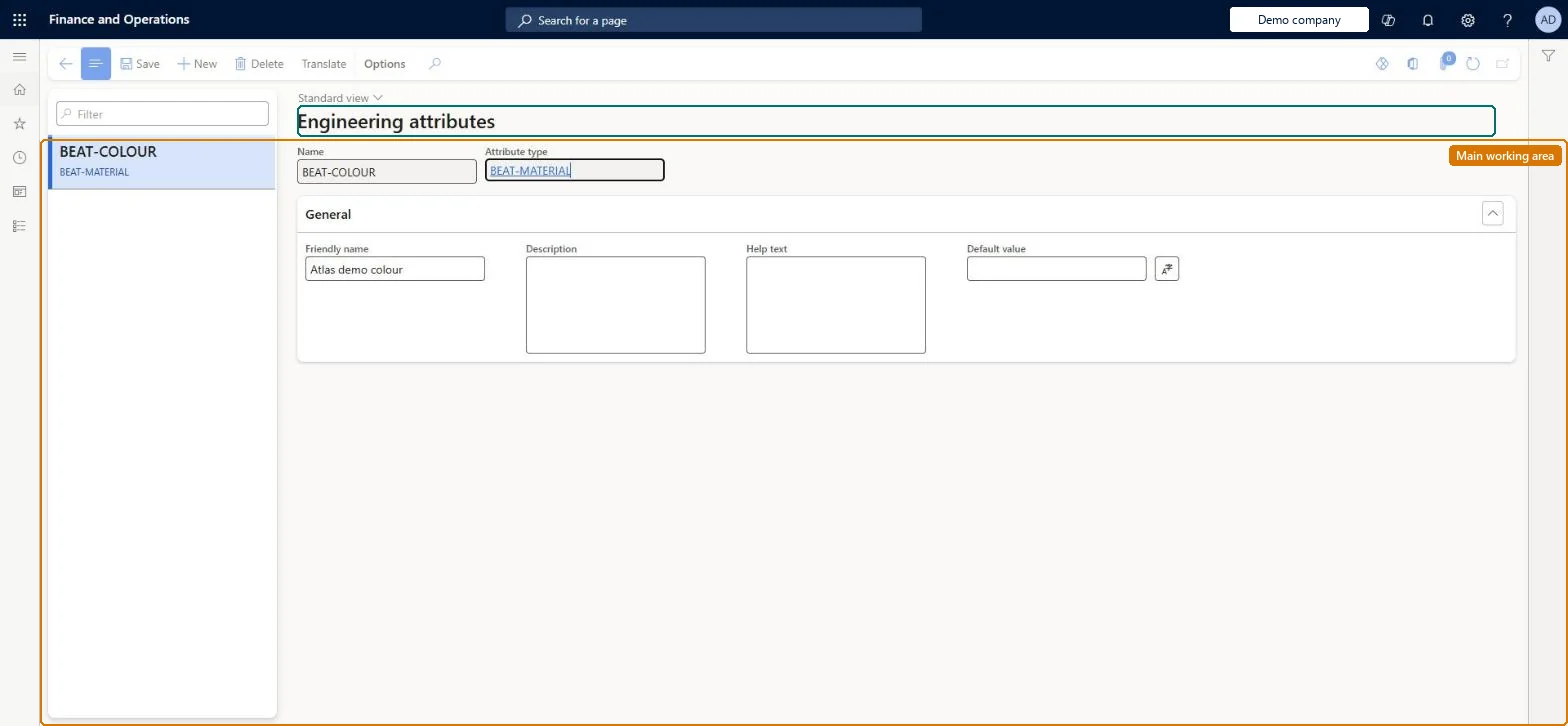
Setup step on the Engineering attributes page · Engineering change management
Set up Engineering attributes
Use this page to create the attributes, with their default values, help text, currency and allowed ranges, that you later attach to engineering product categories so that values are captured for every product in the category.
SETUP GUIDEHow to set it up8 sections. Choose a role to highlight what matters to you.
Everyone
1What it is and why
What it is
A setup page where you define engineering attributes: the non-standard product characteristics (each based on an attribute type) that become part of an engineering product's definition and can be searched on.
What you do here
Use this page to create the attributes, with their default values, help text, currency and allowed ranges, that you later attach to engineering product categories so that values are captured for every product in the category.
Example
For example, electrical attributes are not required for mechanical products, so different attributes are attached to different engineering product categories.
The page in Dynamics 365. page title tab to open what to set or check
About the examples: Examples and screenshots in this guide use BEAT, a demo company in a Dynamics 365 test environment. Use your own company's codes and values instead of copying them.
Setup steps on this page
Set up Engineering attributes
Use this page to create the attributes, with their default values, help text, currency and allowed ranges, that you later attach to engineering product categories so that values are captured for every product in the category.
Steps from Microsoft
Go to Engineering change management > Setup > Attributes > Engineering attributes.
Select an existing attribute in the list pane, or select New on the Action Pane to create a new one.
Enter a unique Name and select the Attribute type.
Enter the Friendly name, Description, Help text and Default value.
If the attribute type is a currency, select the Currency.
If the attribute type is an integer or decimal, set Tolerance action, Minimum and Maximum on the Range FastTab.
One engineering attribute for each non-standard product characteristic, built on a reusable attribute type, with a Range and Tolerance action = Not allowed where limits are hardLearn recommends engineering attributes for all non-standard characteristics so that attribute search can find products by them; Not allowed blocks saving a value outside the range, while Warning only warns.
Adding attributes to a category that already has products and forgetting Update existing products on the category's Attributes FastTab, so existing products don't get the new attributes.
Feature management and licence
Feature to turn on
Improved attribute inheritance for Engineering Change Management (Mandatory, on by default)
Licence or add-in
Attribute search configuration key under Engineering Change Management, for engineering attribute search
Reversible: Attributes and their defaults can be changed. Values on products can be changed later on the Engineering version page or through an engineering change order.
If you change it later
The Tolerance action decides what happens when a user enters a value outside the attribute's range: with Not allowed the value cannot be saved until corrected; changing which attributes a category uses requires deciding whether to update existing products. Microsoft Learn
Technical architect
6Technical
Menu item
EngChgAttributeChecked in Dynamics 365
Form
EngChgAttributeChecked in Dynamics 365
Table
EcoResAttributeShown as “ATTRIBUTES” in Record infoKey field: NameChecked in Dynamics 365
PrivilegesView engineering attributes EngChgAttributeViewMaintain engineering attributes EngChgEngineeringAttributeMaintainView engineering attributes EngChgEngineeringAttributeViewDutiesEnable the engineering change management process EngChgEngineeringChangeManagementProcessEnableInquire into engineering change management reference data EngChgEngineeringChangeManagementReferenceDataInquireInquire into engineering product master EngChgEngineeringProductMasterInquire2 security rolesProduct engineer EngChgProductEngineerProduct engineering manager EngChgProductEngineeringManagerChecked in Dynamics 365
Roles to set it up and use it
To set it up or change itProduct engineering manager EngChgProductEngineeringManagerTo use itProduct engineer EngChgProductEngineerGive people one of these roles. On this system, 2 roles can open this page.Checked in Dynamics 365
Actions on the page
(Action Pane without tabs): TranslateChecked in Dynamics 365
EcoResProductAttributeEntity (Product attributes): shared by all companies, in Microsoft's default template 310 - Product information management.Load order: Microsoft's default template 310 - Product information management loads Product attributes at execution unit 1, level 40, sequence 10. Lower levels load first, and entities at the same level load in sequence order.Load first: the default templates at lower levels (System setup to dependency bands 30 to 90)Microsoft Learn