Setup step on the Compensation groups page · Budgeting
Set up Compensation groups
Used to set the earnings and annual increases of forecast positions and to add common cost elements such as benefits and taxes.
- Used by
- Auditor, Budget clerk, Budget contributor and 6 more roles
- Business process
- Plan for proposed headcount and related expenses in Dynamics 365 Finance
- Menu item
HcmPositionForecastCompGroup- Main table
HcmPositionForecastCompensationGroup- Data entity
- —
- Setup steps
- 1 on this page
Show what matters for
Everyone
1What it is and why
| What it is | A setup page where you define compensation groups, which apply a set of budget cost elements and pay calculations to positions with similar pay. |
|---|---|
| What you do here | Used to set the earnings and annual increases of forecast positions and to add common cost elements such as benefits and taxes. |
| Example | For example, when a bargaining unit wins a pay rise in the middle of a budget cycle, you end the current rate table the day before and add a new rate table from the new date. |
Functional consultant · Solution architect
2Where it fits
| Business process | Manage budgets › Plan budgets › Plan for proposed headcount and related expenses in Dynamics 365 Finance |
|---|---|
| Menu path | Budgeting › Setup › Budget planning › Compensation groups |
| Set up first | Budget cost elements Microsoft Learn ↗ |
| Used next by | Forecast positions Microsoft Learn ↗ |
| Related pages | — |
| In this process | ← Set up Budget cost elements |
End user · Functional consultant
3How to do it
Step by step, with screenshots
Set up Compensation groups1 screen
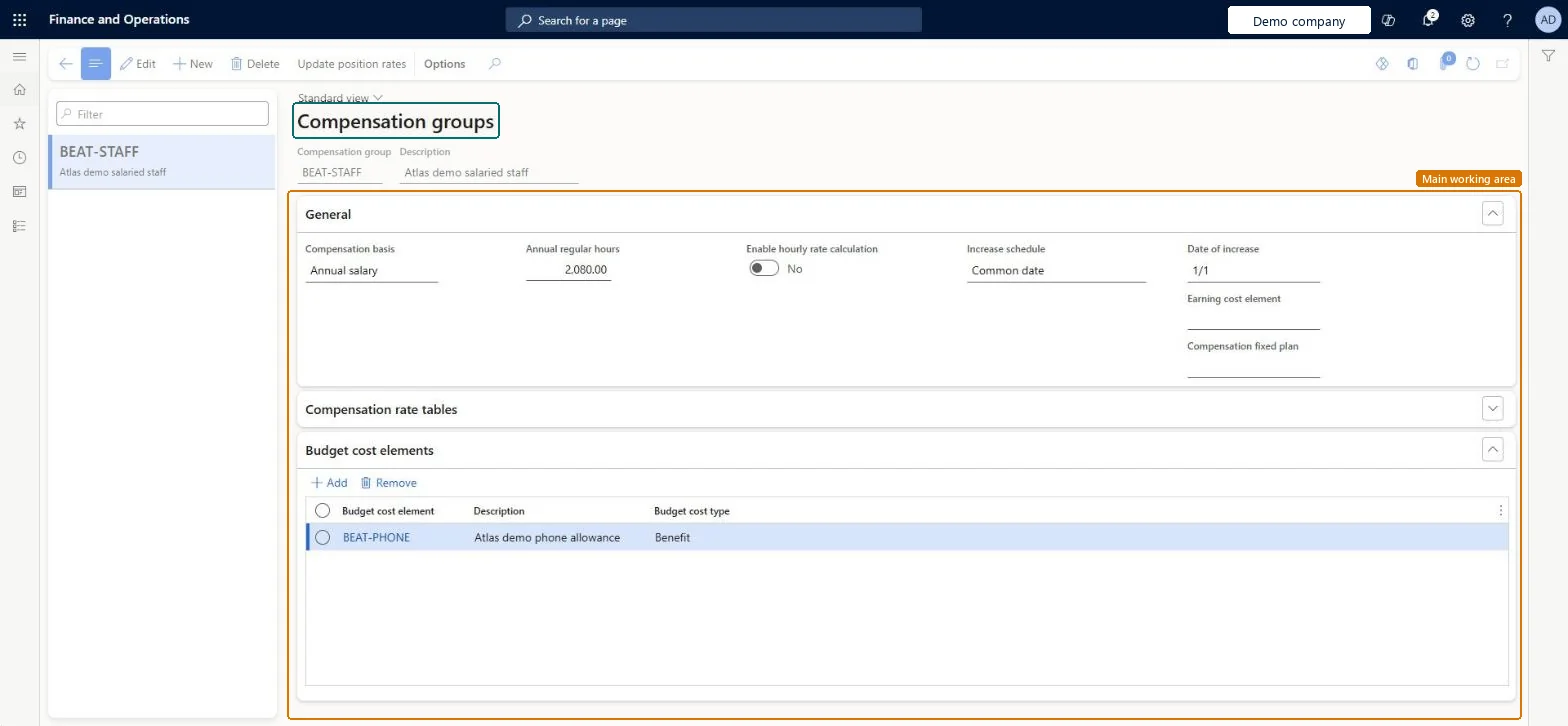
Used to set the earnings and annual increases of forecast positions and to add common cost elements such as benefits and taxes.
Screen 1
Create the compensation group
Go to Budgeting > Setup > Budget planning > Compensation groups
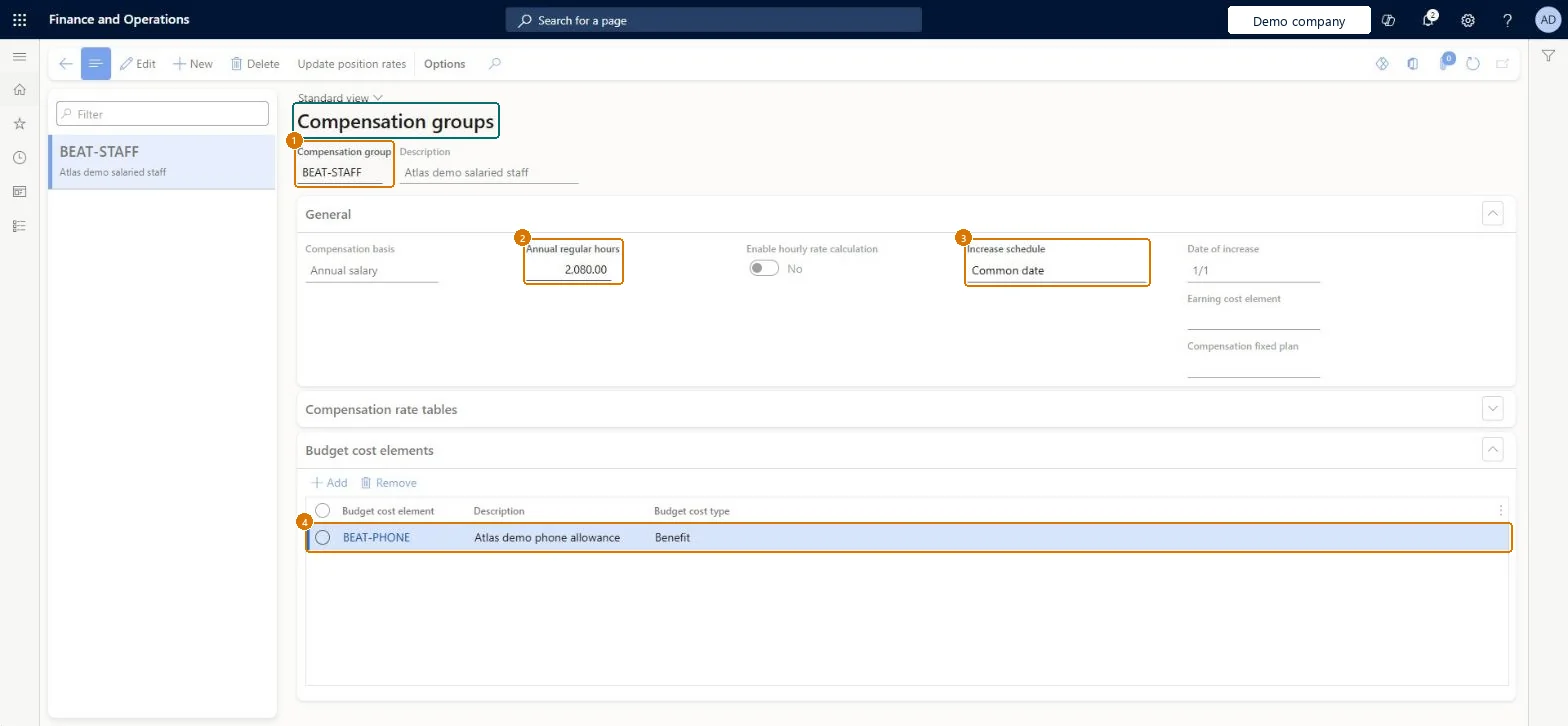
- Select New and enter the Compensation group and Description
- On the General section, enter the Annual regular hours and choose the Increase schedule and Date of increase
- In the Budget cost elements section, select Add and choose the budget cost element
- Select Save
1Compensation group BEAT-STAFF 2Annual regular hours 2,080.00 3Increase schedule Common date 4Budget cost element BEAT-PHONE 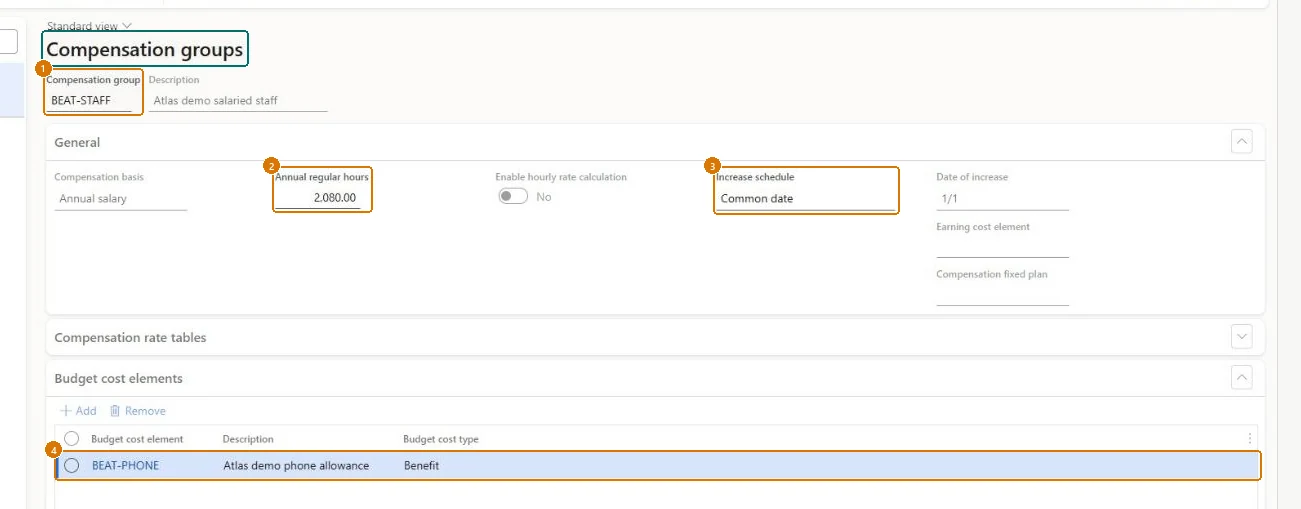
Show the full screen
page title tab to open what to set or check
Microsoft's steps
—
Field guide
| Field | What it means | Worked example | Table column |
|---|---|---|---|
| Compensation rate tables | A grid of pay rates that sets earnings from an assigned level and step.Microsoft Learn ↗ | — | — |
| Mass Change | Raises or lowers all rates in the grid by a percentage or flat amount.Microsoft Learn ↗ | — | — |
| Increase schedule | Whether step increases use each position's anniversary date or one common date.Microsoft Learn ↗ | Common date | — |
| Compensation fixed plan | Links the group to a fixed compensation plan in Human resources.Microsoft Learn ↗ | — | PlanId |
| Update position rates | Applies the current rate table rates to forecast positions in the group.Microsoft Learn ↗ | — | — |
| Compensation group | — | BEAT-STAFF | — |
| Annual regular hours | — | 2,080.00 | AnnualHours |
| Budget cost element | — | BEAT-PHONE | — |
Functional consultant
4Setup decisions
| Setup step | Recommended value and why | Decision · common mistake · test |
|---|---|---|
| Set up Compensation groups | — | — |
Solution architect
5Design impact
| Shared or per company | Per company: each legal entity has its own records. Microsoft data model ↗ |
|---|---|
| Can it be undone | — |
| Feature or country | — |
| If you change it later | Update position rates refreshes only the rates on forecast positions; their budget cost elements and increase dates stay as they are. Microsoft Learn ↗ |
Technical architect
6Technical
| Menu item | HcmPositionForecastCompGroup Checked in Dynamics 365 |
|---|---|
| Form | HcmPositionForecastCompensationGroup Checked in Dynamics 365 |
| Table | HcmPositionForecastCompensationGroupShown as “Compensation groups” in Record infoKey field: CompensationGroupId, DescriptionChecked in Dynamics 365 |
| Data entities | — |
| Who can open it | PrivilegesMaintain compensation groups HcmForecastPositionCompGroupMaintainView compensation groups HcmForecastPositionCompGroupViewDutiesInquire into budget master BudgetBudgetsInquireSet up position budgeting HcmForecastPositionBudgetMaintain9 security rolesAuditorAuditPolicyManagerBudget clerk BudgetBudgetClerkBudget contributor BudgetBudgetContributorBudget manager BudgetBudgetManagerChief financial officer CompanyChiefFinancialOfficerHuman resource assistant HcmHumanResourceAssistantAccounting manager LedgerAccountingManagerAccounting supervisor LedgerAccountingSupervisorFinancial controller LedgerFinancialController |
| Actions on the page | Options: Personalize, Page options, ShareChecked in Dynamics 365 |
Developer
7Developer
| Open it directly | https://<your-environment>/?mi=HcmPositionForecastCompGroup |
|---|---|
| Integrate with | — |
| Table definition | HcmPositionForecastCompensationGroup columns and relations Microsoft data model ↗ |
Everyone
8Sources and checks
- learn.microsoft.com/dynamics365/finance/budgeting/position-forecasting
- learn.microsoft.com/common-data-model/schema/core/operationscommon/tables/finance/budget/group/hcmpositionforecastcompensationgroup
- Checked in a working Dynamics 365 system, version 10.0.49: the menu item, form, table and security, the page, the demo records and the values in the screenshots.
BUD-SETUP-120 — Set up Compensation groups. Beyond ERP Atlas Hub, snapshot 2026-10-16, partly verified. https://www.beyonderp.cloud/atlas/step/BUD-SETUP-120