Accounts receivable clerk, Accounts receivable manager, Auditor and 18 more roles
Business process
Define posting profiles in Dynamics 365 Finance
Menu item
CustPosting
Main table
CustLedger
Data entity
CustCustomerPostingProfileHeaderEntity
Setup steps
1 on this page
Show what matters for
SETUP GUIDEHow to set it up8 sections. Choose a role to highlight what matters to you.
Everyone
1What it is and why
What it is
Customer posting profiles control how customer transactions post to the general ledger, assigning ledger accounts and document settings to all customers, a customer group or a single customer.
What you do here
Use it to define the summary (Accounts receivable trade) account and related accounts, plus settlement, interest and collection letter settings, applied to invoices, payment journals, collection letters and interest notes.
Example
You could create two posting profiles: one that posts customer balances in the national currency to one account and another for balances in a foreign currency; organizations taking prepayments often add a separate prepayment profile.
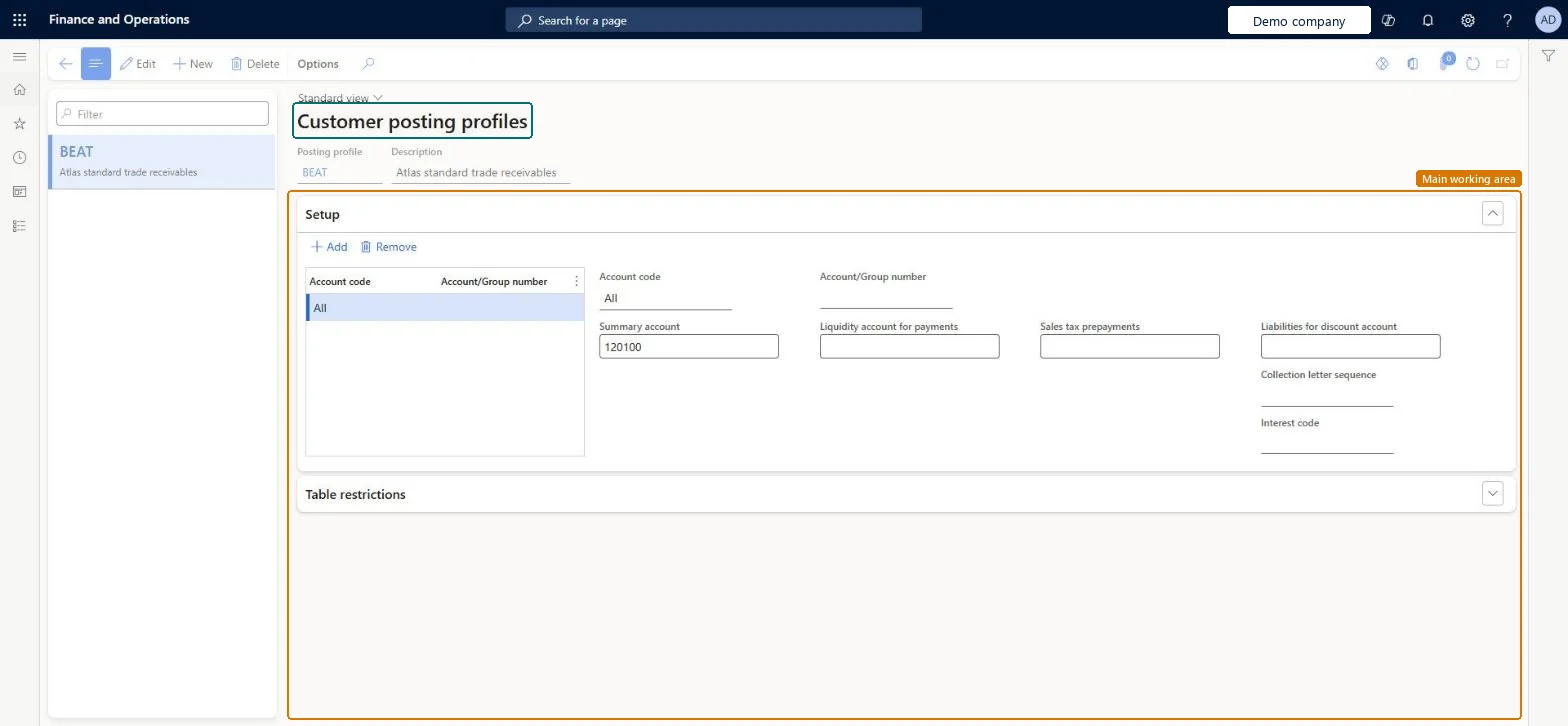
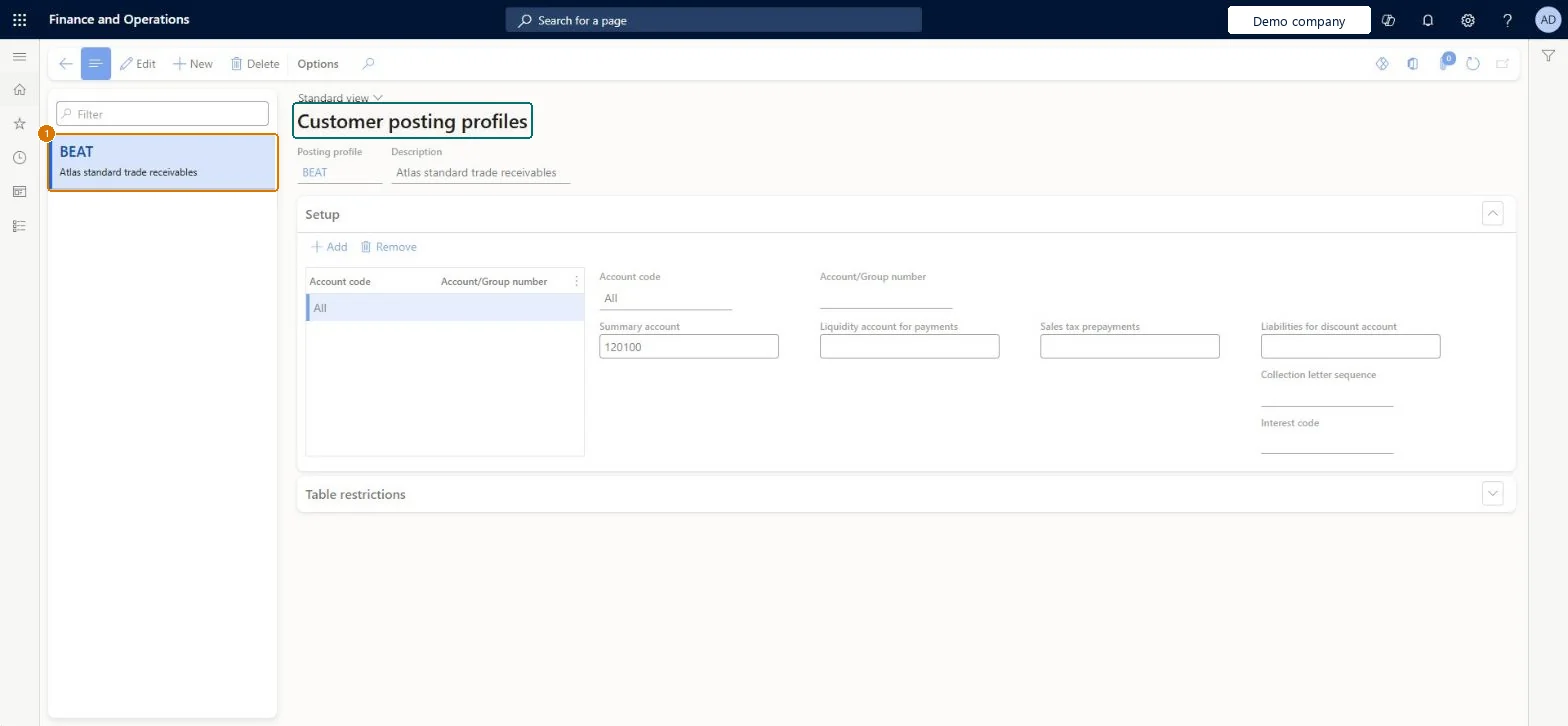
The page in Dynamics 365. page title tab to open what to set or check
About the examples: Examples and screenshots in this guide use BEAT, a demo company in a Dynamics 365 test environment. Use your own company's codes and values instead of copying them.
Step by step, with screenshots
Set up Customer posting profiles1 screen
Set up the posting profiles that control how customer transactions are posted to the general ledger.
Screen 1
Create the customer posting profile
Go to Accounts receivable > Setup > Customer posting profiles
Select New and enter the posting profile and description
On the Setup FastTab, select Add
Set Account code to All and enter the summary account
1Posting profile
BEAT
Description
Standard trade receivables
Account code
All
Summary account
120100
Show the full screen page title tab to open what to set or check
How to use it
Go to Accounts receivable > Setup > Customer posting profiles.
Select New to add a profile, or select a profile in the list and select Edit.
Fill in the Posting profile and Description.
In the Setup section, select Add and pick an Account code.
Enter the Summary account and any other accounts you need, such as Liquidity account for payments or Sales tax prepayments.
Select Remove to take a setup line away.
Source: Checked in Dynamics 365
Fields on the page
Field
What it means
Example
Table column
Posting profile
The code of the posting profile, for example one for national and one for foreign currency balances.Microsoft Learn
GEN
PostingProfile
Account code
Whether the profile applies to one customer (Table), a customer group (Group), or all customers (All).Microsoft Learn
All
AccountCode
Account/Group number
The customer or customer group the profile applies to; left blank for All.Microsoft Learn
Num
Summary account
The Accounts receivable trade main account that customer balances post to.Microsoft Learn
120100
SummaryLedgerDimension
Liquidity account for payments
The account used for cash flow forecasts; it appears only when cash flow forecasts are turned on.Microsoft Learn
ClearingLedgerDimension
Sales tax prepayments
The account for sales tax on payments received in advance.Microsoft Learn
One profile for trade receivables with an All row as the fallback, Group rows only where a customer group needs a different summary account, and a separate prepayment profilePosting looks for the most specific row (Table, Group, All), so an All row guarantees every customer finds a summary account. Learn recommends a second profile for prepayments.
Hard to reverse: Posted transactions keep their accounts; a change needs reconciliation and possibly adjusting entries.
If you change it later
During posting the most specific profile wins: a profile for the customer first, then one for the customer's group, then one for all customers. Microsoft Learn
Technical architect
6Technical
Menu item
CustPostingChecked in Dynamics 365
Form
CustPostingChecked in Dynamics 365
Table
CustLedgerShown as “Customer posting profiles” in Record infoKey field: PostingProfileChecked in Dynamics 365
Data entities
CustCustomerPostingProfileHeaderEntityCustomer posting profiles Microsoft data model
Who can open it
PrivilegesMaintain customer posting profiles CustPostingMaintainView customer posting profiles CustPostingViewDutiesInquire into invoice and cash policies CustInvoiceInvoiceAndCashPoliciesInquirEnable invoice and cash process CustInvoiceInvoiceAndCashProcessEnableInquire into general ledger policies LedgerGeneralLedgerPoliciesInquireEnable general ledger process LedgerGeneralLedgerProcessEnableReview general ledger process performance LedgerGeneralLedgerProcessPerfReviewInquire into invoice and cash policies RentalCustInvInvoiceAndCashPolInquirEnable invoice and cash process RentalCustInvoiceInvAndCashProcEnableInquire into general ledger policies RentalLedgerGeneralLedgerPolicieInquireEnable general ledger process RentalLedgerGeneralLedgerProcessEnableInquire into quotation to sales order policies RentalSalesQuotationToSlsOrdPoliciesInquireEnable quotation to sales order process RentalSalesQuotationToSlsOrdProcessEnableInquire into quotation to sales order policies SalesQuotationToSalesOrderPolInquireEnable quotation to sales order process SalesQuotationToSalesOrderProcessEnable21 security rolesAuditor AuditPolicyManagerCollections manager CollectionLetterCollectionsManagerChief executive officer CompanyChiefExecutiveOfficerChief financial officer CompanyChiefFinancialOfficerAccounts receivable clerk CustInvoiceAccountsReceivableClerkAccounts receivable manager CustInvoiceAccountsReceivableManagerInventory accountant InventCostAccountantInventory accountant clerk InventCostCostClerkAccountant LedgerAccountantAccounting manager LedgerAccountingManagerAccounting supervisor LedgerAccountingSupervisorFinancial controller LedgerFinancialControllerAccounts receivable centralized payments clerk PaymAccountsReceivableCentralPaymClerkAccounts receivable payments clerk PaymAccountsReceivablePaymentsClerkRental coordinator agent RentalCoordinatorAgentRental manager RentalManagerRental purchasing manager RentalPurchasingManagerRental representative RentalRepresentativeRental sales manager RentalSalesManagerRetail service RetailServiceSales manager TradeSalesManagerChecked in Dynamics 365
Roles to set it up and use it
To set it up or change itRental manager RentalManagerAccounts receivable manager CustInvoiceAccountsReceivableManagerRental coordinator agent RentalCoordinatorAgentCollections manager CollectionLetterCollectionsManagerAccounting supervisor LedgerAccountingSupervisorTo use itAccounts receivable clerk CustInvoiceAccountsReceivableClerkAccounts receivable payments clerk PaymAccountsReceivablePaymentsClerkAccounts receivable centralized payments clerk PaymAccountsReceivableCentralPaymClerkFinancial controller LedgerFinancialControllerAccountant LedgerAccountantGive people one of these roles. On this system, 21 roles can open this page.Checked in Dynamics 365
Actions on the page
Options: Personalize, Page options, ShareChecked in Dynamics 365
CustCustomerPostingProfileHeaderEntity (Customer posting profiles): loaded for each company, in Microsoft's default template 140 - Accounts receivable.Load order: Microsoft's default template 140 - Accounts receivable loads Customer posting profiles at execution unit 1, level 140, sequence 30. Lower levels load first, and entities at the same level load in sequence order.Load first: the default templates at lower levels (System setup to Tax)Microsoft Learn
Checked in a working Dynamics 365 system, version 10.0.49: the menu item, form, table and security, the page, the demo records and the values in the screenshots.
To cite this step: AR-SETUP-120, Set up Customer posting profiles. Beyond ERP Atlas Hub, 2026-11-11. https://www.beyonderp.cloud/atlas/step/AR-SETUP-120