About the examples: Examples and screenshots in this guide use BEAT, a demo company in a Dynamics 365 test environment. Use your own company's codes and values instead of copying them.
Step by step, with screenshots
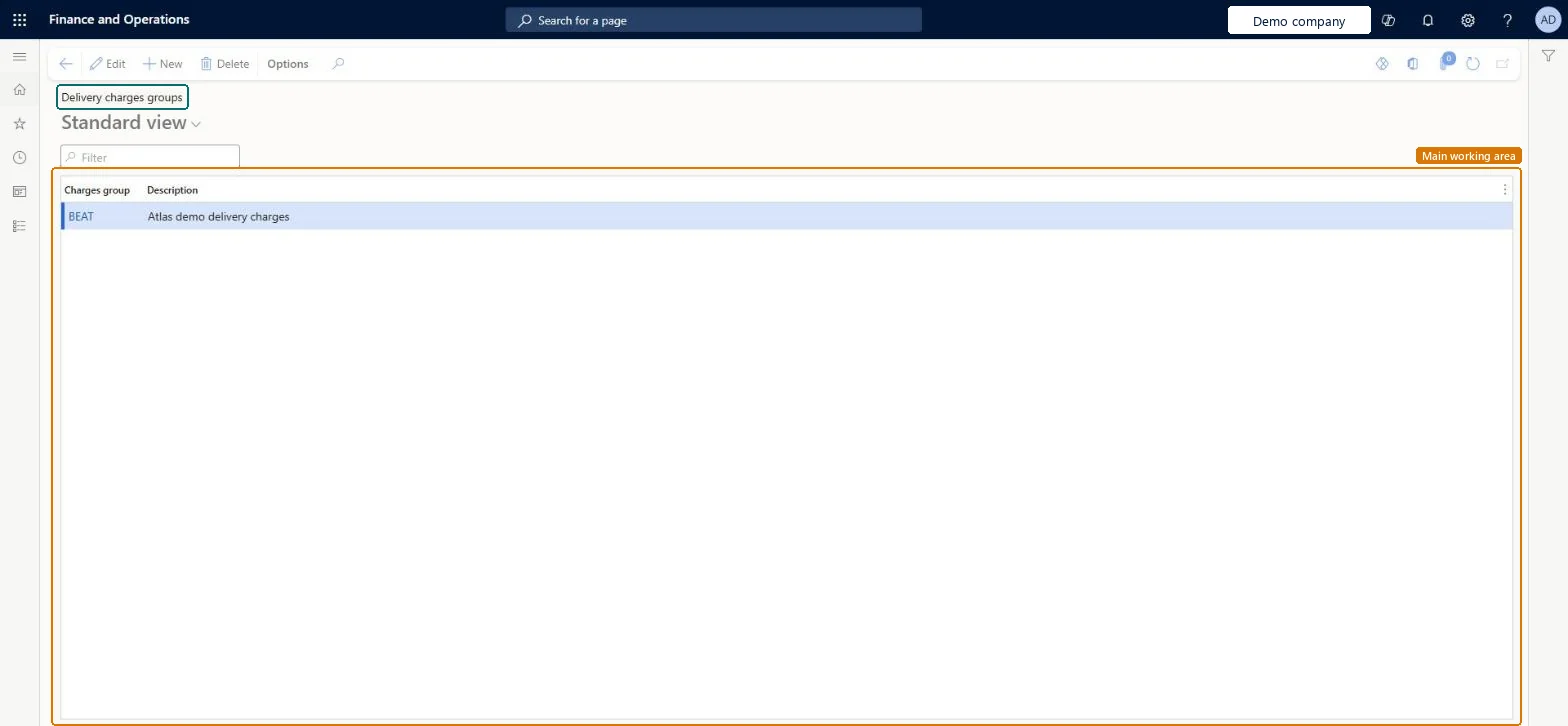
Set up Delivery charges groups1 screen
Groups modes of delivery so that automatic charges can be defined once for a delivery mode group instead of for each individual delivery mode.
Screen 1
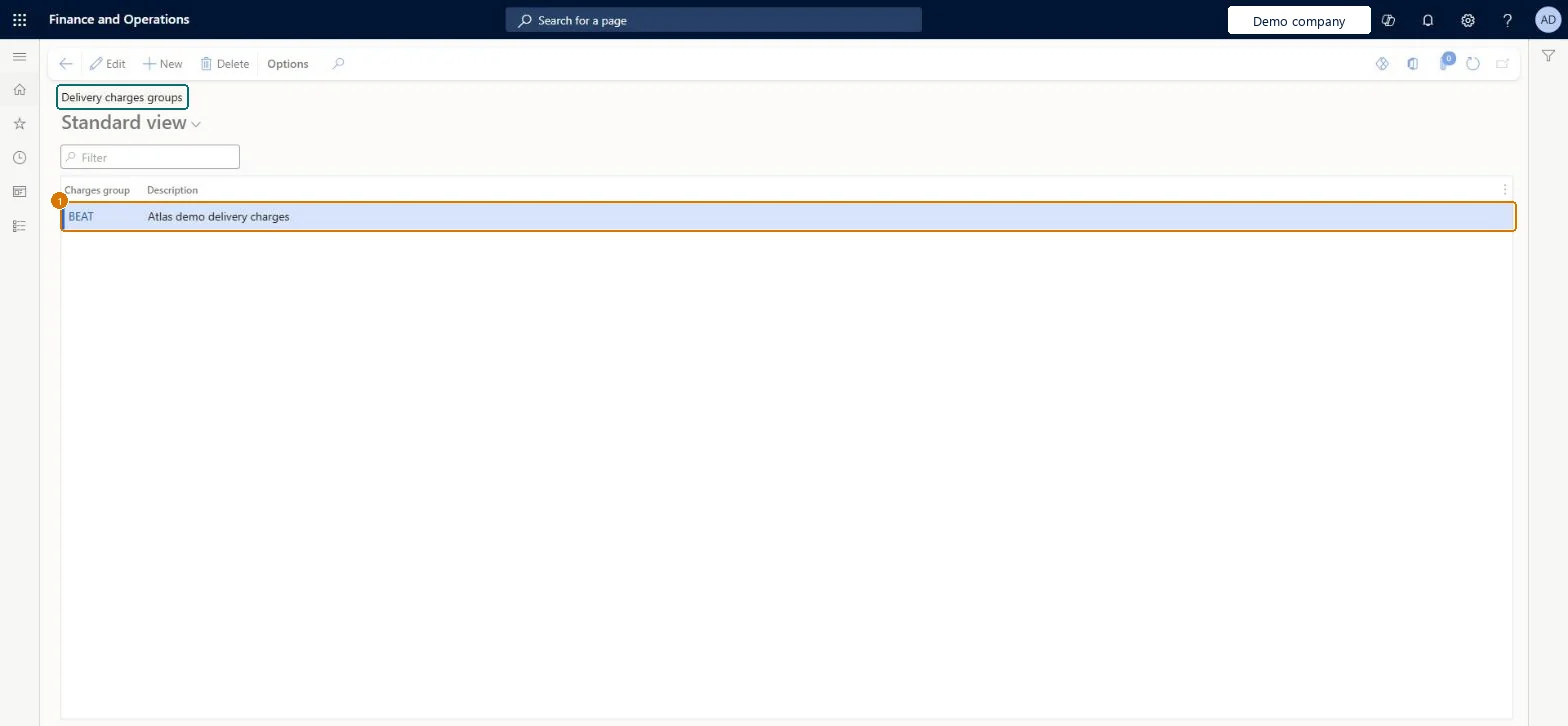
Create the delivery charges group
Go to Accounts receivable > Charges setup > Delivery charges groups
Select New
Enter the group code BEAT and a description
Description
Delivery charges
Show the full screen page title tab to open what to set or check
How to use it
Go to Accounts receivable > Charges setup > Delivery charges groups.
Select New to add a charges group.
Fill in the Charges group and Description.
Select Edit to change an existing group, or Delete to remove the selected one.
Group modes of delivery that share the same charges, link each mode of delivery to its group on the Modes of delivery page, and define auto charges with Mode of delivery code Group.When an auto charge uses a group, every mode of delivery linked to that group uses those charges, so you maintain one charge per group instead of per delivery mode.
Creating the group but not linking any mode of delivery to it. Auto charges defined for the group then never apply.
PrivilegesMaintain charges in the sale process MarkupAutoSetup_CustMaintainDutiesEnable quotation to sales order process RentalSalesQuotationToSlsOrdProcessEnableEnable quotation to sales order process SalesQuotationToSalesOrderProcessEnable6 security rolesAccounts receivable manager CustInvoiceAccountsReceivableManagerRental coordinator agent RentalCoordinatorAgentRental manager RentalManagerRental sales manager RentalSalesManagerRetail service RetailServiceSales manager TradeSalesManagerChecked in Dynamics 365
Roles to set it up and use it
To use itAccounts receivable manager CustInvoiceAccountsReceivableManagerRental manager RentalManagerRental coordinator agent RentalCoordinatorAgentSales manager TradeSalesManagerRetail service RetailServiceGive people one of these roles. On this system, 6 roles can open this page.Checked in Dynamics 365
Actions on the page
Options: Personalize, Page options, ShareChecked in Dynamics 365
DlvChargeDeliveryGroupEntity (Delivery charges groups): loaded for each company, in Microsoft's default template 120 - Accounts payable.Load order: Microsoft's default template 120 - Accounts payable loads Delivery charges groups at execution unit 1, level 30, sequence 10. Lower levels load first, and entities at the same level load in sequence order.Load first: the default templates at lower levels (System setup to General ledger)Microsoft Learn
Checked in a working Dynamics 365 system, version 10.0.49: the menu item, form, table and security, the page, the demo records and the values in the screenshots.
To cite this step: AR-SETUP-100, Set up Delivery charges groups. Beyond ERP Atlas Hub, 2026-11-11. https://www.beyonderp.cloud/atlas/step/AR-SETUP-100