Accounts payable manager, Auditor, Accounting manager and 2 more roles
Business process
Issue and settle supplier payments
Menu item
VendPaymMode
Main table
VendPaymModeTable
Data entity
VendorPaymentMethodEntity
Setup steps
1 on this page
Show what matters for
SETUP GUIDEHow to set it up8 sections. Choose a role to highlight what matters to you.
Everyone
1What it is and why
What it is
A setup page for all the methods of payment that the company uses to pay vendors.
What you do here
Use this page to define, for each method, how payments are summarized and posted, the payment type, grace period and the export, return and remittance file formats.
Example
Setting the Period field to Week combines the payment for all invoices for vendors with a due date within the same week.
The page in Dynamics 365. page title tab to open what to set or check
About the examples: Examples and screenshots in this guide use BEAT, a demo company in a Dynamics 365 test environment. Use your own company's codes and values instead of copying them.
Step by step, with screenshots
Define vendor methods of payment6 screens
Control how supplier payments are posted and generated for each approved instrument.
Screen 1
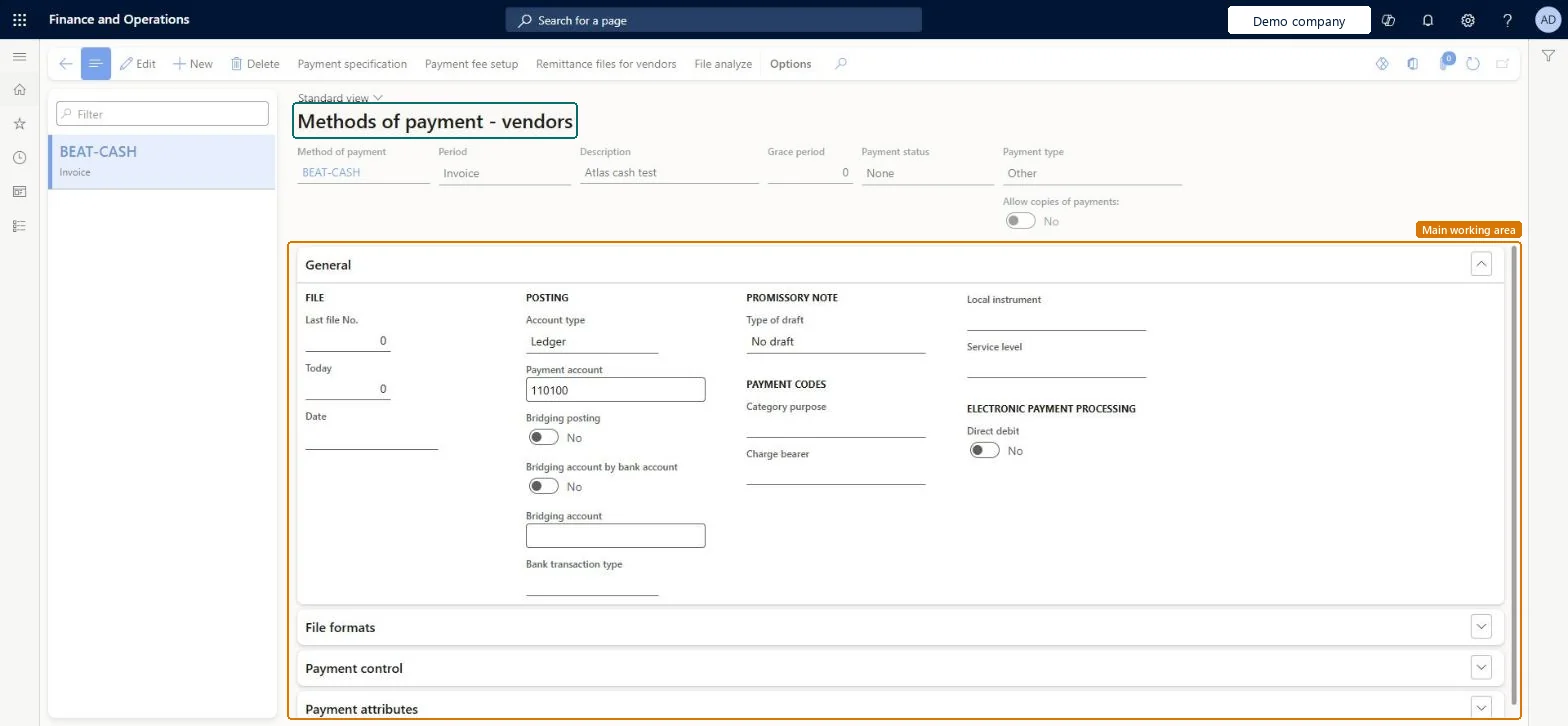
Create the vendor method of payment
Go to Accounts payable > Payment setup > Methods of payment
Select New
Enter Method of payment and Description
Set Period, Payment status and Payment type
1Method of payment
BEAT-CASH
Description
Cash
Period
Invoice
Grace period
0
Payment status
None
Payment type
Other
Show the full screen page title tab to open what to set or check
Screen 2
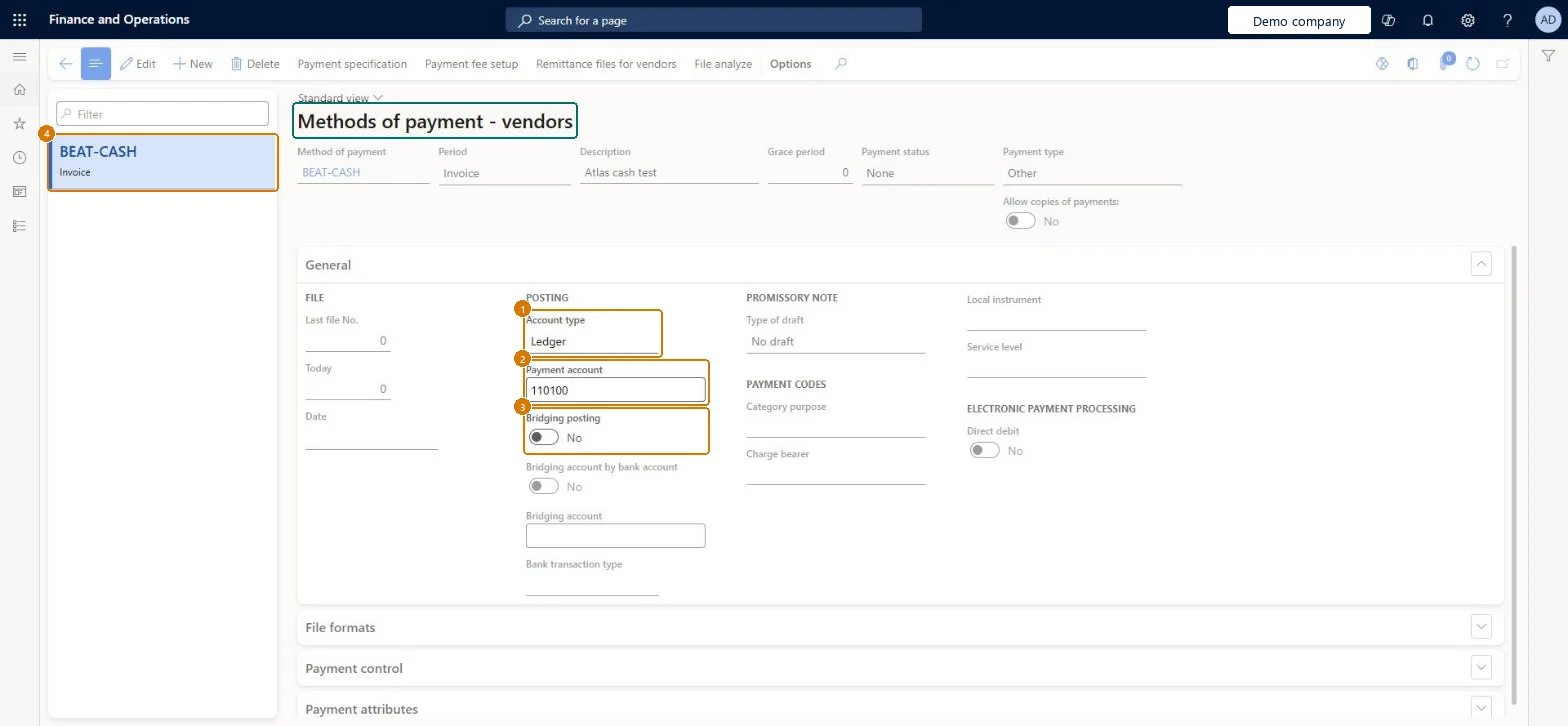
Set the payment posting account
Go to Accounts payable > Payment setup > Methods of payment, General section
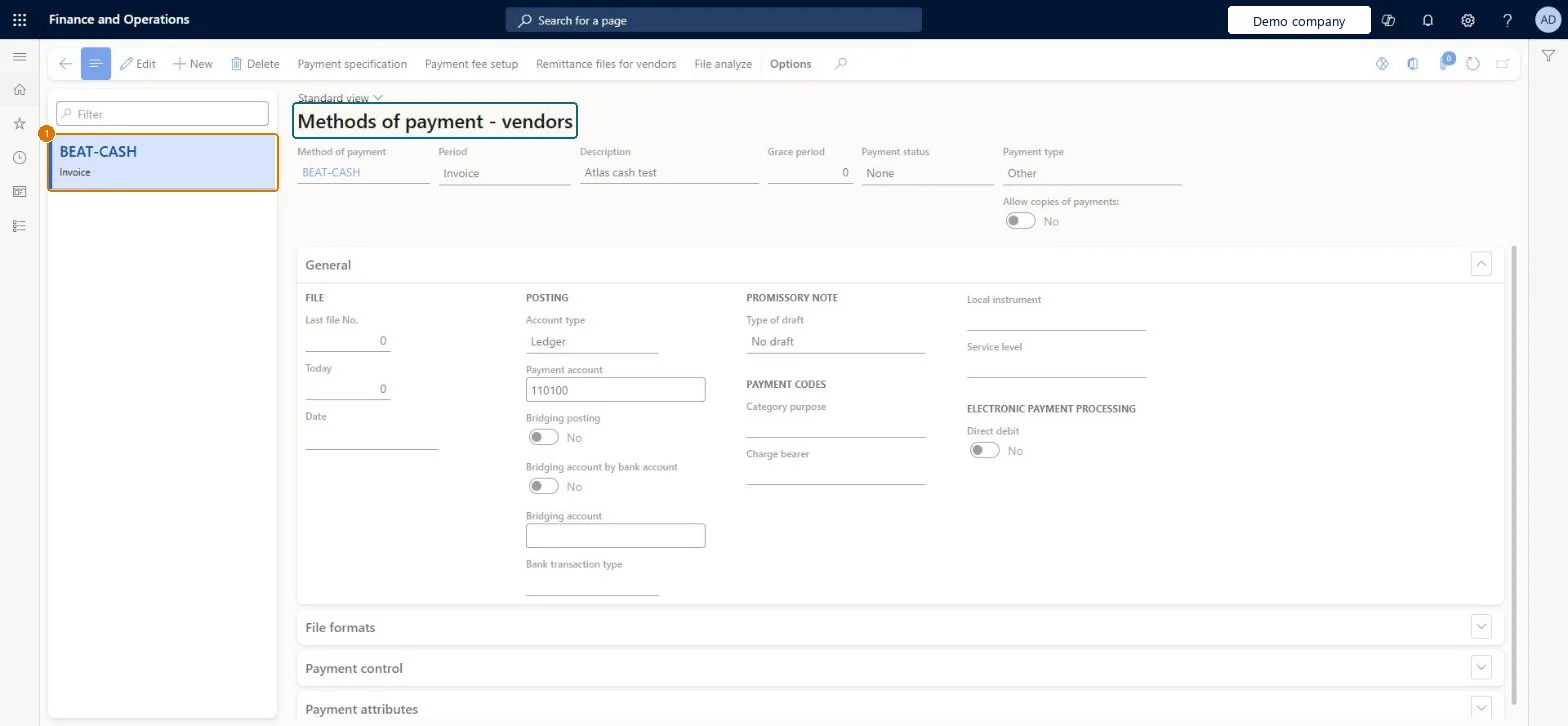
Select the BEAT-CASH method
In the General section under Posting, set Account type and Payment account
Leave Bridging posting off
1Account type
Ledger
2Payment account
110100
3Bridging posting
No
Show the full screen page title tab to open what to set or check
Screen 3
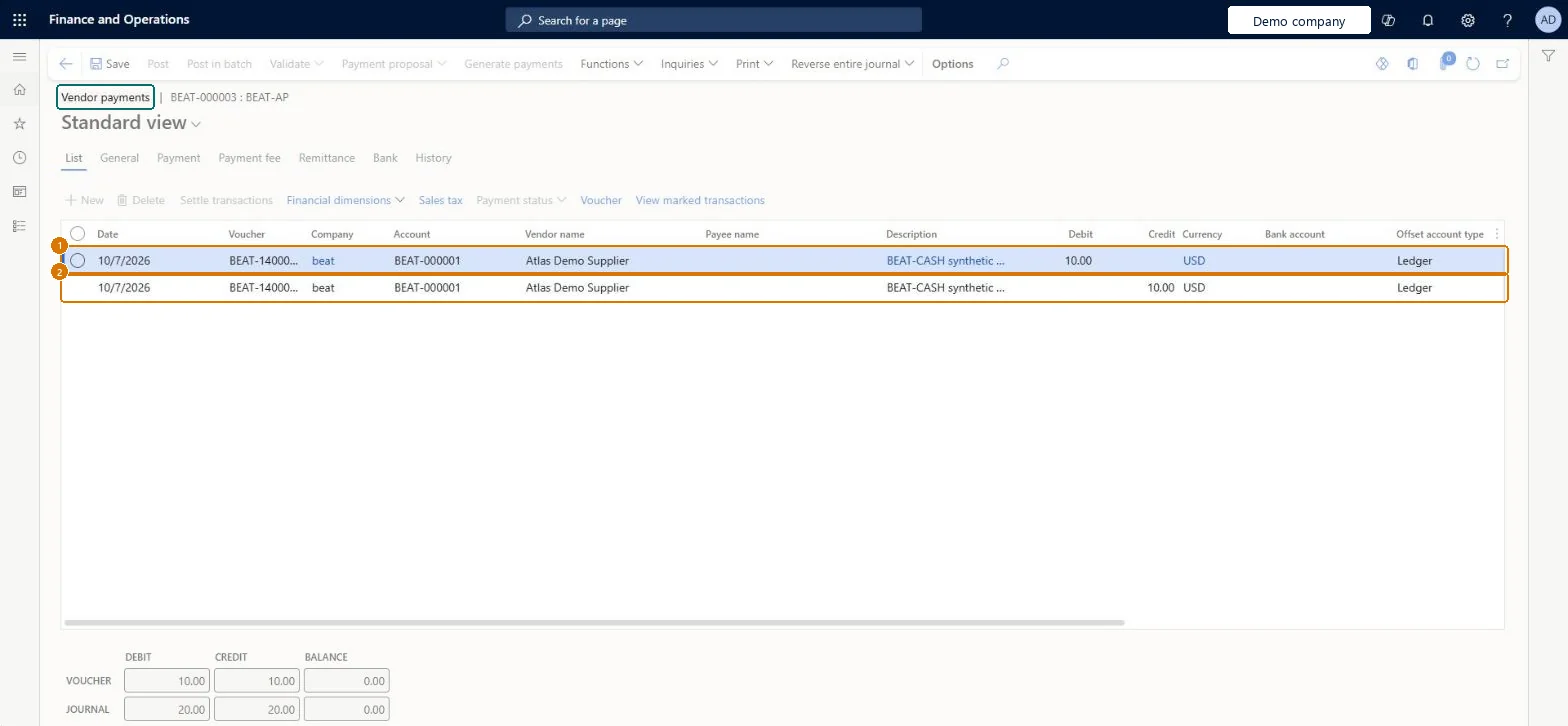
Post a test vendor payment with the method
Go to Accounts payable > Payments > Vendor payment journal
Open journal BEAT-000003 and go to the List tab
Add a debit line and a credit line for vendor BEAT-000001 using BEAT-CASH
Select Post
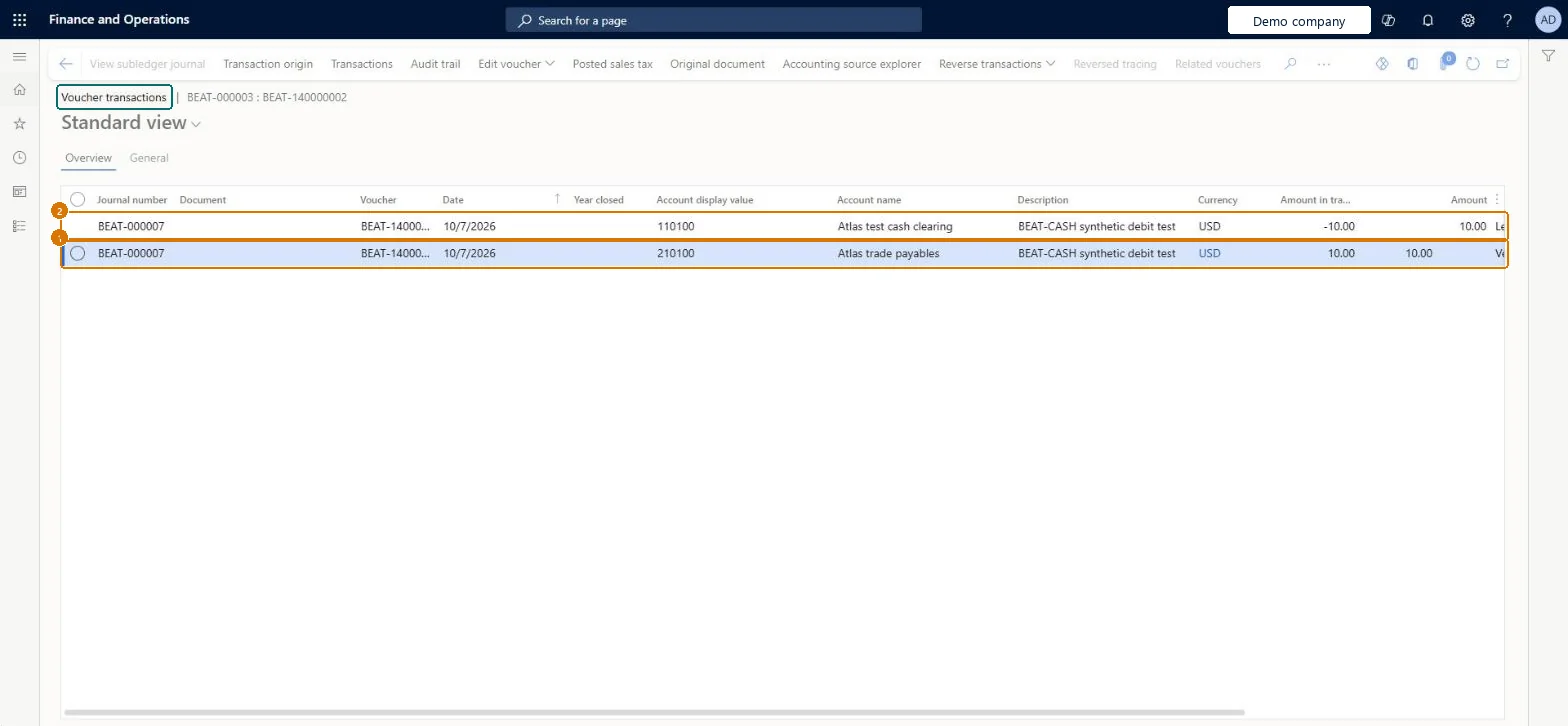
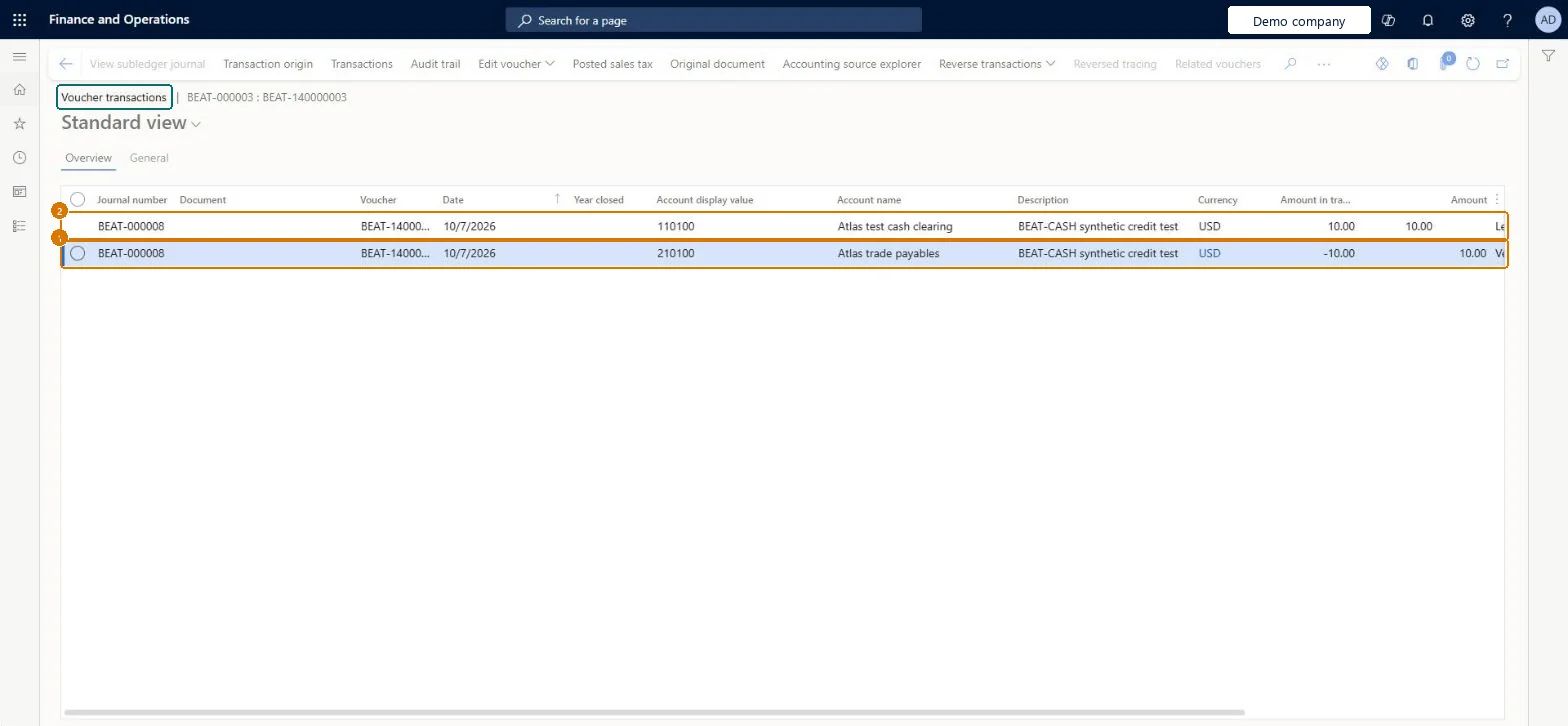
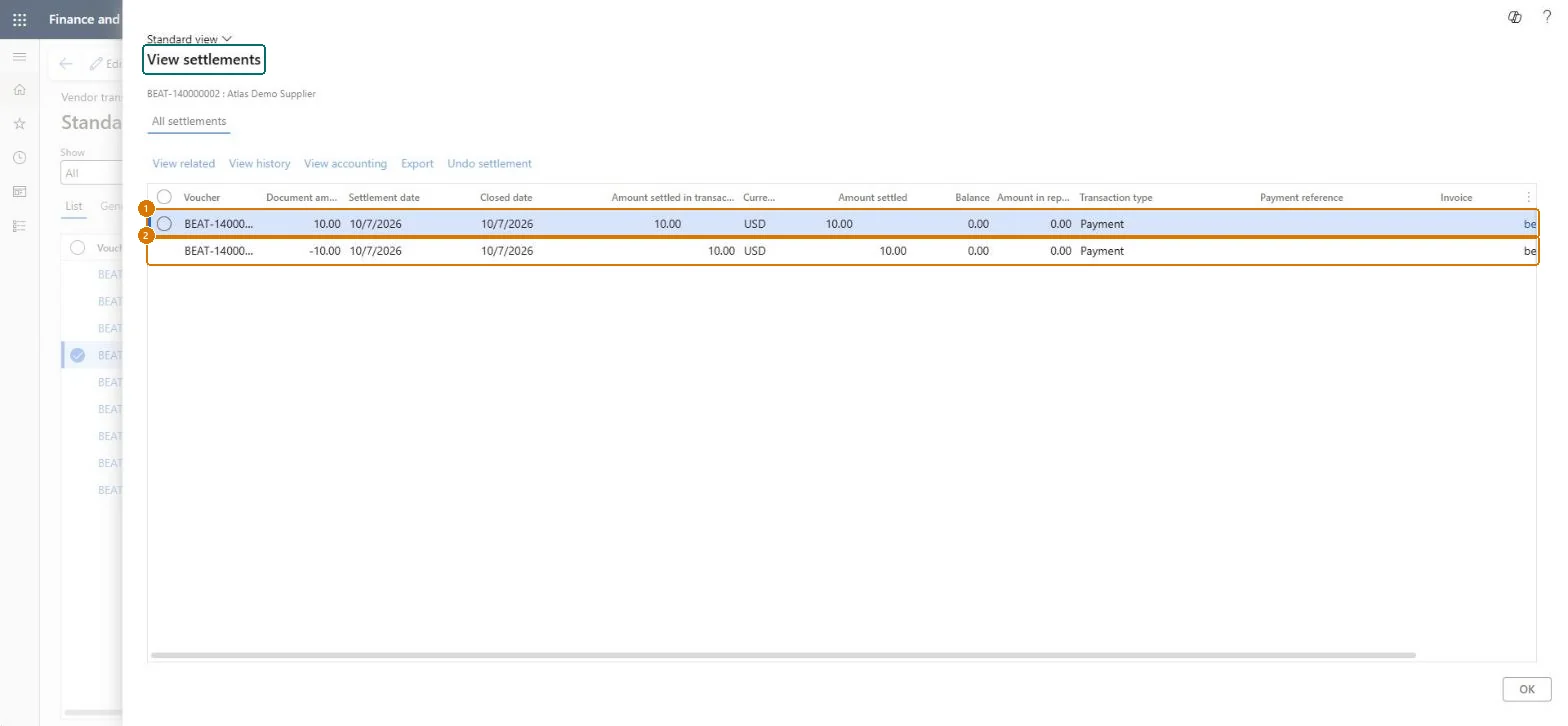
Check Journal BEAT-000003 shows BEAT-140000002 debit 10.00 and BEAT-140000003 credit 10.00 USD for BEAT-000001, with voucher totals 10.00 = 10.00, journal totals 20.00 = 20.00 and balance 0.00.
Show the full screen page title tab to open what to set or check
Screen 4
Check the debit payment voucher
Go to Accounts payable > Payments > Vendor payment journal, Voucher
One method of payment per type of payment you make (check, electronic payment, wire, cash), with Account type = Bank and the paying bank accountLearn says to typically create one method of payment for each type of payment, and that with Account type = Bank the payment posts to the Bank subledger, which supports reconciliation.
Hard to reverse: A payment method used in posted or transmitted payments must be changed through the customer's controlled payment design, not by rewriting history.
Technical architect
6Technical
Menu item
VendPaymModeChecked in Dynamics 365
Form
VendPaymModeChecked in Dynamics 365
Table
VendPaymModeTableShown as “Methods of payment - vendors” in Record infoKey field: PaymModeChecked in Dynamics 365
PrivilegesMaintain vendor methods of payment VendPaymModeMaintainView vendor methods of payment VendPaymModeViewDutiesMaintain vendor payments PaymVendorPaymentsMaintainInquire into invoice and payment policies VendInvoiceInvoicePaymentPoliciesInquirEnable invoice and payment process VendInvoiceInvoicePaymentProcessEnable5 security rolesAuditor AuditPolicyManagerAccounting manager LedgerAccountingManagerAccounting supervisor LedgerAccountingSupervisorAccounts payable payments clerk PaymAccountsPayablePaymentsClerkAccounts payable manager VendInvoiceAccountsPayableManagerChecked in Dynamics 365
Roles to set it up and use it
To set it up or change itAccounts payable manager VendInvoiceAccountsPayableManagerAccounting supervisor LedgerAccountingSupervisorTo use itAccounting manager LedgerAccountingManagerAccounts payable payments clerk PaymAccountsPayablePaymentsClerkAuditor AuditPolicyManagerGive people one of these roles. On this system, 5 roles can open this page.Checked in Dynamics 365
Actions on the page
Options: Personalize, Page options, ShareChecked in Dynamics 365
VendorPaymentMethodEntity (Vendor payment method): loaded for each company, in Microsoft's default template 120 - Accounts payable.Load order: Microsoft's default template 120 - Accounts payable loads Vendor payment method at execution unit 1, level 120, sequence 10. Lower levels load first, and entities at the same level load in sequence order.Load first: Journal names, Vendor payment format, the default templates at lower levels (System setup to Bank)Microsoft Learn
Checked in a working Dynamics 365 system, version 10.0.49: the menu item, form, table and security, the page, the demo records and the values in the screenshots.
To cite this step: AP-SETUP-020, Define vendor methods of payment. Beyond ERP Atlas Hub, 2026-11-11. https://www.beyonderp.cloud/atlas/step/AP-SETUP-020