SETUP GUIDEHow to set it up8 sections. Choose a role to highlight what matters to you.
Everyone
1What it is and why
What it is
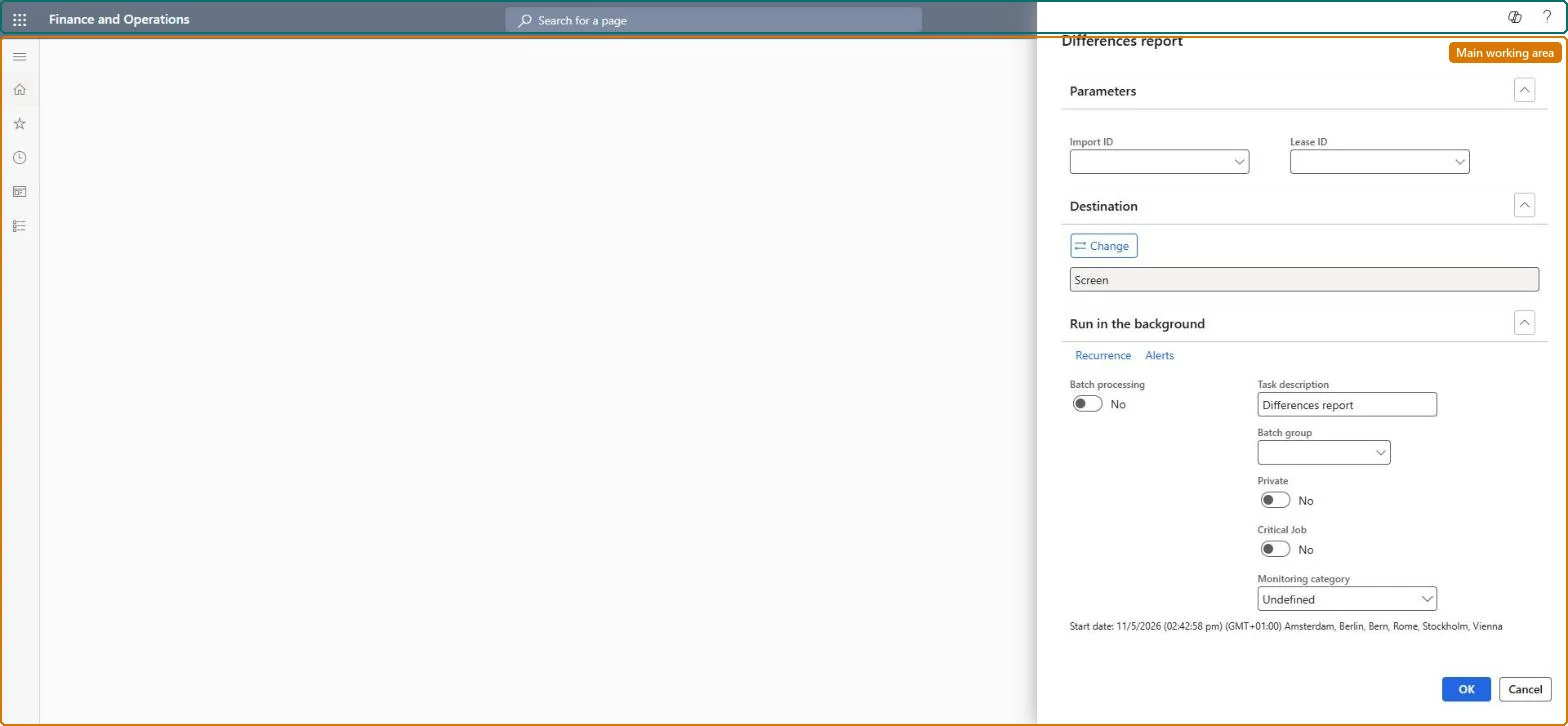
A report that shows the differences between lease data loaded into the Lease import framework staging tables and the lease data currently in the system.
What you do here
Use this page to compare what will be, or was, adjusted, updated or added through the Lease import framework before or after you migrate lease records.
Example
For example, before migrating BEAT's Update record import of new lease descriptions, the lease accountant prints the differences for the import ID and checks each old and new value.
The page in Dynamics 365. page title tab to open what to set or check
About the examples: Examples and screenshots in this guide use BEAT, a demo company in a Dynamics 365 test environment. Use your own company's codes and values instead of copying them.
When to run it
When to run it
After Compare has run for an import ID, before you migrate the lease records, or afterwards to see what the migration changed.
How often
On demand, for each lease import.
What the output shows
The fields that differ between the staging tables and the leases in the system, with old and new values per lease. Before migration the old value is the current value; after migration it is the previous value. No lines for a lease usually means Compare didn't run for it or it is an Add record lease.
Run Compare first, then this report for the import ID, and sign it off before Migrate lease records.It shows the staged value next to the system value; before migration the old value is the current one, after migration the previous one.
Asset leasing (Must be on)Multi-company purpose (Optional)
Licence or add-in
Asset leasing must be turned on in Feature management (feature Asset leasing). Microsoft Learn describes three Asset leasing roles: Maintain lease (add, edit and post leases), View lease (view leases and schedules and run reports) and Lease clerk (create new leases only). View lease users run it, as do Maintain lease users.
Runs for the legal entities you select. With the Multi-company purpose feature (version 10.0.44) the legal entities are picked from an organization hierarchy. Microsoft Learn
Can it be undone
Reversible: The report changes no data.
If you change it later
The report changes nothing; Migrate lease records applies the staged values it shows. Microsoft Learn
Technical architect
6Technical
Menu item
AssetLeaseLeaseImportDifferenceControllerChecked in Dynamics 365
Form
SysOperationTemplateFormChecked in Dynamics 365
Roles to set it up and use it
To use itLease accountant AssetLeaseLeaseMaintainAccountant LedgerAccountantLease manager AssetLeaseLeaseViewAccounting manager LedgerAccountingManagerGive people one of these roles. On this system, 4 roles can run this page.Checked in Dynamics 365
Load order: The Differences report report has no data entity in Data management, so it can't be loaded from a file or a configuration template. A report stores no data; it reads the lease books and schedules, so migrate the leases instead.Microsoft Learn