PAGE GUIDEWhat the page does and how to use it8 sections. Choose a role to highlight what matters to you.
Everyone
1What it is and why
What it is
A setup page where you define the titles and instructions that appear on each step of the task flows in the Warehouse Management mobile app.
What you do here
Use this page to customise the step titles and instructions for any language, and to create overrides for specific mobile device menu items.
Example
For example, for sales picking, if your company usually gives workers work IDs on a printed document, you can add a hint that workers should start by scanning a work ID.
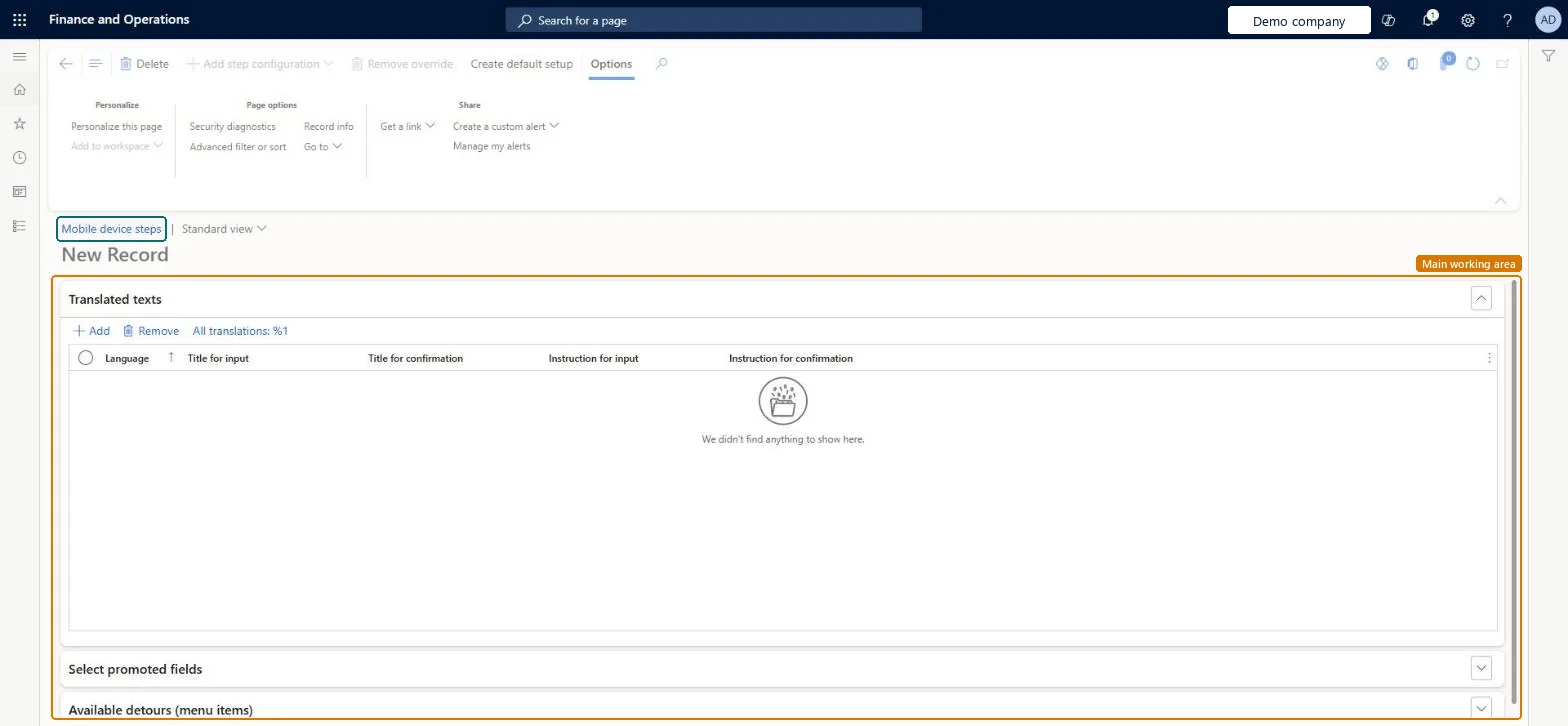
The page in Dynamics 365. page title tab to open what to set or check
About the examples: Examples and screenshots in this guide use BEAT, a demo company in a Dynamics 365 test environment. Use your own company's codes and values instead of copying them.
Setup steps on this page
Set up Mobile device steps
Use this page to customise the step titles and instructions for any language, and to create overrides for specific mobile device menu items.
Steps from Microsoft
Go to Warehouse management > Setup > Mobile device > Mobile device steps.
If the page is empty, select Create default setup on the Action Pane to fill it with the standard steps.
Find the combination of Step ID and Menu item name that you want to edit, and select the value in the Step ID column.
On the toolbar, select Add to add or edit texts for a language.
Edit the Title for input, Instruction for input, Title for confirmation and Instruction for confirmation, then select OK.
To customise a step for one menu item only, select Add step configuration on the Action Pane and choose the menu item.
Run Create default setup, edit the standard texts in your own terms, and add a menu-specific override only where one flow needs different instructionsThe default setup loads texts for every step ID in every supported language. A step ID can be shared by many menu items, so overrides keep a local change from showing in every flow.
Editing a shared step ID's standard text for one flow, which changes it for all menu items that use that step. Also, an override with no translation for a language falls back to the standard text.
Solution architect
5Design impact
Can it be undone
Reversible: Texts and overrides can be changed at any time; the app shows the new text the next time the step opens. Microsoft Learn
If you change it later
A step ID can be shared by several menu items, so a change to its title or instruction shows for all of them unless you create an override for a specific menu item. Microsoft Learn
Technical architect
6Technical
Menu item
WHSMobileAppFlowStepListPageChecked in Dynamics 365
Form
WHSMobileAppFlowStepListPageChecked in Dynamics 365
Table
WHSMobileAppFlowStepShown as “WHSMOBILEAPPFLOWSTEP” in Record infoChecked in Dynamics 365
Who can open it
PrivilegesWHSMobileAppFlowStepListPageMaintainWHSMobileAppFlowStepListPageViewDutiesEnable warehouse operation process WMSWarehouseOperationProcessEnable1 security roleWarehouse manager WMSWarehouseManagerChecked in Dynamics 365
Roles to set it up and use it
To set it up or change itWarehouse manager WMSWarehouseManagerGive people one of these roles. On this system, 1 role can open this page.Checked in Dynamics 365
Actions on the page
(Action Pane without tabs): Add step configuration, Remove override, Create default setupChecked in Dynamics 365